 Securing Pangolin Resources with CrowdSec and the Middleware Manager
This guide walks you through integrating the CrowdSec Bouncer Traefik Plugin with Pangolin and the Middleware Manager. This setup enables advanced traffic protection, behavioral analysis, and CAPTCHA enforcement using CrowdSec.
This is an updated guide to the original guide leveraging the Plugin Hub in the Middleware Manager, which simplifies Traefik plugin usage!

 Prerequisites
- A working Pangolin reverse proxy set up (see installation guide)
- Middleware Manager installed
- Traefik dashboard enabled (guide: here)
- A domain name pointed at your server
- Docker & Docker Compose
- A CrowdSec Console account
 Step-by-Step Setup
1.  Get Your CrowdSec Enrollment Key
- Visit https://app.crowdsec.net/
- Copy your Enrollment Key
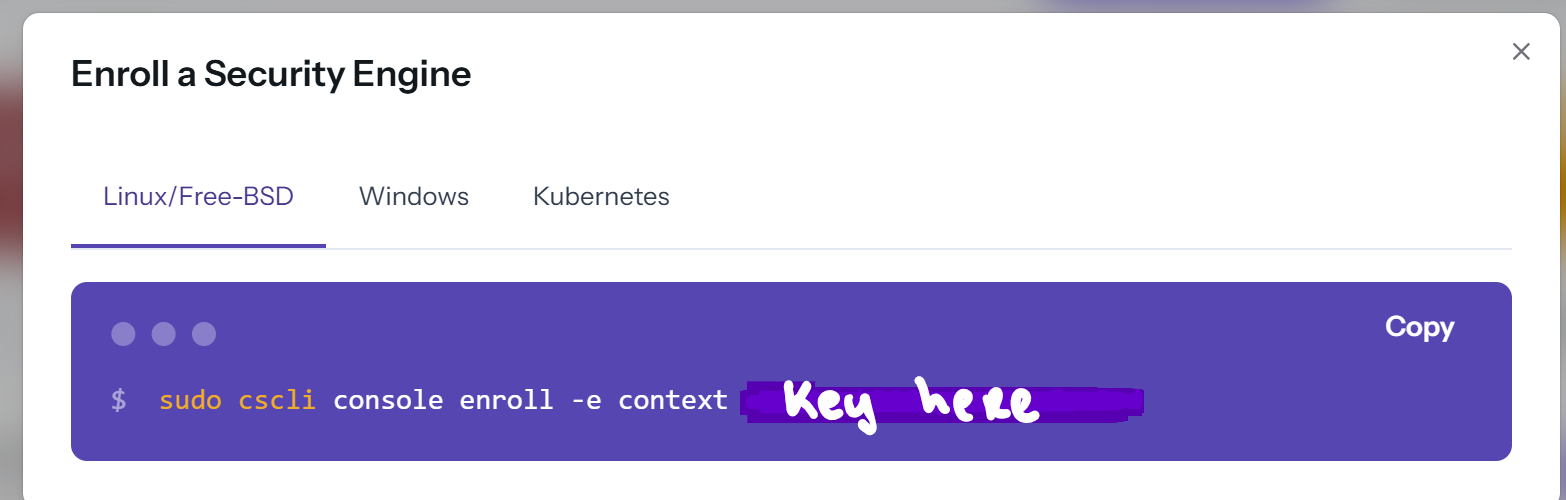
 Screenshot show the enrollment key copy location _
2.  Set Up Directory Structure
The target folder structure is important
/root/config/
├── crowdsec/
│   ├── acquis.yaml              # Defines log acquisition sources
│   ├── config.yaml              # Main CrowdSec configuration
│   ├── local_api_credentials.yaml # API credentials for bouncers
│   ├── online_api_credentials.yaml # API credentials for bouncers
│   ├── patterns/                # Fodler for patterns
│   ├── profiles.yaml            # Defines remediation profiles
│   ├── user.yaml                # User configuration
│   └── hub/
│   └── notifications/
|       └── discord.yaml (optional)  # Optional notification config
├── crowdsec_logs/               # Crowdsec Logs
├── traefik/
│   ├── conf/
│   │   └── captcha.html         # HTML template for captcha challenges
│   ├── rules/
│       └── dynamic_config.yml   # Dynamic Traefik configuration
│   ├── traefik_config.yml       # Static Traefik configuration
│   └── logs/                    # Directory for Traefik logs
└── letsencrypt/                 # Let's Encrypt certificates
To create this run the following:
mkdir -p ./config/crowdsec/notifications
mkdir -p ./config/crowdsec/hub
mkdir -p ./config/crowdsec_logs
mkdir -p ./config/crowdsec/patterns
mkdir -p ./config/traefik/conf
mkdir -p ./config/traefik/logs
Optional: Add .gitignore (so you dont check in secrets into githib)
Optional - if you are going to be checking in your config into GitHub please remember to create a .gitignore so confidential files are not checked in
Your .gitignore could look like
.env
installer
data/
config/key
config/crowdsec/db/crowdsec.db
config/crowdsec/hub/
config/db/db.sqlite
config/traefik/logs/access.log
config/crowdsec/local_api_credentials.yaml
config/crowdsec/online_api_credentials.yaml
config/crowdsec/appsec-configs/
config/crowdsec/appsec-rules/
config/crowdsec/collections/
config/crowdsec/contexts/
config/crowdsec/parsers/
config/crowdsec/patterns/
config/crowdsec/scenarios/
*.bak.*
3.  Create Required Config Files
Create these files under ./config/crowdsec:
acquis.yaml – for log sources
filenames:
 - /var/log/auth.log
 - /var/log/syslog
labels:
  type: syslog
---
poll_without_inotify: false
filenames:
  - /var/log/traefik/*.log
labels:
  type: traefik
---
listen_addr: 0.0.0.0:7422
appsec_config: crowdsecurity/appsec-default
name: myAppSecComponent
source: appsec
labels:
  type: appsec
This configuration:
- Monitors system logs for SSH and authentication attacks
- Watches Traefik logs for web attacks
- Enables the Application Security (WAF) component on port 7422
config.yaml – main settings
common:
  daemonize: false
  log_media: stdout
  log_level: info
  log_dir: /var/log/
config_paths:
  config_dir: /etc/crowdsec/
  data_dir: /var/lib/crowdsec/data/
  simulation_path: /etc/crowdsec/simulation.yaml
  hub_dir: /etc/crowdsec/hub/
  index_path: /etc/crowdsec/hub/.index.json
  notification_dir: /etc/crowdsec/notifications/
  plugin_dir: /usr/local/lib/crowdsec/plugins/
crowdsec_service:
  acquisition_path: /etc/crowdsec/acquis.yaml
  acquisition_dir: /etc/crowdsec/acquis.d
  parser_routines: 1
plugin_config:
  user: nobody
  group: nobody
cscli:
  output: human
db_config:
  log_level: info
  type: sqlite
  db_path: /var/lib/crowdsec/data/crowdsec.db
  flush:
    max_items: 5000
    max_age: 7d
  use_wal: false
api:
  client:
    insecure_skip_verify: false
    credentials_path: /etc/crowdsec/local_api_credentials.yaml
  server:
    log_level: info
    listen_uri: 0.0.0.0:8080
    profiles_path: /etc/crowdsec/profiles.yaml
    trusted_ips: # IP ranges, or IPs which can have admin API access
      - 127.0.0.1
      - ::1
    online_client: # Central API credentials (to push signals and receive bad IPs)
      credentials_path: /etc/crowdsec/online_api_credentials.yaml
    enable: true
prometheus:
  enabled: true
  level: full
  listen_addr: 0.0.0.0
  listen_port: 6060
This configuration:
Sets up the CrowdSec API server to listen on all interfaces (0.0.0.0)
Configures path to credentials and profiles
Allows connections from all IPs, which is needed for the Traefik plugin to communicate with CrowdSec
profiles.yaml – remediation profiles
name: captcha_remediation
filters:
  - Alert.Remediation == true && Alert.GetScope() == "Ip" && Alert.GetScenario() contains "http"
decisions:
  - type: captcha
    duration: 4h
on_success: break

---
name: default_ip_remediation
filters:
 - Alert.Remediation == true && Alert.GetScope() == "Ip"
decisions:
 - type: ban
   duration: 4h
on_success: break

---
name: default_range_remediation
filters:
 - Alert.Remediation == true && Alert.GetScope() == "Range"
decisions:
 - type: ban
   duration: 4h
on_success: break
This configuration:
- Creates a captcha profile for HTTP-related attacks
- Sets up IP banning for other types of attacks
- Configures ban durations of 4 hours
Important: Make sure to comment out any notification configurations in this file (slack, splunk, http, email) if you’re not using them, as they might cause errors.
user.yaml
common:
  daemonize: false
  log_media: stdout
  log_level: info
  log_dir: /var/log/
config_paths:
  config_dir: /etc/crowdsec/
  data_dir: /var/lib/crowdsec/data
crowdsec_service:
  parser_routines: 1
cscli:
  output: human
db_config:
  type: sqlite
  db_path: /var/lib/crowdsec/data/crowdsec.db
  user: crowdsec
  #log_level: info
  password: crowdsec
  db_name: crowdsec
  host: "127.0.0.1"
  port: 3306
api:
  client:
    insecure_skip_verify: false # default true
    credentials_path: /etc/crowdsec/local_api_credentials.yaml
  server:
    #log_level: info
    listen_uri: 127.0.0.1:8080
    profiles_path: /etc/crowdsec/profiles.yaml
    online_client: # Central API
      credentials_path: /etc/crowdsec/online_api_credentials.yaml
prometheus:
  enabled: true
  level: full
This configures the user configuration paths
simulation.yaml
simulation: false
# exclusions:
#  - crowdsecurity/ssh-bf
local_api_credentials.yaml
url: http://0.0.0.0:8080
login: localhost
password: UNIQUE_PASSWORD_WILL_BE_INSERTED_HERE
online_api_credentials.yaml
touch ./config/crowdsec/online_api_credentials.yaml
4.  Traefik Setup
Add Captcha Template:
cd ./config/traefik/conf
wget https://gist.githubusercontent.com/hhftechnology/48569d9f899bb6b889f9de2407efd0d2/raw/captcha.html
cd ../../..
Update traefik_config.yml logging format:
change from
log:
    format: common
    level: INFO
to:
log:
    level: "INFO"
    format: "json"

accessLog:
    filePath: "/var/log/traefik/access.log"
    format: json
5.  Add CrowdSec to Docker Compose
You’ll need to update your Docker Compose file to include CrowdSec. Here’s how to add the CrowdSec service.
Make sure you insert your enrolment key that you obtain in a previous step
# Add CrowdSec services
  crowdsec:
    command: -t
    container_name: crowdsec
    environment:
      ACQUIRE_FILES: /var/log/traefik/*.log
      COLLECTIONS: crowdsecurity/traefik crowdsecurity/appsec-virtual-patching crowdsecurity/appsec-generic-rules
      ENROLL_INSTANCE_NAME: pangolin-crowdsec
      ENROLL_TAGS: docker
      ENROLL_KEY: INSERT-ENROLLMENT-KEY-HERE
      GID: "1000"
      PARSERS: crowdsecurity/whitelists
    healthcheck:
      test:
        - CMD
        - cscli
        - lapi
        - status
      interval: 10s
      timeout: 5s
      retries: 3
      start_period: 30s
    image: crowdsecurity/crowdsec:latest
    depends_on:
      - gerbil
    labels:
      - traefik.enable=false
    ports:
      - 8080:8080
      - 6060:6060
    expose:
      - 8080
      - 6060
      - 7422
    restart: unless-stopped
    volumes:
      - ./config/crowdsec:/etc/crowdsec
      - ./config/crowdsec/db:/var/lib/crowdsec/data
      - ./config/crowdsec_logs/auth.log:/var/log/auth.log:ro
      - ./config/crowdsec_logs/syslog:/var/log/syslog:ro
      - ./config/crowdsec_logs:/var/log
      - ./config/traefik/logs:/var/log/traefik
      - ./config/traefik/conf/captcha.html:/etc/traefik/conf/captcha.html
This configuration:
Sets up CrowdSec with the Traefik collections and parsers
Maps volumes for configuration and logs
Exposes the necessary ports for the API and metrics
Configures health checks and dependencies
6. Check that Crowdsec starts
Assuming that the other docker stack is running (otherwise start it) then you can bring to bring up crowdsec
docker compose up crowdsec
you are looking for errors like the following in the docker logs crowdsec
crowdsec  | time="2025-05-28T08:45:27Z" level=fatal msg="no configuration paths provided"
crowdsec  | Error: open null: no such file or directory
this indicates that some of the configuration files cant be found. So check the conf.yaml file to ensure everything is set correctly.
If you experience issues in getting Crowdsec going you can reset the database to clear out any residual config
rm -rf ./config/crowdsec/db/
and then change the config and start docker again.
7.  Pull the Hub Index
The first time you start crowdsec you will see an error like
crowdsec | Error: invalid hub index: unable to read index file: open /etc/crowdsec/hub/.index.json: no such file or directory. Run 'sudo cscli hub update' to download the index again
we will now manually pull down the hub update by accessing the container’s shell and running the command
docker run --rm -it \
  --name crowdsec-shell \
  --entrypoint /bin/sh \
  -e GID="1000" \
  -e COLLECTIONS="crowdsecurity/traefik crowdsecurity/appsec-virtual-patching crowdsecurity/appsec-generic-rules" \
  -e ENROLL_INSTANCE_NAME="pangolin-crowdsec" \
  -e PARSERS="crowdsecurity/whitelists" \
  -e ENROLL_KEY="REMOVED" \
  -e ACQUIRE_FILES="/var/log/traefik/access.log" \
  -e ENROLL_TAGS="docker" \
  -v "$(pwd)/config/crowdsec:/etc/crowdsec" \
  -v "$(pwd)/config/crowdsec/db:/var/lib/crowdsec/data" \
  -v "$(pwd)/config/crowdsec_logs/auth.log:/var/log/auth.log:ro" \
  -v "$(pwd)/config/crowdsec_logs/syslog:/var/log/syslog:ro" \
  -v "$(pwd)/config/crowdsec_logs:/var/log" \
  -v "$(pwd)/config/traefik/logs:/var/log/traefik" \
  -v "$(pwd)/config/traefik/conf/captcha.html:/etc/traefik/conf/captcha.html" \
  crowdsecurity/crowdsec:latest
you can then run
cscli hub update
you will see
Downloading /etc/crowdsec/hub/.index.json
8. Generate the online_api_credentials
You need to regenerate the /etc/crowdsec/online_api_credentials.yaml. The easiest way is rm /etc/crowdsec/online_api_credentials.yaml and register again using the enrolment key from the previous step
touch /etc/crowdsec/online_api_credentials.yaml
cscli capi register
cscli console enroll <id>
try
docker compose up crowdsec
if you see an error - Instance already enrolled. You can use ‘–overwrite’ to force enroll
if you error the error crowdsec | time="2025-05-28T12:37:09Z" level=fatal msg="crowdsec init: while loading parsers: failed to load parser config
then you will need to install the parsers
docker run --rm -it \
  --name crowdsec-shell \
  --entrypoint /bin/sh \
  -e GID="1000" \
  -e COLLECTIONS="crowdsecurity/traefik crowdsecurity/appsec-virtual-patching crowdsecurity/appsec-generic-rules" \
  -e ENROLL_INSTANCE_NAME="pangolin-crowdsec" \
  -e PARSERS="crowdsecurity/whitelists" \
  -e ENROLL_KEY="REMOVED" \
  -e ACQUIRE_FILES="/var/log/traefik/access.log" \
  -e ENROLL_TAGS="docker" \
  -v "$(pwd)/config/crowdsec:/etc/crowdsec" \
  -v "$(pwd)/config/crowdsec/db:/var/lib/crowdsec/data" \
  -v "$(pwd)/config/crowdsec_logs/auth.log:/var/log/auth.log:ro" \
  -v "$(pwd)/config/crowdsec_logs/syslog:/var/log/syslog:ro" \
  -v "$(pwd)/config/crowdsec_logs:/var/log" \
  -v "$(pwd)/config/traefik/logs:/var/log/traefik" \
  -v "$(pwd)/config/traefik/conf/captcha.html:/etc/traefik/conf/captcha.html" \
  crowdsecurity/crowdsec:latest
ls /etc/crowdsec/config/patterns/
if you don’t see any folders your crowdsec doesn’t have the required patterns
Here’s a working around to download them
wget -P /opt https://github.com/crowdsecurity/crowdsec/archive/refs/tags/v1.6.9-rc2.zip
unzip /opt/v1.6.9-rc2.zip -d /opt
cp -r /opt/crowdsec-1.6.9-rc2/config/patterns/* /etc/crowdsec/patterns/
rm -rf /opt/crowdsec-1.6.9-rc2 /opt/v1.6.9-rc2.zip
try
docker compose up crowdsec -d
Everything should be working fine now. Check by looking at the logs docker logs crowdsec
9.  Generate API Key for Crowdsec Bouncer
docker exec crowdsec cscli bouncers add traefik-bouncer
it will return something like
API key for 'traefik-bouncer':

   YOUR-LAPI-KEY-HERE

Please keep this key since you will not be able to retrieve it! You will need it later
Save the API key for use in the middleware.
10.  Set Up Cloudflare Turnstile
- Visit https://dash.cloudflare.com/
- Create a Turnstile Widget
- Copy the site key and secret key
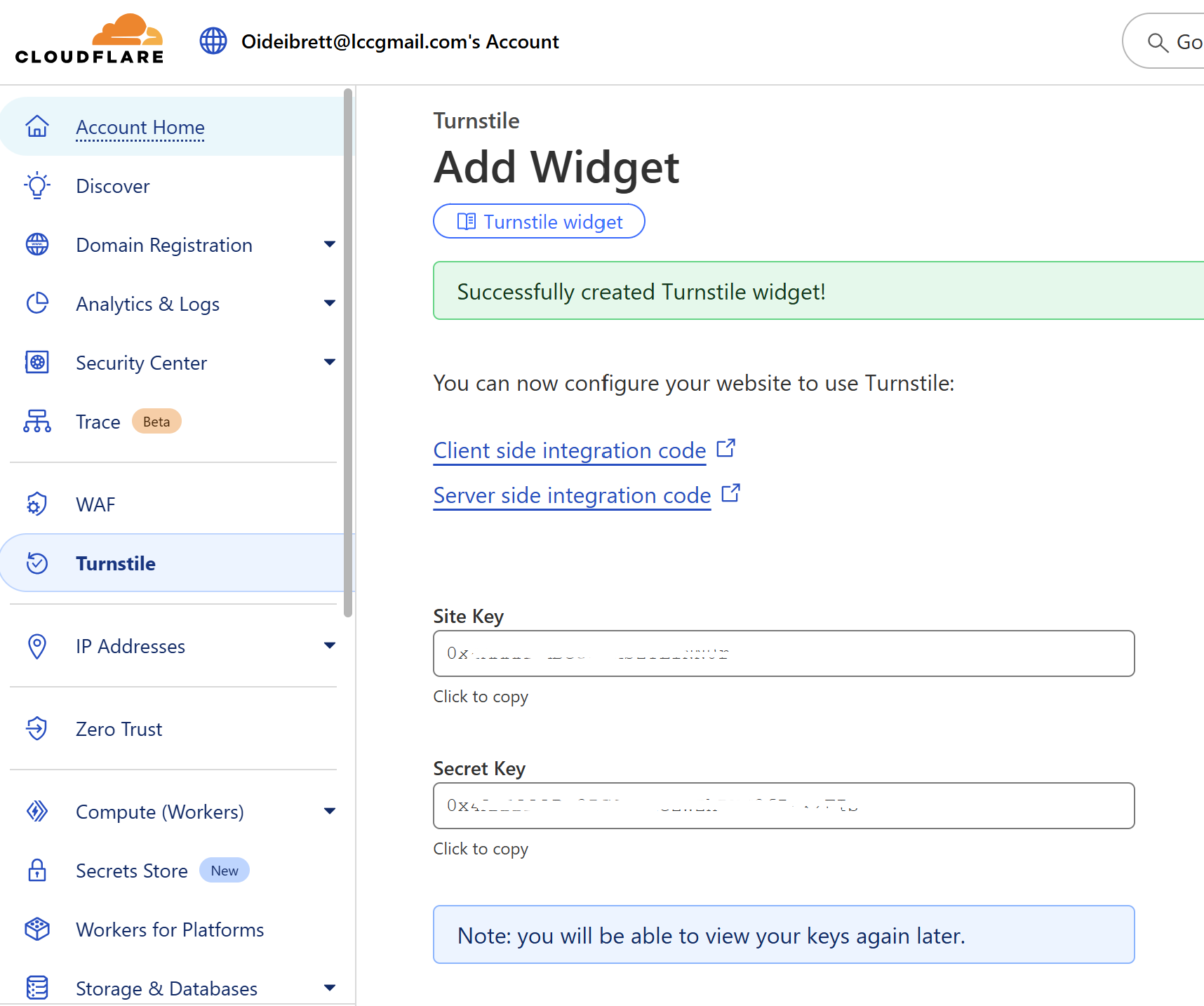
Screenshot Widget config page
11.  Add the Crowdsec Bouncer Plugin in the Middleware Manager
We now use the middleware manager to install the Crowdsec Bouncer Plugin to our traefik_config
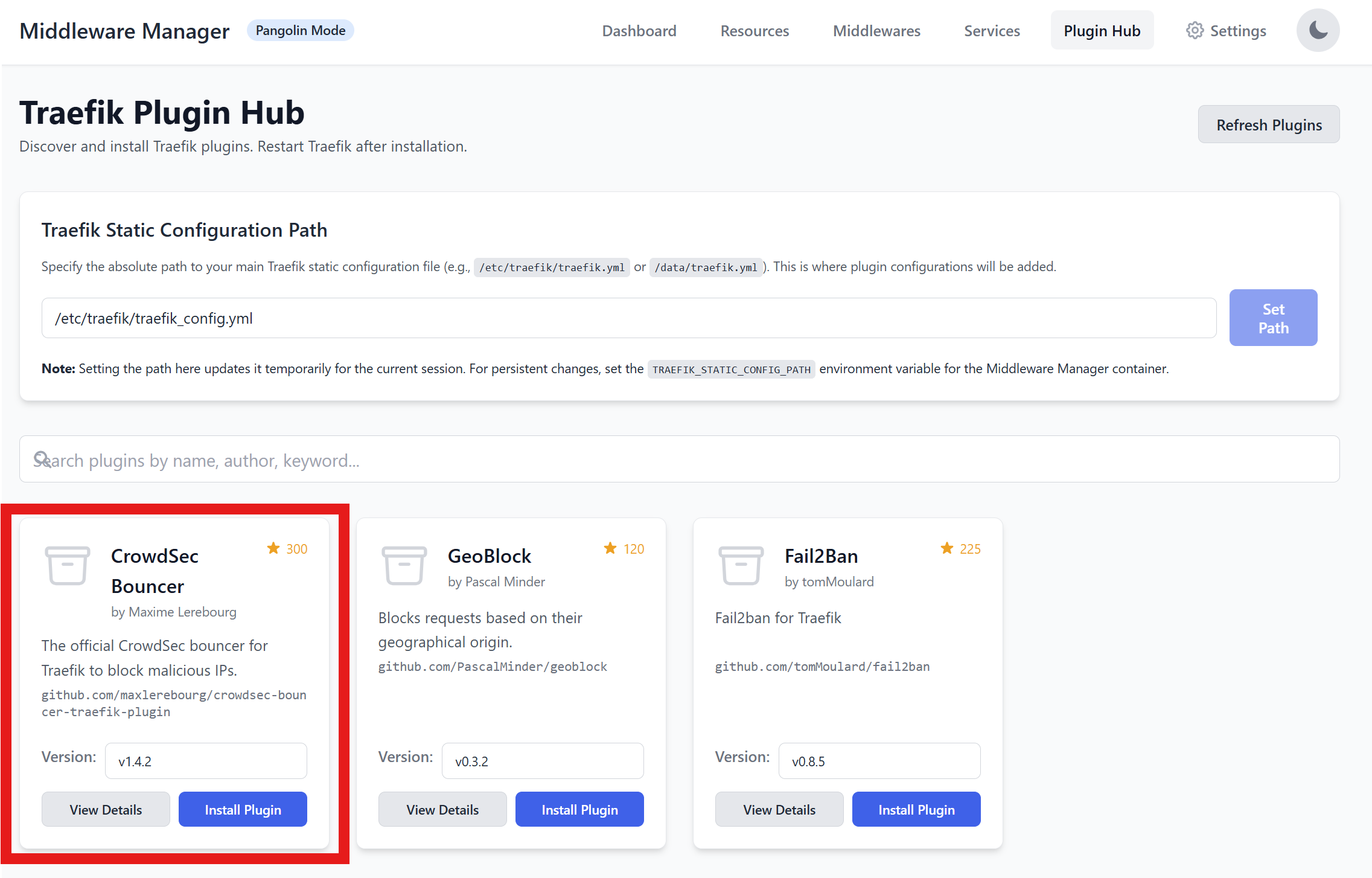
Screenshot - Adding Plugin
12. Add the Middleware in Middleware Manager
Navigate to Middleware Manager > Plugins and configure the CrowdSec plugin with:
{
  "crowdsec-bouncer-traefik": {
    "enabled": true,
    "captchaProvider": "turnstile",
    "captchaSiteKey": "YOUR_TURNSTILE_KEY",
    "captchaSecretKey": "YOUR_TURNSTILE_SECRET",
    "captchaHTMLFilePath": "/etc/traefik/conf/captcha.html",
    "crowdsecLapiHost": "crowdsec:8080",
    "crowdsecAppsecHost": "crowdsec:7422",
    "crowdsecLapiKey": "YOUR_API_KEY",
    "crowdsecMode": "live",
    "clientTrustedIPs": [],
    "forwardedHeadersTrustedIPs": ["0.0.0.0/0"]
  }
}
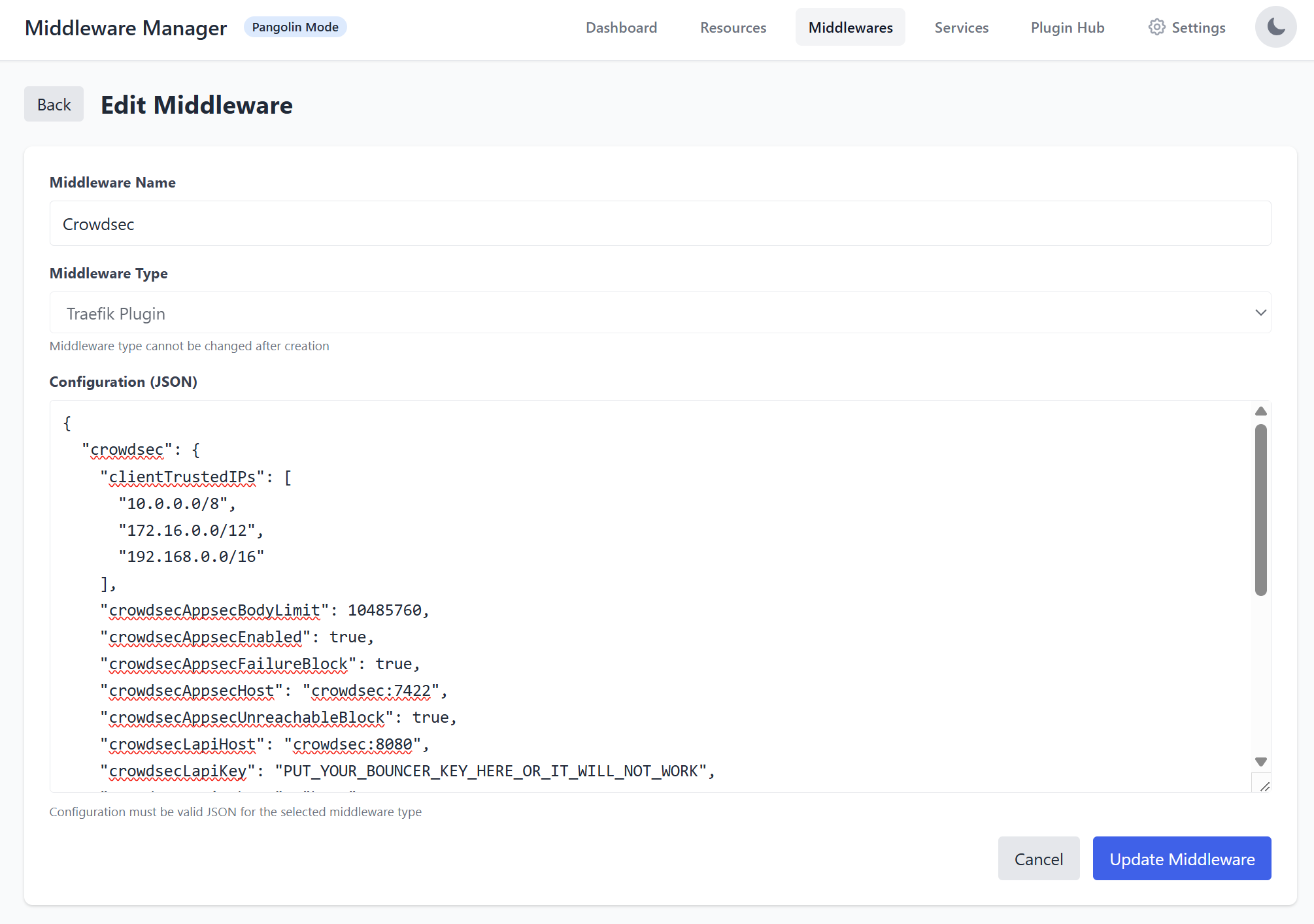
Screenshot Middleware Manager CrowdSec form
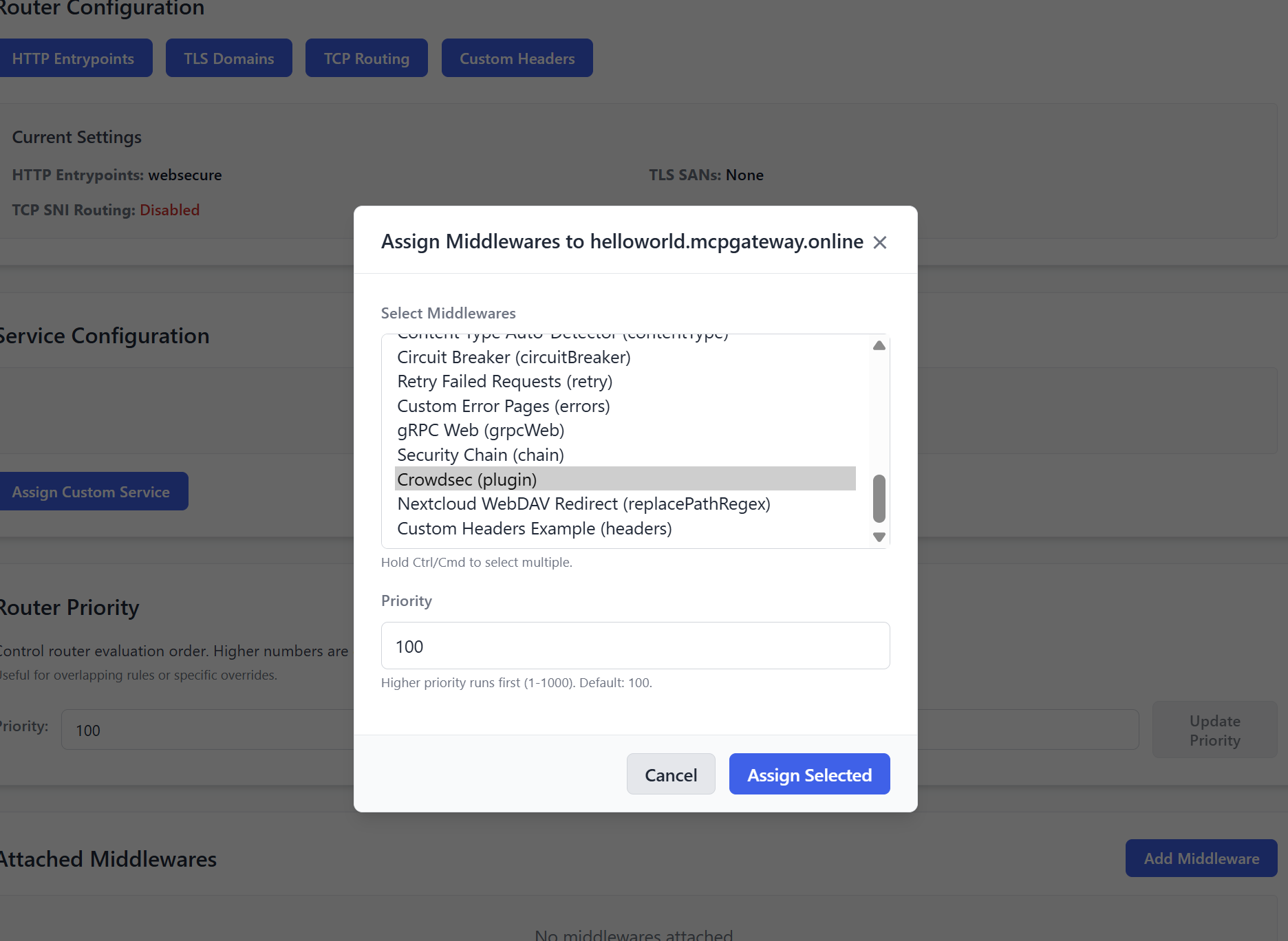
13. Protect a Resource
Protect a test or live resource (e.g., secure.yourdomain.com) in Pangolin and attach the CrowdSec middleware using the Middleware Manager.
Screenshot: Attaching middleware to resource
14.  Test
Test
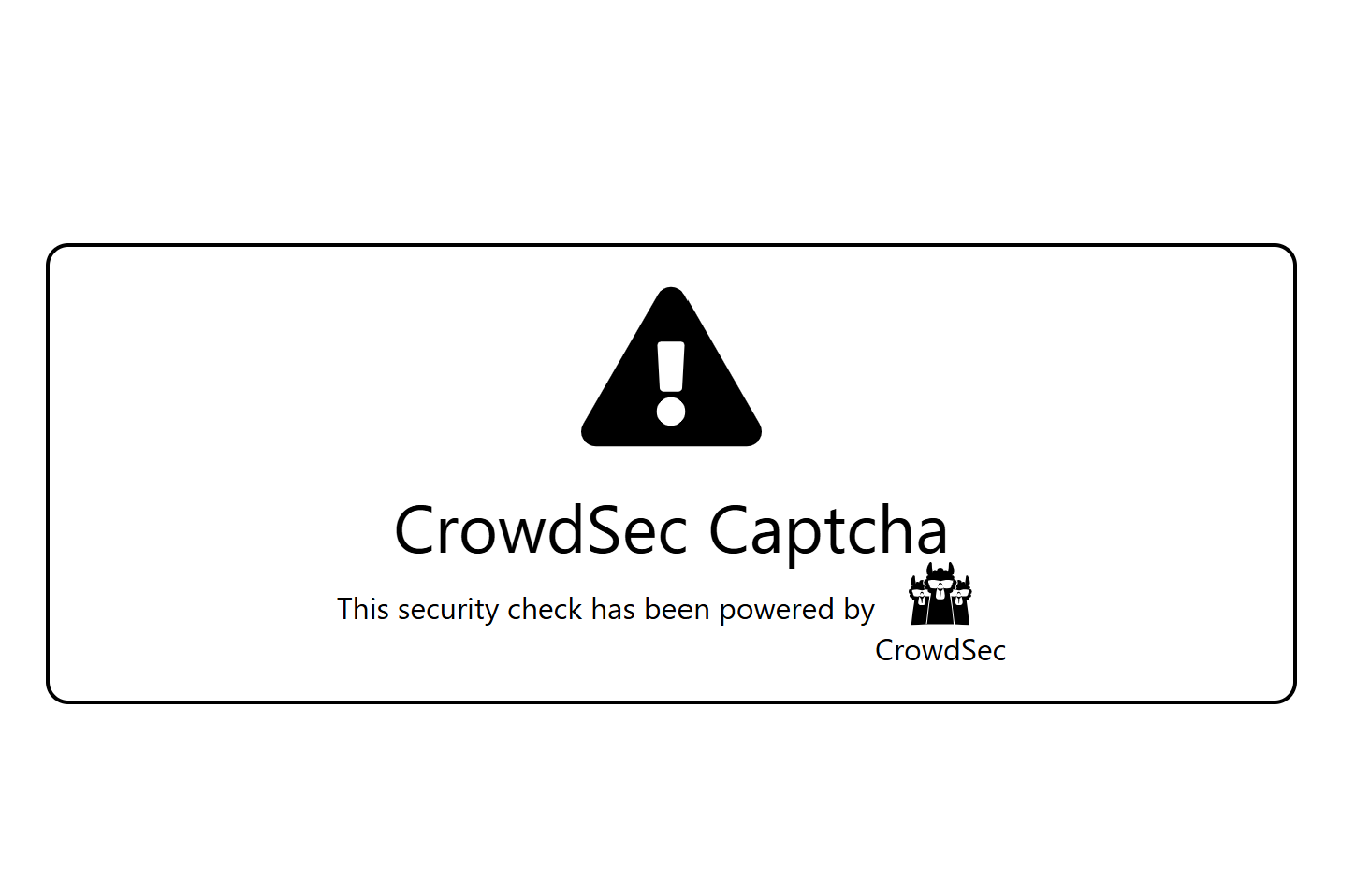
Manually trigger a CAPTCHA challenge:
docker exec crowdsec cscli decisions add --ip YOUR_IP --type captcha -d 1h

Visit your protected site and validate the CAPTCHA appears.
15.  Troubleshooting
# View decisions
docker exec crowdsec cscli decisions list

# Clear test decision
docker exec crowdsec cscli decisions delete --ip YOUR_IP

# Monitor logs
docker compose logs traefik -f
docker logs crowdsec

# Check installed scenarios
docker exec crowdsec cscli collections list
 Maintenance Tips
- Update CrowdSec regularly:
docker exec crowdsec cscli hub update
docker exec crowdsec cscli collections upgrade
- Add allowlists for trusted IPs
- Monitor metrics at
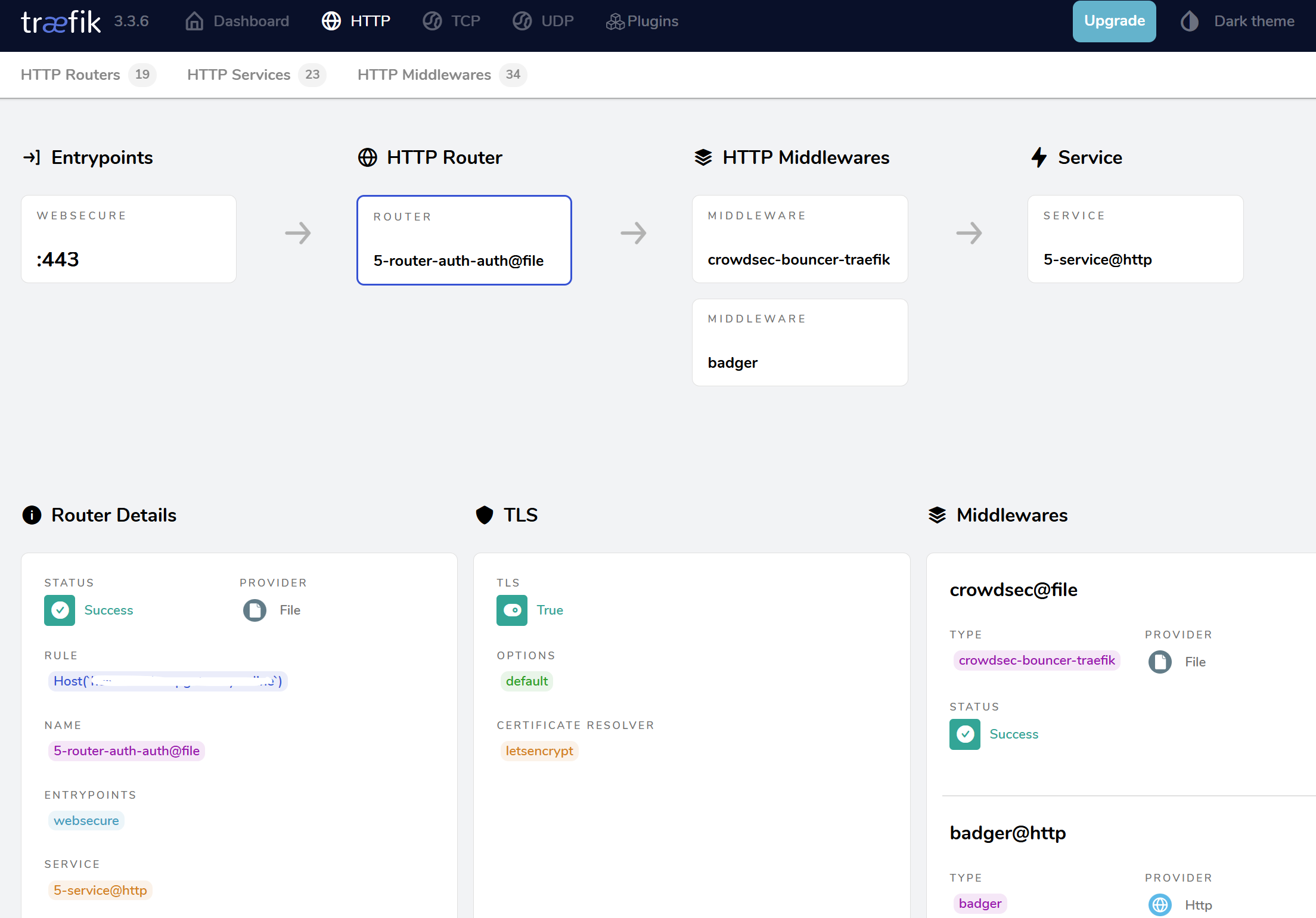
http://localhost:6060/metrics - Use the Traefik dashboard to validate middleware status
Screenshot: Traefik dashboard with middleware visible
Useful Commands
Useful Commands for Monitoring and Troubleshooting
# View CrowdSec overview
docker exec crowdsec cscli status

# Check which collections are installed
docker exec crowdsec cscli collections list

# Monitor CrowdSec resources
docker stats crowdsec

# Check AppSec metrics
curl http://localhost:6060/metrics | grep appsec

# View Traefik logs
docker exec -it crowdsec ls -l /var/log/traefik/

# Check CrowdSec metrics
docker exec -it crowdsec cscli metrics

# View active decisions
docker exec -it crowdsec cscli decisions list

# Monitor CrowdSec logs
docker exec -it crowdsec tail -f /var/log/traefik/access.log

# Manually add decisions for testing
docker exec crowdsec cscli decisions add --ip <IP> --type captcha -d 1h
docker exec crowdsec cscli decisions add -i <IP> -t ban -d 1h

# Monitor Traefik logs
docker compose logs traefik -f

# Restart services
docker compose restart traefik crowdsec

# View/manage bouncers
docker exec crowdsec cscli bouncers list
docker exec crowdsec cscli bouncers add traefik-bouncer
docker exec crowdsec cscli bouncers delete traefik-bouncer
Summary
You now have:
- CrowdSec actively protecting your reverse proxy
- CAPTCHA support via Cloudflare Turnstile
- Easy middleware management using Middleware Manager
- Visibility with the Traefik dashboard
 Final Words
I have tried to summarize this in a way that is mostly understandable but here is a link to the detailed steps in case you need them.
CrowdSec + Pangolin + Middleware Manager form a powerful triad for self-hosted security. With behavior-based detection, real-time blocking, and collaborative intelligence, you’re far better equipped to defend your infrastructure.
Happy securing!

