Comprehensive Guide: Integrating CrowdSec with Pangolin
CrowdSec is an open-source security automation platform that detects and responds to malicious activity by analyzing logs in real-time. When integrated with Pangolin, it provides an additional layer of security through collaborative threat intelligence and automated response capabilities.
This guide will walk you through the complete process of setting up CrowdSec with your Pangolin deployment to enhance your security posture.
What is CrowdSec and Why Add it to Pangolin?
CrowdSec acts as a security bouncer for your Pangolin deployment, offering several benefits:
-
Real-time attack detection by analyzing Traefik logs
-
Automated remediation through captchas and IP bans
-
Collaborative security with shared threat intelligence
-
Application-level security with WAF (Web Application Firewall) capabilities
-
Reduced false positives through community-curated rules
By default, Pangolin doesn’t include CrowdSec, so this integration adds significant security capabilities to protect your exposed services.
:::note
This is a community guide and is not officially supported. If you have any issues, please reach out to the author.
:::
Before You Begin
Before doing anything, first you have to add the CrowdSec part in the compose file and UP the stack. The full compose file is at the bottom of this guide. All the files are auto-generated, and you just have to edit them as per your requirements.
Get CrowdSec Enrollment Key
-
Log in to your account
-
Obtain the enrollment key from your dashboard
-
Copy this key for later use
Part 1: Files and Configuration
Files You’ll Need to Edit
First, let’s understand the file structure we’ll be working with:
/root/config/
├── crowdsec/
│   ├── acquis.d/
│   │   ├── syslog.yaml          # Syslog configuration
│   │   └── journalctl.yaml      # Journalctl configuration (alternative)
│   ├── config.yaml              # Main CrowdSec configuration
│   ├── local_api_credentials.yaml # API credentials for bouncers
│   ├── profiles.yaml            # Defines remediation profiles
│   ├── user.yaml                # User configuration
│   ├── db/                      # CrowdSec database
│   └── notifications/
│       └── discord.yaml         # Optional notification config
├── traefik/
│   ├── conf/
│   │   ├── captcha.html         # HTML template for captcha challenges
│   │   └── ban.html             # HTML template for ban page
│   ├── dynamic_config.yml       # Dynamic Traefik configuration
│   ├── traefik_config.yml       # Static Traefik configuration
│   └── logs/                    # Directory for Traefik logs
└── letsencrypt/                 # Let's Encrypt certificates
Step 1: Create Required Directories
Before starting with configurations, ensure all necessary directories exist:
mkdir -p /root/config/crowdsec/acquis.d
mkdir -p /root/config/crowdsec/notifications
mkdir -p /root/config/crowdsec/db
mkdir -p /root/config/traefik/conf
mkdir -p /root/config/traefik/logs
mkdir -p /root/config/crowdsec_logs
Step 2: CrowdSec Installation and Configuration
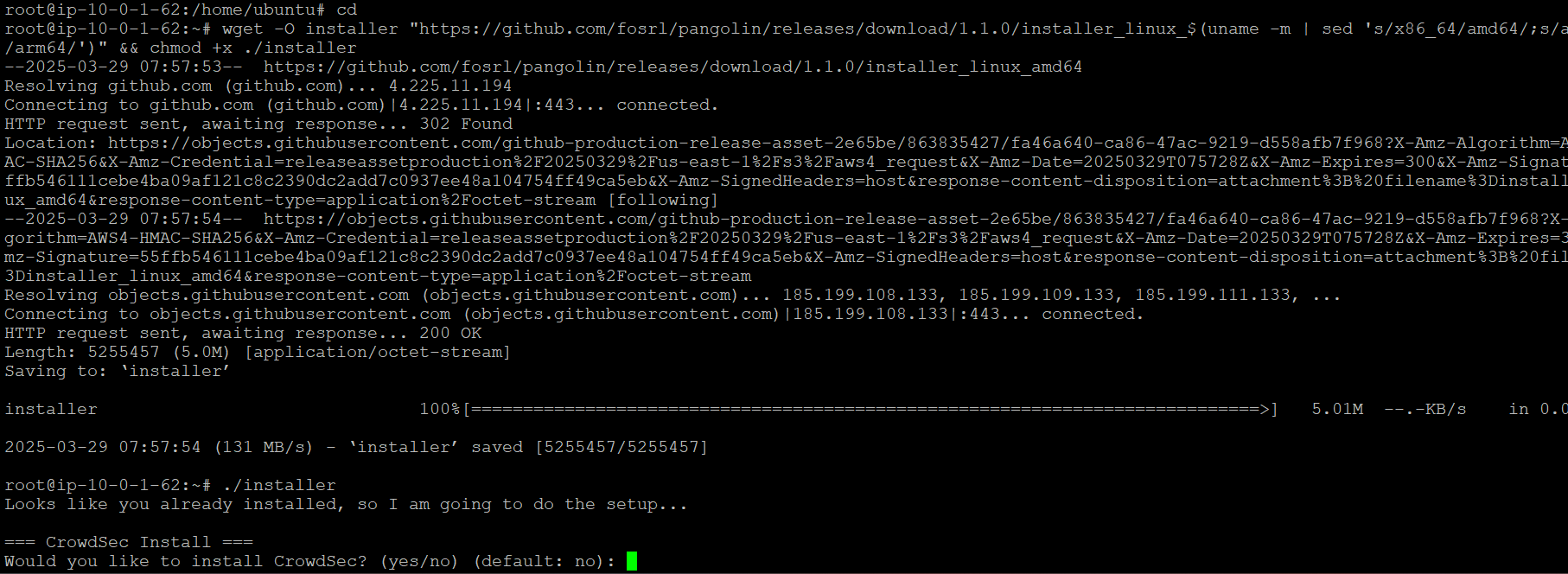
CrowdSec can be installed using the Pangolin Installer and comes with a basic configuration that includes the CrowdSec Bouncer Traefik plugin.
Choose the Right Logging Method
You have two options for system log monitoring. Choose the one that best fits your system:
Option A: Syslog Configuration
For systems utilizing Syslog, add the following volumes to your docker-compose.yml file:
service:
  crowdsec:
    volumes:
      - /var/log/auth.log:/var/log/auth.log:ro
      - /var/log/syslog:/var/log/syslog:ro
Create a syslog.yaml file under /config/crowdsec/acquis.d with the following content:
filenames:
  - /var/log/auth.log
  - /var/log/syslog
labels:
  type: syslog
Option B: Journalctl Configuration
To log iptables to journalctl, execute the following command on your host system:
iptables -A INPUT -j LOG --log-prefix "iptables: "
Update the docker-compose.yml file as follows:
service:
  crowdsec:
    image: crowdsecurity/crowdsec:latest-debian
    environment:
      COLLECTIONS: crowdsecurity/traefik crowdsecurity/appsec-virtual-patching crowdsecurity/appsec-generic-rules crowdsecurity/linux crowdsecurity/iptables
    volumes:
      - ./config/crowdsec:/etc/crowdsec
      - ./config/crowdsec/db:/var/lib/crowdsec/data
      - ./config/traefik/logs:/var/log/traefik:ro
      - /var/log/journal:/var/log/host:ro
Create a journalctl.yaml file under /config/crowdsec/acquis.d with the following content:
source: journalctl
journalctl_filter:
  - "--directory=/var/log/host/"
labels:
  type: syslog
Configure Main CrowdSec Files
a. Configure config.yaml
Create or edit /root/config/crowdsec/config.yaml:
api:
  client:
    insecure_skip_verify: false
    credentials_path: /etc/crowdsec/local_api_credentials.yaml
  server:
    log_level: info
    listen_uri: 0.0.0.0:8080
    profiles_path: /etc/crowdsec/profiles.yaml
    trusted_ips:
      - 0.0.0.0/0 # Allow all IPs to connect to the API
      - 127.0.0.1
      - ::1
This configuration:
-
Sets up the CrowdSec API server to listen on all interfaces (0.0.0.0)
-
Configures path to credentials and profiles
-
Allows connections from all IPs, which is needed for the Traefik plugin to communicate with CrowdSec
b. Configure profiles.yaml
Create or edit /root/config/crowdsec/profiles.yaml:
name: captcha_remediation
filters:
  - Alert.Remediation == true && Alert.GetScope() == "Ip" && Alert.GetScenario() contains "http"
decisions:
  - type: captcha
    duration: 4h
on_success: break

---
name: default_ip_remediation
filters:
 - Alert.Remediation == true && Alert.GetScope() == "Ip"
decisions:
 - type: ban
   duration: 4h
on_success: break

---
name: default_range_remediation
filters:
 - Alert.Remediation == true && Alert.GetScope() == "Range"
decisions:
 - type: ban
   duration: 4h
on_success: break
This configuration:
-
Creates a captcha profile for HTTP-related attacks
-
Sets up IP banning for other types of attacks
-
Configures ban durations of 4 hours
Important: Make sure to comment out any notification configurations in this file (slack, splunk, http, email) if you’re not using them, as they might cause errors.
Step 3: Securing the Host System (SSH)
By default, only Traefik requests are secured through the CrowdSec bouncer. To extend protection to your host system (e.g., SSH), follow these steps to add a firewall bouncer:
- Install the CrowdSec repositories. Refer to the installation documentation:
curl -s https://install.crowdsec.net | sudo sh
- Install the firewall bouncer. For Debian/Ubuntu systems using IPTables, refer to the documentation:
sudo apt install crowdsec-firewall-bouncer-iptables
- Create an API key for the firewall bouncer to communicate with your CrowdSec Docker container (“vps-firewall” is a placeholder name for the key):
docker exec -it crowdsec cscli bouncers add vps-firewall
- Copy the displayed API key and insert it into the bouncer’s configuration file:
nano /etc/crowdsec/bouncers/crowdsec-firewall-bouncer.yaml
- Restart the firewall bouncer:
systemctl restart crowdsec-firewall-bouncer
- Update the
docker-compose.ymlfile to expose communication port8080for the CrowdSec container and restart the container:
service:
  crowdsec:
    ports:
      - 6060:6060 # Metrics port
      - 8080:8080 # Local API port
:::warning Docker’s NAT-based port publishing feature automatically exposes all ports: defined in the docker-compose file on all network interfaces. This behavior can bypass your host firewall settings, potentially exposing services that you did not intend to make public. Please see complete warning about exposing ports. :::
- Verify communication between the firewall bouncer and the CrowdSec container by running:
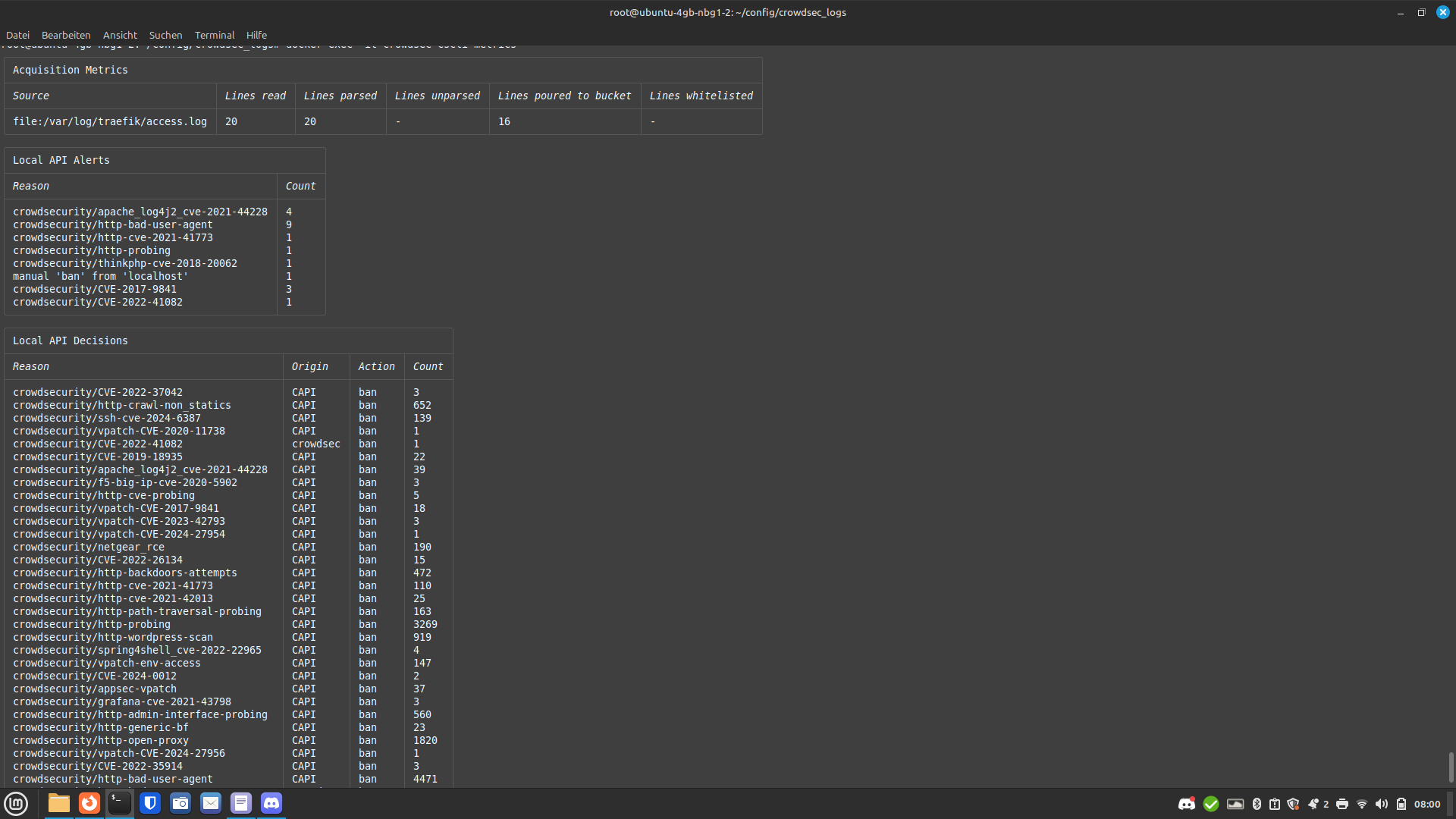
docker exec crowdsec cscli metrics
The output should look like this:
+------------------------------------------------------------------+
| Local API Bouncers Metrics                                       |
+---------------------------+----------------------+--------+------+
| Bouncer                   | Route                | Method | Hits |
+---------------------------+----------------------+--------+------+
| traefik-bouncer           | /v1/decisions/stream | HEAD   | 2    |
| traefik-bouncer@10.0.4.20 | /v1/decisions        | GET    | 3    |
| vps-firewall              | /v1/decisions/stream | GET    | 84   | <---------
+---------------------------+----------------------+--------+------+
Step 4: Traefik Configuration
Create Custom Pages
a. Create Custom Ban Page
To display a custom ban page to attackers, follow these steps:
- Place a
ban.htmlpage in the/config/traefik/confdirectory. If you prefer not to create your own, you can download the official example:
wget https://raw.githubusercontent.com/maxlerebourg/crowdsec-bouncer-traefik-plugin/refs/heads/main/ban.html -O /root/config/traefik/conf/ban.html
b. Create Custom Captcha Page
To use a custom captcha page, follow these steps:
- Place a
captcha.htmlpage in the/config/traefik/confdirectory. If you don’t want to create your own, you can download the official example:
wget https://raw.githubusercontent.com/maxlerebourg/crowdsec-bouncer-traefik-plugin/refs/heads/main/captcha.html -O /root/config/traefik/conf/captcha.html
Configure Traefik Dynamic Configuration
Edit /root/config/traefik/dynamic_config.yml:
http:
  middlewares:
    redirect-to-https:
      redirectScheme:
        scheme: https
    default-whitelist: # Whitelist middleware for internal IPs
      ipWhiteList:
        sourceRange:
        - "10.0.0.0/8"
        - "192.168.0.0/16"
        - "172.16.0.0/12"
    security-headers:
      headers:
        customResponseHeaders:
          Server: ""
          X-Powered-By: ""
          X-Forwarded-Proto: "https"
        sslProxyHeaders:
          X-Forwarded-Proto: "https"
        hostsProxyHeaders:
          - "X-Forwarded-Host"
        contentTypeNosniff: true
        customFrameOptionsValue: "SAMEORIGIN"
        referrerPolicy: "strict-origin-when-cross-origin"
        forceSTSHeader: true
        stsIncludeSubdomains: true
        stsSeconds: 63072000
        stsPreload: true
    crowdsec:
      plugin:
        crowdsec:
          enabled: true
          logLevel: INFO
          updateIntervalSeconds: 15
          updateMaxFailure: 0
          defaultDecisionSeconds: 15
          httpTimeoutSeconds: 10
          crowdsecMode: live
          crowdsecAppsecEnabled: true
          crowdsecAppsecHost: crowdsec:7422
          crowdsecAppsecFailureBlock: true
          crowdsecAppsecUnreachableBlock: true
          crowdsecLapiKey: "McBv1gNC2QaDgadpJu9U6zng3V+xXWwpif8j0WeBpeo"
          crowdsecLapiHost: crowdsec:8080
          crowdsecLapiScheme: http
          banHTMLFilePath: /etc/traefik/conf/ban.html
          captchaProvider: turnstile
          captchaSiteKey: "0x4AAAAAAA6KDC8fqe8ZhdSJ"
          captchaSecretKey: "0x4AAAAAAA6KDMvTfuesd-d-Fua8a8qmj1E"
          captchaGracePeriodSeconds: 1800
          captchaHTMLFilePath: "/etc/traefik/conf/captcha.html"
          forwardedHeadersTrustedIPs:
            - "0.0.0.0/0"
          clientTrustedIPs:
            - "10.0.0.0/8"
            - "172.16.0.0/12"
            - "192.168.0.0/16"
            - "100.89.137.0/20"

  routers:
    main-app-router-redirect:
      rule: "Host(`pangolin.testing.hhf.technology`)"
      service: next-service
      entryPoints:
        - web
      middlewares:
        - redirect-to-https

    next-router:
      rule: "Host(`pangolin.testing.hhf.technology`) && !PathPrefix(`/api/v1`)"
      service: next-service
      entryPoints:
        - websecure
      middlewares:
        - security-headers
      tls:
        certResolver: letsencrypt

    api-router:
      rule: "Host(`pangolin.testing.hhf.technology`) && PathPrefix(`/api/v1`)"
      service: api-service
      entryPoints:
        - websecure
      middlewares:
        - security-headers
      tls:
        certResolver: letsencrypt

    ws-router:
      rule: "Host(`pangolin.testing.hhf.technology`)"
      service: api-service
      entryPoints:
        - websecure
      middlewares:
        - security-headers
      tls:
        certResolver: letsencrypt

  services:
    next-service:
      loadBalancer:
        servers:
          - url: "http://pangolin:3002"

    api-service:
      loadBalancer:
        servers:
          - url: "http://pangolin:3000"
This configuration:
-
Sets up security headers and HTTPS redirection
-
Configures the CrowdSec plugin with necessary parameters
-
Points to both custom ban and captcha templates
-
Creates whitelist rules for internal networks
-
Defines routers for Pangolin’s different components
Important: Replace pangolin.testing.hhf.technology with your own domain, and replace <SERVICE> with your captcha provider (MUST BE either hcaptcha, recaptcha, or turnstile), and <KEY> with the appropriate site and secret keys.
Configure Traefik Static Configuration
Edit /root/config/traefik/traefik_config.yml:
api:
  insecure: true
  dashboard: true

providers:
  http:
    endpoint: "http://pangolin:3001/api/v1/traefik-config"
    pollInterval: "5s"
  file:
    filename: "/etc/traefik/dynamic_config.yml"

experimental:
  plugins:
    badger:
      moduleName: "github.com/fosrl/badger"
      version: "v1.0.0-beta.3"
    crowdsec:
      moduleName: "github.com/maxlerebourg/crowdsec-bouncer-traefik-plugin"
      version: "v1.3.5"

log:
  level: "INFO"
  format: "json"

accessLog:
  filePath: "/var/log/traefik/access.log"
  format: json
  filters:
    statusCodes:
      - "200-299"
      - "400-499"
      - "500-599"
    retryAttempts: true
    minDuration: "100ms"
  bufferingSize: 100
  fields:
    defaultMode: drop
    names:
      ClientAddr: keep
      ClientHost: keep
      RequestMethod: keep
      RequestPath: keep
      RequestProtocol: keep
      DownstreamStatus: keep
      DownstreamContentSize: keep
      Duration: keep
      ServiceName: keep
      StartUTC: keep
      TLSVersion: keep
      TLSCipher: keep
      RetryAttempts: keep
    headers:
      defaultMode: drop
      names:
        User-Agent: keep
        X-Real-Ip: keep
        X-Forwarded-For: keep
        X-Forwarded-Proto: keep
        Content-Type: keep
        Authorization: redact
        Cookie: redact

certificatesResolvers:
  letsencrypt:
    acme:
      httpChallenge:
        entryPoint: web
      email: "discourse@hhf.technology"
      storage: "/letsencrypt/acme.json"
      caServer: "https://acme-v02.api.letsencrypt.org/directory"

entryPoints:
  web:
    address: ":80"
  websecure:
    address: ":443"
    transport:
      respondingTimeouts:
        readTimeout: "30m"
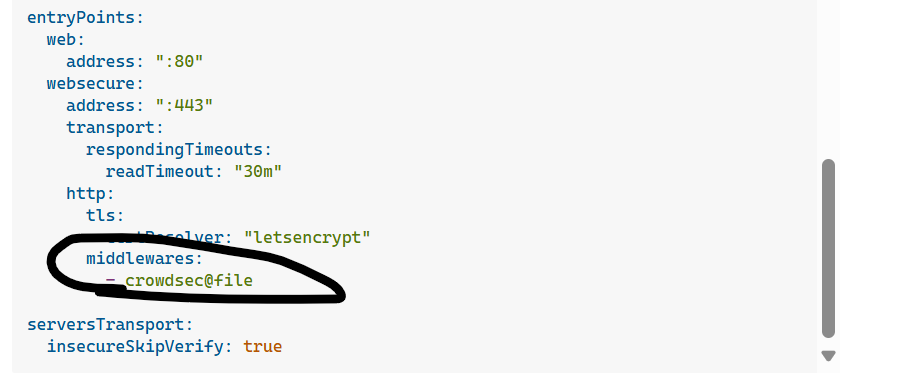
    http:
      tls:
        certResolver: "letsencrypt"
      middlewares:
        - crowdsec@file

serversTransport:
  insecureSkipVerify: true
This configuration:
-
Enables the CrowdSec plugin in the experimental section
-
Configures access logging in JSON format for CrowdSec parsing
-
Sets up the middleware chain to include CrowdSec
-
Configures Let’s Encrypt for SSL certificates
Make sure to replace discourse@hhf.technology with your own email address.
Step 5: Setup Cloudflare Turnstile
Cloudflare Turnstile provides a modern, user-friendly captcha service that’s more accessible than traditional captchas.
-
Go to the Cloudflare dashboard (https://dash.cloudflare.com/)
-
Navigate to the Turnstile section
-
Create a new widget:
-
Use non-interactive mode for better integration
-
Set domains to your Pangolin domain
-
Choose appropriate settings for your security needs
-
-
Copy the site key and secret key
-
Update the
captchaSiteKeyandcaptchaSecretKeyvalues in yourdynamic_config.ymlfile
Part 2: Updating Docker Compose
You’ll need to update your Docker Compose file to include CrowdSec. Here’s the complete configuration:
# Add CrowdSec services
crowdsec:
  image: crowdsecurity/crowdsec:latest
  container_name: crowdsec
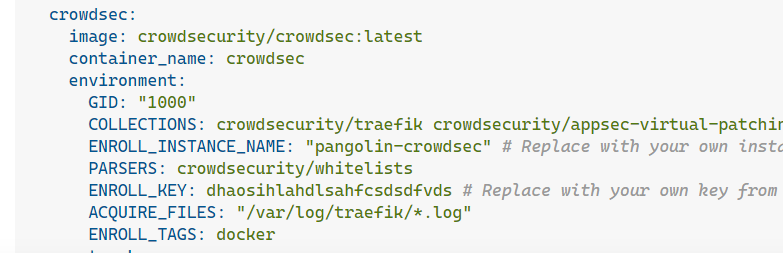
  environment:
    GID: "1000"
    COLLECTIONS: crowdsecurity/traefik crowdsecurity/appsec-virtual-patching crowdsecurity/appsec-generic-rules
    ENROLL_INSTANCE_NAME: "pangolin-crowdsec"
    PARSERS: crowdsecurity/whitelists
    ENROLL_KEY: cm2vqcakh000ndqcucrd4wlhp  # Replace with your key
    ACQUIRE_FILES: "/var/log/traefik/*.log"
    ENROLL_TAGS: docker
  networks:
    - pangolin
  healthcheck:
    test: ["CMD", "cscli", "capi", "status"]
  depends_on:
    - gerbil
  volumes:
    # crowdsec container data
    - ./config/crowdsec:/etc/crowdsec
    - ./config/crowdsec/db:/var/lib/crowdsec/data
    # log bind mounts into crowdsec (choose syslog OR journalctl option)
    - ./config/crowdsec_logs/auth.log:/var/log/auth.log:ro
    - ./config/crowdsec_logs/syslog:/var/log/syslog:ro
    - ./config/crowdsec_logs:/var/log
    - ./config/traefik/logs:/var/log/traefik
    # For journalctl option, add this instead:
    # - /var/log/journal:/var/log/host:ro
  ports:
    - 8080:8080  # port for API
    - 6060:6060  # metrics endpoint for prometheus
  expose:
    - 8080  # http api for bouncers
    - 6060  # metrics endpoint for prometheus
    - 7422  # appsec waf endpoint
  restart: unless-stopped
This configuration:
-
Sets up CrowdSec with the Traefik collections and parsers
-
Maps volumes for configuration and logs
-
Exposes the necessary ports for the API and metrics
-
Configures health checks and dependencies
For monitoring, you can also add Prometheus and Grafana services:
prometheus:
  image: prom/prometheus:latest
  container_name: prometheus
  networks:
    - pangolin
  depends_on:
    - crowdsec
  volumes:
    - ./config/prometheus:/etc/prometheus
    - ./config/prometheus_data:/prometheus
  command:
    - '--config.file=/etc/prometheus/prometheus.yml'
    - '--storage.tsdb.path=/prometheus'
    - '--web.console.libraries=/etc/prometheus/console_libraries'
    - '--web.console.templates=/etc/prometheus/consoles'
  ports:
    - 9091:9090
  restart: unless-stopped

grafana:
  image: grafana/grafana:latest
  container_name: grafana
  networks:
    - pangolin
  depends_on:
    - crowdsec
  volumes:
    - ./config/grafana:/var/lib/grafana
  environment:
    - GF_SECURITY_ADMIN_USER=admin12
    - GF_SECURITY_ADMIN_PASSWORD=strongpassword1
    - GF_USERS_ALLOW_SIGN_UP=false
  ports:
    - 3035:3000
  restart: unless-stopped
Part 3: Deployment and Testing
Deployment Steps
- Check your network configuration:
docker network ls
- Start the stack:
docker compose up -d
Allow at least 2 minutes for all services to initialize fully. This gives CrowdSec time to load its rules and configurations.
- Generate an API key for the Traefik bouncer:
docker exec crowdsec cscli bouncers add traefik-bouncer
-
Update your dynamic_config.yml with the new API key (replace the value of
crowdsecLapiKey). -
Restart Traefik to apply the changes:
docker compose restart traefik
- Verify CrowdSec metrics and connectivity:
curl http://localhost:6060/metrics | grep appsec
Testing Your CrowdSec Installation
You can test your configuration by adding a temporary ban or captcha for your IP. The ban will last for one minute.
Test the Ban implementation:
docker exec crowdsec cscli decisions add --ip <YOUR IP> -d 1m --type ban
Test the Captcha implementation:
docker exec crowdsec cscli decisions add --ip <YOUR IP> -d 1m --type captcha
Verify the decision was added:
docker exec -it crowdsec cscli decisions list
Test the application security by trying to access potential attack vectors:
https://yourdomain.com/.env
This should return a 403 error if the WAF is working correctly.
Check the CrowdSec logs to see if attacks are being detected:
docker exec -it crowdsec tail -f /var/log/crowdsec.log
Part 4: Troubleshooting
Common Issues and Solutions
403 Errors When Accessing Your Site
-
Check Traefik logs:
docker compose logs traefik -f -
Verify the
clientTrustedIPslist includes your IP range -
Check CrowdSec decisions:
docker exec -it crowdsec cscli decisions list -
Try clearing decisions for your IP:
docker exec crowdsec cscli decisions delete --ip YOUR_IP
Plugin Loading Errors
-
Make sure the plugin version is correct in
traefik_config.yml -
Check if http notifications are uncommented in
profiles.yaml(they should be commented out if not in use) -
Restart the services:
docker compose restart traefik crowdsec
Captcha Not Working
-
Ensure Turnstile is configured correctly with valid site and secret keys
-
Verify the
captcha.htmlfile exists in the correct location -
Check if the turnstile script is loading in browser developer tools
CrowdSec Not Detecting Attacks
-
Verify log paths are correct in the acquisition configuration
-
Check if logs are being written:
docker exec -it crowdsec ls -l /var/log/traefik/ -
Make sure Traefik’s
accessLogis enabled and in JSON format -
Check if collections are installed:
docker exec crowdsec cscli collections list
Useful Commands for Monitoring and Troubleshooting
# View CrowdSec overview
docker exec crowdsec cscli status

# Check which collections are installed
docker exec crowdsec cscli collections list

# Monitor CrowdSec resources
docker stats crowdsec

# Check AppSec metrics
curl http://localhost:6060/metrics | grep appsec

# View Traefik logs
docker exec -it crowdsec ls -l /var/log/traefik/

# Check CrowdSec metrics
docker exec -it crowdsec cscli metrics

# View active decisions
docker exec -it crowdsec cscli decisions list

# Monitor CrowdSec logs
docker exec -it crowdsec tail -f /var/log/crowdsec.log

# Manually add decisions for testing
docker exec crowdsec cscli decisions add --ip <IP> --type captcha -d 1h
docker exec crowdsec cscli decisions add -i <IP> -t ban -d 1h

# Monitor Traefik logs
docker compose logs traefik -f

# Restart services
docker compose restart traefik crowdsec

# View/manage bouncers
docker exec crowdsec cscli bouncers list
docker exec crowdsec cscli bouncers add traefik-bouncer
docker exec crowdsec cscli bouncers delete traefik-bouncer
Part 5: Ongoing Maintenance and Advanced Configuration
Regular Maintenance Tasks
Keep CrowdSec Updated
docker compose pull crowdsec
docker compose up -d
Update Collections and Parsers
docker exec crowdsec cscli hub update
docker exec crowdsec cscli collections upgrade
Monitor for False Positives
Regularly check decisions to ensure legitimate users aren’t being blocked:
docker exec crowdsec cscli decisions list
Create Allowlists for Trusted IPs
Add your trusted infrastructure to avoid false positives:
docker exec crowdsec cscli ipset add -f your-trusted-ips.txt
Advanced Configuration Options
Add Custom Scenarios
You can create custom detection rules in YAML format in /etc/crowdsec/scenarios/.
Configure Notifications
Set up notifications for attacks via Slack, Discord, or email in profiles.yaml.
Fine-tune Remediation Profiles
Adjust ban durations and captcha settings in profiles.yaml based on your security requirements.
Implement Geolocation-based Rules
Use the GeoIP enricher to create country-specific rules:
docker exec crowdsec cscli collections install crowdsecurity/geoip-enrich
Full Compose File
networks:
  pangolin:
    driver: bridge # Create a custom bridge network for the services
services:
  pangolin:
    image: fosrl/pangolin:1.0.0-beta.14 # Use the Pangolin image from the github repository
    container_name: pangolin
    restart: unless-stopped
    networks:
      - pangolin
    volumes:
      - ./config:/app/config
    healthcheck:
      test: ["CMD", "curl", "-f", "http://localhost:3001/api/v1/"]
      interval: "3s"
      timeout: "3s"
      retries: 5

  gerbil:
    image: fosrl/gerbil:1.0.0-beta.3
    container_name: gerbil
    restart: unless-stopped
    depends_on:
      pangolin:
        condition: service_healthy
    networks:
      - pangolin
    command:
      - --reachableAt=http://gerbil:3003
      - --generateAndSaveKeyTo=/var/config/key
      - --remoteConfig=http://pangolin:3001/api/v1/gerbil/get-config
      - --reportBandwidthTo=http://pangolin:3001/api/v1/gerbil/receive-bandwidth
    volumes:
      - ./config/:/var/config
    cap_add:
      - NET_ADMIN
      - SYS_MODULE
    ports:
      - 17072:17072/udp # Added by port-config script
      - 51820:51820/udp
      - 8085:8080
      - 443:443 # Port for traefik because of the network_mode
      - 80:80 # Port for traefik because of the network_mode

  # Add CrowdSec services
  crowdsec:
    image: crowdsecurity/crowdsec:latest
    container_name: crowdsec
    environment:
      GID: "1000"
      COLLECTIONS: crowdsecurity/traefik crowdsecurity/appsec-virtual-patching crowdsecurity/appsec-generic-rules  # Add more collections as needed
      ENROLL_INSTANCE_NAME: "pangolin-crowdsec" # Replace with your own instance name
      PARSERS: crowdsecurity/whitelists
      ENROLL_KEY: dhaosihlahdlsahfcsdsdfvds # Replace with your own key from https://app.crowdsec.net as shown in the documentation
      ACQUIRE_FILES: "/var/log/traefik/*.log"
      ENROLL_TAGS: docker
    networks:
      - pangolin
    healthcheck:
      test: ["CMD", "cscli", "capi", "status"]
    depends_on:
      - gerbil
    labels:
      - "traefik.enable=false"
    volumes:
      # crowdsec container data
      - ./config/crowdsec:/etc/crowdsec # bind mounts into crowdsec
      - ./config/crowdsec/db:/var/lib/crowdsec/data # bind mounts into crowdsec
      # log bind mounts into crowdsec
      - ./config/crowdsec_logs/auth.log:/var/log/auth.log:ro # bind mounts into crowdsec
      - ./config/crowdsec_logs/syslog:/var/log/syslog:ro # bind mounts into crowdsec
      - ./config/crowdsec_logs:/var/log # bind mounts into crowdsec
      - ./config/traefik/logs:/var/log/traefik # bind mounts into crowdsec
    ports:
      - 8080:8080  # port mapping for local firewall bouncers
      - 6060:6060 # metrics endpoint for prometheus
    expose:
      - 8080 # http api for bouncers
      - 6060 # metrics endpoint for prometheus
      - 7422 # appsec waf endpoint
    restart: unless-stopped
    command: -t # Add test config flag to verify configuration


  traefik:
    image: traefik:v3.3.3
    container_name: traefik
    restart: unless-stopped

    network_mode: service:gerbil # Ports appear on the gerbil service

    depends_on:
      pangolin:
        condition: service_healthy

    command:
      - --configFile=/etc/traefik/traefik_config.yml
    volumes:
      - ./config/traefik:/etc/traefik:ro # Volume to store the Traefik configuration
      - ./config/letsencrypt:/letsencrypt # Volume to store the Let's Encrypt certificates
      - ./config/traefik/logs:/var/log/traefik
      - ./config/traefik/conf/:/etc/traefik/conf/
      - ./config/traefik/rules:/rules

  prometheus:
    image: prom/prometheus:latest
    container_name: prometheus
    networks:
      - pangolin
    depends_on:
      - crowdsec
    volumes:
      - ./config/prometheus:/etc/prometheus
      - ./config/prometheus_data:/prometheus
    command:
      - '--config.file=/etc/prometheus/prometheus.yml'
      - '--storage.tsdb.path=/prometheus'
      - '--web.console.libraries=/etc/prometheus/console_libraries'
      - '--web.console.templates=/etc/prometheus/consoles'
    ports:
      - 9091:9090
    restart: unless-stopped
  grafana:
    image: grafana/grafana:latest
    container_name: grafana
    networks:
      - pangolin
    depends_on:
      - crowdsec
    volumes:
      - ./config/grafana:/var/lib/grafana
    environment:
      - GF_SECURITY_ADMIN_USER=admin12
      - GF_SECURITY_ADMIN_PASSWORD=strongpassword1
      - GF_USERS_ALLOW_SIGN_UP=false
    ports:
      - 3035:3000
    restart: unless-stopped
Conclusion
You’ve successfully integrated CrowdSec with your Pangolin deployment, adding a powerful layer of security. This setup provides real-time attack detection, automated remediation, and collaborative security through the CrowdSec community.
Remember to:
-
Regularly check logs for security events
-
Keep your CrowdSec and collections updated
-
Monitor for false positives
-
Back up your configuration files before making changes
By following these practices, you’ll maintain a robust security posture for your Pangolin deployment, protecting it from a wide range of threats while keeping legitimate users unaffected.