 Getting Started with the IP Whitelist Shaper Plugin Using Middleware Manager and Pangolin
IP Whitelist Shaper is a Traefik plugin that provides dynamic, admin-approved IP whitelisting. It’s especially useful for environments where temporary access to protected services is required.
This guide will walk you through a minimal working example using Pangolin, Middleware Manager, and the new Plugin Hub.
Use the Traefik Dashboard to debug and confirm that your configurations are active.
 Features At-a-Glance
- Temporary, time-limited IP access
- Admin approval via Discord webhook
- User-friendly request UI (
/knock-knockendpoint) - Automatic whitelist expiration
- Smart IP detection (with support for proxies)
 Step-by-Step: Simple Setup
Step 1: Enable the Plugin
Open the Plugin Hub in Middleware Manager and enable:
experimental:
  plugins:
    ipwhitelistshaper:
      moduleName: github.com/hhftechnology/ipwhitelistshaper
      version: v1.0.7
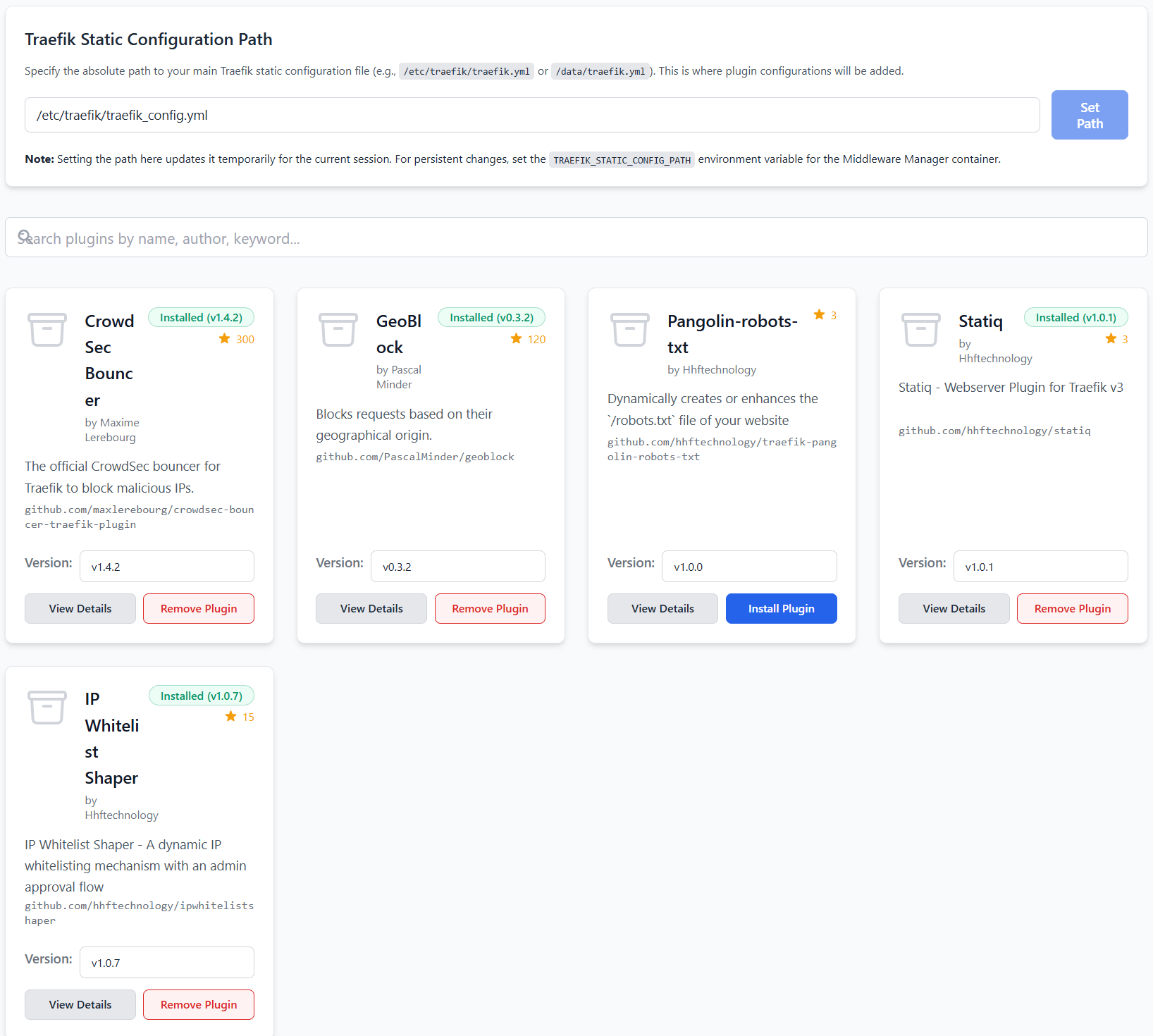
Screenshot - the plugin added to
traefik_config.yml
Restart Traefik:
docker compose restart traefik
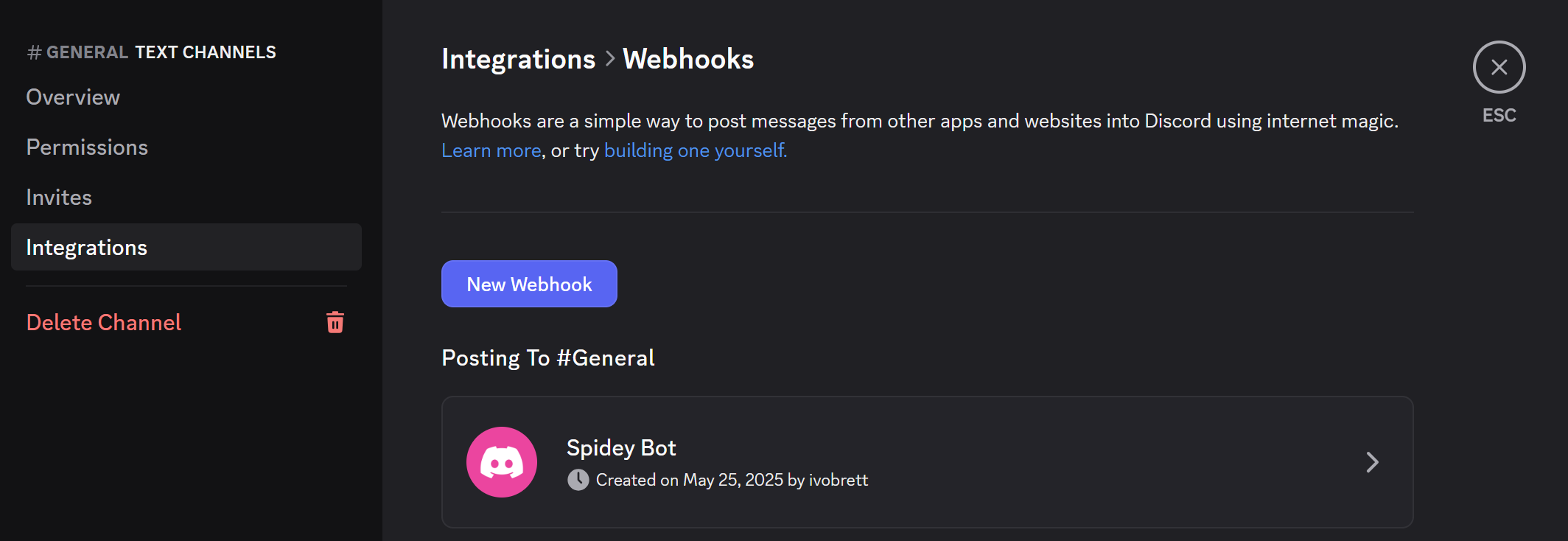
Step 2 (Optional): Set Up Discord Webhook
To receive approval requests in Discord:
- Create a server
- Create a channel or use an existing one
- Click the gear icon > Integrations > Webhooks > Create Webhook
- Copy the webhook URL
Step 3: Add Middleware via Middleware Manager
If not already in templates.yml, add:
- id: "ipwhitelistshaper"
  name: "ipwhitelistshaper"
  type: "plugin"
  config:
    ipwhitelistshaper:
      approvalURL: "https://mywebsite.yourdomain.com"
      defaultPrivateClassSources: "true"
      excludedIPs:
      expirationTime: "300"
      ipStrategyDepth: "0"
      knockEndpoint: "/knock-knock"
      notificationURL: "https://discord.com/api/webhooks/webhook-id"
      saveInterval: "30"
      secretKey: ""
      storageEnabled: "false"
      whitelistedIPs:
        - "127.0.0.1/32"
        - "192.168.1.0/24"
        - "10.0.0.0/8"
Restart Middleware Manager:
docker compose restart middleware-manager
Step 4: Create a Resource to Protect
Option A: Use an Existing Resource
Just attach the ipwhitelistshaper middleware.
Option B: Create a Test Resource
Add to docker-compose.yml:
  python-http:
    image: python:3.11-slim
    container_name: python-http
    working_dir: /app
    command: python -m http.server 15000
    ports:
      - "15000:15000"
    restart: unless-stopped
Then in Pangolin:
- Create resource
mywebsite.yourdomain.com - Point to:
python-httpport15000 - Apply your new
ipwhitelistshapermiddleware in Middleware Manager
mywebsite.yourdomain.com
 Step 5: Testing
Attempt to Access the Protected Resource
Visit:
https://mywebsite.yourdomain.com
You should get a 403 Forbidden.
 Visit the Knock Endpoint
Go to:
https://mywebsite.yourdomain.com/knock-knock
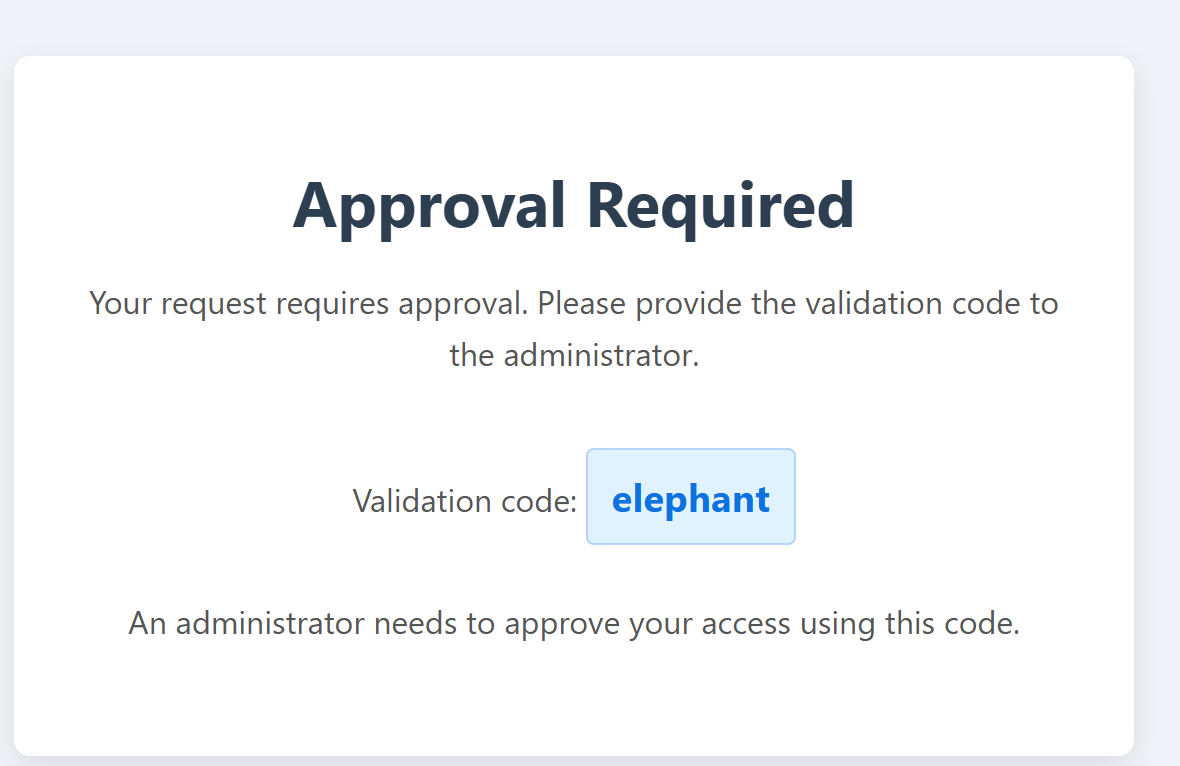
You will see:
Approval Required
Your request requires approval.
Validation code: elephant
 :clipboard: Admin Approves the Request
-
The admin receives a Discord message with:
- IP address
- Validation code
- Approval link
Clicking the approval link:
- Whitelists the IP for 5 minutes (or your configured value)
- Displays a confirmation page

 Summary
You now have a working, secure IP approval system that:
- Prevents unauthorized access
- Empowers admins to grant short-lived access
- Supports Discord for approval workflows
- Is fully integrated into Pangolin and Middleware Manager
 Thanks for Following Along
For more complex configurations (e.g., persistent storage, advanced headers, or multi-admin workflows), visit the official GitHub repo.
Happy shaping! 