Introduction
GeoShield is a powerful, fully automated bash script that simplifies the process of implementing country-based IP blocking at the firewall level. Whether you’re running a personal VPS, a company server, or a complex application like Pangolin, this solution will help you drastically reduce unwanted traffic and potential attacks.
In this guide, I’ll walk you through the installation, configuration, and usage of GeoShield, with detailed explanations of each step in the process.
Why Block Countries at the Firewall Level?
Before diving into the installation, let’s understand why you might want to implement country-based blocking:
- Reduce attack surface - If you’re consistently seeing attacks from specific regions, blocking them entirely can significantly improve security.
- Save resources - Prevent your server from wasting resources on processing unwanted traffic.
- Improve application performance - With fewer requests to handle, your applications can run more efficiently.
- Simplify log analysis - Reduce noise in your logs by eliminating traffic you know you don’t want.
Don’t add too many countries together otherwise you will kill your vps.
GeoShield Features
GeoShield offers several powerful features:
- Multi-distribution support - Works on Debian, Ubuntu, CentOS, Fedora, and more
- Free geolocation database - Uses DB-IP, a reliable and free provider of IP geolocation data
- IPv4 and IPv6 support - Block traffic across both protocols
- Docker integration - Properly handles Docker networking
- Automated updates - Weekly refresh of IP databases
- Safety precautions - Delayed activation after reboot to prevent lockouts
- Comprehensive logging - Detailed logs for troubleshooting
Prerequisites
Before installing GeoShield, you’ll need:
- A Linux server with root access
- Basic knowledge of terminal commands
- The country codes of regions you want to block
Installation Guide with Menu Input Explanations
Let’s walk through the installation process step-by-step, explaining each menu option along the way.
Download the Script:
curl -o install-geoshield.sh https://gist.githubusercontent.com/hhftechnology/6713e25ce4468911e751881a6eb080a4/raw/536ae718076e5baf5c4433c59ec5d572236208ef/install-geoshield.sh
chmod +x install-geoshield.sh
Now let’s run the script and go through each menu option:
sudo ./install-geoshield.sh
Initial Welcome Screen
When you first run the script, you’ll see a welcome banner:
=======================================================
         GeoShield - Country-based IP Blocking
=======================================================
This script will setup country-based IP blocking to protect
your server from attacks originating in specific countries.
=======================================================
This banner confirms you’re running the GeoShield installation script. The script will now check if you’re running it with root privileges. If not, it will exit with an error message, requiring you to run it with sudo.
Step 1: Country Code Selection
Enter comma-separated country codes to block :
What it’s asking: Enter the two-letter ISO country codes for the countries you want to block, separated by commas.
How to respond: For example, to block Russia, China, and North Korea, you would enter:
RU,CN,KP
Behind the scenes: The script will convert your comma-separated list into a format that can be used by the geoipsets tool. These country codes determine which IP ranges will be blocked.
If you press Enter without typing anything: The script will use the default values (Russia and China).
Step 2: Configuration Summary
After making your selection, the script will display a summary of your configuration:
INFO: Configuration:
INFO: - Countries to block: RU CN KP
INFO: - GeoIP Provider: DB-IP (free)
What it’s showing: A summary of the choices you’ve made.
How to respond: Review the information to ensure it matches your intentions.
Step 3: Installation Confirmation
Proceed with installation? (Y/n):
What it’s asking: Confirm that you want to proceed with the installation based on the configuration summary.
How to respond: Press Enter to accept the default (Y) and proceed, or type n and press Enter to cancel.
Behind the scenes: If you proceed, the script will begin the installation process. If you cancel, the script will exit without making any changes.
Installation Process
If you confirm the installation, the script will begin installing dependencies, setting up the Python environment, creating the configuration file, and configuring the firewall rules.
You’ll see a series of progress messages:
[2025-03-28 10:15:23] Installing dependencies...
[2025-03-28 10:15:45] Dependencies installed successfully
[2025-03-28 10:15:45] Setting up Python virtual environment...
[2025-03-28 10:16:12] Python environment setup complete
[2025-03-28 10:16:12] Creating geoipsets configuration...
[2025-03-28 10:16:13] Configuration file created at /home/user/geoshield/geoipsets.conf
[2025-03-28 10:16:13] Creating update script...
[2025-03-28 10:16:14] Update script created at /home/user/geoshield/update-geoblock.sh
[2025-03-28 10:16:14] Setting up cron job...
[2025-03-28 10:16:15] Cron jobs installed
[2025-03-28 10:16:15] Running initial update to populate firewall rules...
[2025-03-28 10:17:30] Initial update completed
[2025-03-28 10:17:30] Installation complete!
What’s happening:
-
Installing dependencies: The script identifies your package manager (apt, dnf, yum, etc.) and installs the required packages (Python, ipset, iptables, etc.).
-
Setting up Python environment: Creates a virtual environment for Python to isolate the dependencies.
-
Creating configuration: Generates the geoipsets.conf file with your selected countries and the DB-IP provider.
-
Creating update script: Creates the script that will handle the actual updating of IP ranges and firewall rules.
-
Setting up cron job: Configures automatic weekly updates and a startup job with a 2-minute delay.
-
Running initial update: Downloads the IP ranges for the selected countries and creates the initial firewall rules.
Installation Complete
Once the installation is complete, you’ll see a success message:
=======================================================
         GeoShield Installation Complete!
=======================================================
Your server is now protected against traffic
from the following countries: RU CN KP

Installation directory: /home/user/geoshield
Configuration file: /home/user/geoshield/geoipsets.conf
Log file: /home/user/geoshield/geoshield.log

To add more countries to block, edit: /home/user/geoshield/geoipsets.conf
To manually update rules, run: /home/user/geoshield/update-geoblock.sh

IMPORTANT: If you get locked out, you may need to access
your VPS through your provider's console to fix the rules.
=======================================================
This message confirms that the installation is complete and provides information about where the files are located and how to manage your setup.
What Happens Behind the Scenes
Let’s break down what this script actually does:
-
IP Database Creation: The script uses
geoipsetsto download the latest IP ranges for the countries you’ve selected from DB-IP, a free geolocation database provider. -
IPSet Creation: It creates ipset tables for each country, which efficiently stores large numbers of IP addresses.
-
Firewall Rules: The script adds iptables rules at three levels:
- INPUT chain: Blocks direct incoming connections
- FORWARD chain: Blocks forwarded traffic
- DOCKER-USER chain: Blocks traffic to Docker containers
-
Cron Jobs: Two cron jobs are set up:
- Weekly updates to refresh the IP databases
- A startup job with a 2-minute delay to allow recovery access if needed
-
Logging: All operations are logged to the log file for troubleshooting.
Post-Installation Management
Verifying the Block is Working
You can verify the firewall rules are applied with:
sudo iptables -L INPUT | grep match-set
You should see entries like:
DROP all -- anywhere anywhere match-set RU.ipv4 src
To check the contents of a specific ipset:
sudo ipset list RU.ipv4
Adding or Removing Countries
To add or remove countries from your block list:
-
Edit the configuration file:
sudo nano /home/user/geoshield/geoipsets.conf -
Under the
[countries]section, add or remove two-letter country codes, one per line. -
Save the file and run the update script:
sudo /home/user/geoshield/update-geoblock.sh
Checking the Logs
To monitor the GeoShield logs:
sudo tail -f /home/user/geoshield/geoshield.log
This will show you the most recent log entries and update in real-time.
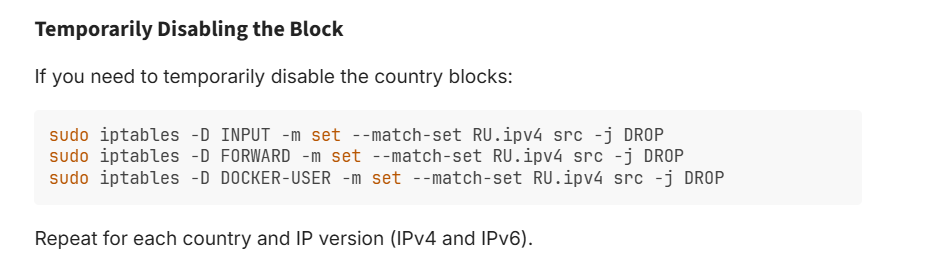
Temporarily Disabling the Block
If you need to temporarily disable the country blocks:
sudo iptables -D INPUT -m set --match-set RU.ipv4 src -j DROP
sudo iptables -D FORWARD -m set --match-set RU.ipv4 src -j DROP
sudo iptables -D DOCKER-USER -m set --match-set RU.ipv4 src -j DROP
Repeat for each country and IP version (IPv4 and IPv6).
Recovery in Case of Lockout
If you accidentally block your own IP or encounter issues:
-
Access your server through your VPS provider’s console
-
Delete the iptables rules:
sudo iptables -F INPUT sudo iptables -F FORWARD sudo iptables -F DOCKER-USER -
Fix your configuration and run the update script again.
Real-World Use Case: Protecting a Mail Server
Let’s consider a real-world example of how GeoShield can help. Suppose you run a mail server and notice a flood of authentication attempts from specific countries where you have no legitimate users.
By implementing GeoShield to block these countries:
- You immediately eliminate the malicious login attempts
- Your mail server logs become cleaner and easier to analyze
- System resources are freed up to handle legitimate traffic
- Security risks are substantially reduced
This is a simple solution that requires no complex application-level changes, yet provides significant security benefits.
Technical Details for Advanced Users
For those interested in the technical details:
- DB-IP Database: GeoShield uses the free DB-IP database, which provides reliable country-level IP geolocation data that’s updated regularly.
- IP Database Format: The IP ranges are stored in an optimized format using ipset, which provides O(1) lookup performance.
- Firewall Chain Priority: Rules are added at the beginning of the chains to minimize processing overhead.
- Updates: The weekly update process replaces the entire ipset atomically to avoid any gaps in protection.
- Dual Stack Support: Both IPv4 and IPv6 ranges are handled separately to ensure complete coverage.
Common Questions
Will this affect my outgoing traffic to blocked countries?
No, the rules only block incoming connections from the specified countries. Your server can still make outgoing connections to any destination.
How accurate is the country detection?
The DB-IP database provides reasonably accurate geolocation data for country-level blocking. While no geolocation service is 100% perfect, it’s more than sufficient for most security use cases. Some IPs may be incorrectly assigned to a country, but these edge cases are minimal.
Will this slow down my server?
No, the use of ipset makes the lookup process extremely efficient. The overhead is minimal even with large IP range sets.
Can I block regions instead of entire countries?
The geoipsets tool works at the country level. For more granular control, you would need a different solution.
How often are the IP databases updated?
The script is configured to update the IP databases weekly, which is sufficient for most use cases. The IP-to-country mapping doesn’t change dramatically on a daily basis.
Conclusion
GeoShield provides a simple yet powerful solution for blocking traffic from specific countries at the firewall level. By implementing this script, you can significantly reduce unwanted traffic and potential attacks without complex application-level changes.
The automated installation process makes it accessible even to those with limited Linux experience, while the robust design ensures reliable protection for your server.
Remember that country-based blocking is a blunt instrument—you’re blocking all traffic from an entire country. Use this approach when you’re confident that you don’t need legitimate traffic from the blocked regions.
For most users, this script provides an excellent balance of security, simplicity, and performance, making it a valuable addition to your server security toolkit.
This tutorial was created to help server administrators implement country-based IP blocking. Use this tool responsibly and be mindful of the potential impact on legitimate users from blocked regions.