Part 5: Implementing CrowdSec Captcha Protection in Pangolin
1. Captcha Configuration Setup
1.1 Cloudflare Turnstile Setup
- Go to Cloudflare Dashboard > Turnstile
- Create a new site widget
- Configure the settings:
- Widget Mode: Managed
- Domain:
pangolin.testing.hhf.technology - Widget Type: Non-Interactive
Save the following credentials:
- Site Key:
<your_turnstile_site_key> - Secret Key:
<your_turnstile_secret_key>
1.2 Update CrowdSec Profiles
Update /config/crowdsec/profiles.yaml:
name: captcha_remediation
filters:
  - Alert.Remediation == true && Alert.GetScope() == "Ip" && Alert.GetScenario() contains "http"
decisions:
 - type: captcha
   duration: 4h
on_success: break

---
name: default_ip_remediation
filters:
 - Alert.Remediation == true && Alert.GetScope() == "Ip"
decisions:
 - type: ban
   duration: 4h
on_success: break
2. Traefik Middleware Configuration
2.1 Update Dynamic Config
Modify /config/traefik/dynamic_config.yml:
http:
  middlewares:
    crowdsec:
      plugin:
        crowdsec:
          enabled: true
          logLevel: INFO
          updateIntervalSeconds: 15
          defaultDecisionSeconds: 15
          crowdsecMode: live
          captchaProvider: turnstile
          captchaSiteKey: "<your_turnstile_site_key>"
          captchaSecretKey: "<your_turnstile_secret_key>"
          captchaGracePeriodSeconds: 1800
          captchaHTMLFilePath: "/etc/traefik/conf/captcha.html"
2.2 Create Captcha HTML Template
Create /config/traefik/conf/captcha.html:
<!DOCTYPE html>
<html>
<head>
    <title>Security Check</title>
    <meta charset="utf-8">
    <meta name="viewport" content="width=device-width, initial-scale=1">
    <script src="https://challenges.cloudflare.com/turnstile/v0/api.js" async defer></script>
    <style>
        body {
            font-family: -apple-system, system-ui, BlinkMacSystemFont;
            margin: 0;
            padding: 20px;
            display: flex;
            justify-content: center;
            align-items: center;
            min-height: 100vh;
            background-color: #f5f5f5;
        }
        .container {
            background-color: white;
            padding: 2rem;
            border-radius: 8px;
            box-shadow: 0 2px 4px rgba(0, 0, 0, 0.1);
            max-width: 500px;
            width: 100%;
        }
        h1 {
            color: #333;
            margin-bottom: 1rem;
        }
        p {
            color: #666;
            line-height: 1.6;
        }
        .captcha-container {
            display: flex;
            justify-content: center;
            margin: 2rem 0;
        }
        .error {
            color: #dc3545;
            margin-top: 1rem;
        }
    </style>
</head>
<body>
    <div class="container">
        <h1>Security Check Required</h1>
        <p>Our system detected unusual traffic from your device. Please complete the security check below to continue.</p>

        <div class="captcha-container">
            <div class="cf-turnstile"
                 data-sitekey="{{.SiteKey}}"
                 data-callback="captchaCallback">
            </div>
        </div>

        <div id="error-message" class="error" style="display: none;">
            Verification failed. Please try again.
        </div>
    </div>

    <script>
        function captchaCallback(token) {
            window.location.href = window.location.href +
                (window.location.search ? '&' : '?') +
                'cf-turnstile-response=' + token;
        }
    </script>
</body>
</html>
3. Testing Captcha Integration
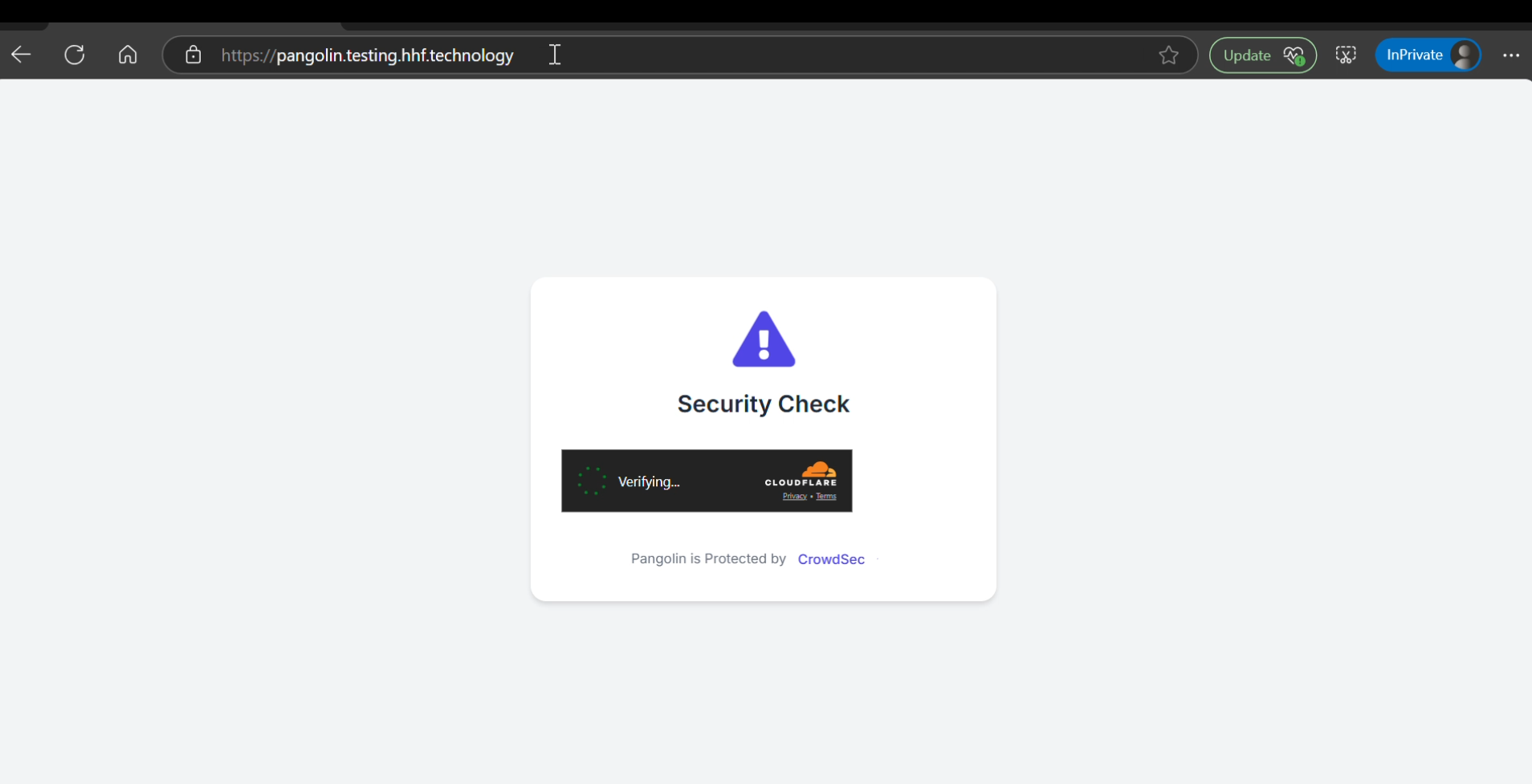
3.1 Manual Testing
# Add a test captcha decision
docker exec crowdsec cscli decisions add --ip 192.168.1.1 --type captcha -d 1h

# Verify decision was added
docker exec -it crowdsec cscli decisions list

# Test accessing the site from the IP
curl -v -H "X-Forwarded-For: 192.168.1.1" https://pangolin.testing.hhf.technology
3.2 Monitor Captcha Activity
# Monitor CrowdSec logs for captcha events
docker exec -it crowdsec tail -f /var/log/crowdsec.log | grep captcha

# Check Traefik logs for captcha middleware
docker compose logs traefik -f | grep captcha

# View metrics
curl http://localhost:6060/metrics | grep captcha
4. Captcha Customization
4.1 Custom Scenarios
Create /config/crowdsec/scenarios/custom-captcha.yaml:
type: leaky  # Changed from 'trigger'( was my error)—enables capacity + leakspeed for aggregation
name: custom-captcha-trigger
description: "Detect multiple unique 404s from a single IP (http scanner)"
filter: evt.Meta.log_type == 'traefik_access' && evt.Meta.http_status in ['404']  # Simplified; add '403','400' if needed like the example
groupby: evt.Meta.source_ip  # Fixed casing; partitions buckets per IP
distinct: evt.Meta.http_path  # NEW: From docs example—counts unique paths only (ignores repeats)
capacity: 10  # Overflow after 10 unique 404s
leakspeed: "10s"  # Fixed casing; leak 1 event every 10s (sliding window)
blackhole: 1m  # Silences this IP's bucket for 1m post-overflow (anti-spam)
labels:
  service: traefik  # Matches your setup
  type: captcha  # Custom for your bouncer
  remediation: true  # Signals: Ban/Remediate this IP (duration set in profiles)
4.2 Captcha Settings Optimization
Update the middleware configuration:
crowdsec:
  plugin:
    crowdsec:
      captchaGracePeriodSeconds: 3600
      captchaDisplayMode: "managed"
      captchaOnFailure: true
      captchaOnUnreachable: false
5. Advanced Configuration
5.1 IP Whitelisting for Captcha
Add trusted IPs to bypass captcha:
http:
  middlewares:
    crowdsec:
      plugin:
        crowdsec:
          clientTrustedIPs:
            - "10.0.0.0/8"
            - "172.16.0.0/12"
            - "192.168.0.0/16"
            - "100.89.137.0/20"
5.2 Custom Error Pages
Create custom error pages for different scenarios:
<!-- /config/traefik/conf/error.html -->
<!DOCTYPE html>
<html>
<head>
    <title>Access Denied</title>
    <style>
        /* Your custom styles */
    </style>
</head>
<body>
    <div class="container">
        <h1>Access Denied</h1>
        <p>{{.Message}}</p>
    </div>
</body>
</html>
6. Monitoring and Alerts
6.1 Captcha Metrics
Add custom metrics in Prometheus configuration:
metrics:
  - name: crowdsec_captcha_total
    help: Total number of captcha challenges served
    type: counter

  - name: crowdsec_captcha_success
    help: Number of successful captcha completions
    type: counter

  - name: crowdsec_captcha_failure
    help: Number of failed captcha attempts
    type: counter
6.2 Alert Configuration
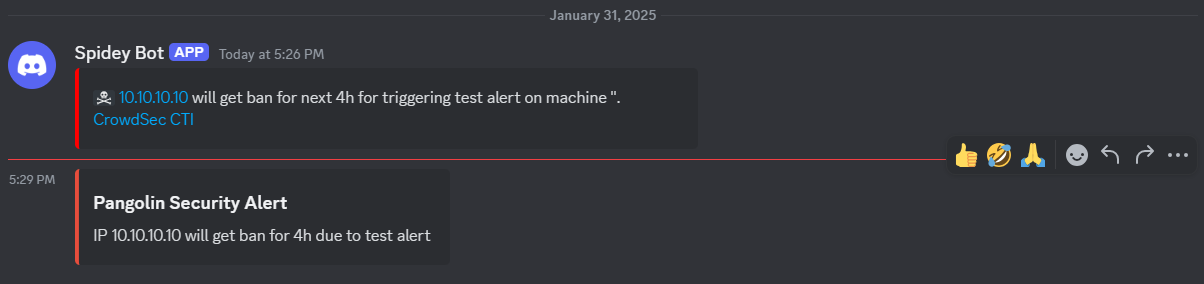
Create /config/crowdsec/notifications/discord.yaml:
type: http
name: discord
log_level: info
format: |
  {
    "embeds": [
      {
        "title": "Pangolin Security Alert",
        "description": "{{range . -}}{{$alert := . -}}{{range .Decisions -}}IP {{.Value}} will get {{.Type}} for {{.Duration}} due to {{.Scenario}}{{end -}}{{end -}}",
        "color": 15158332
      }
    ]
  }
url: "https://discord.com/api/webhooks/"
method: POST
headers:
  Content-Type: application/json
7. Troubleshooting
7.1 Common Issues
- Captcha not appearing:
# Check if captcha decision exists
docker exec -it crowdsec cscli decisions list --type captcha

# Verify Traefik logs
docker compose logs traefik | grep captcha
- Turnstile integration issues:
# Verify Turnstile configuration
grep -r "captcha" /config/traefik/dynamic_config.yml

# Check HTML template
cat /config/traefik/conf/captcha.html
7.2 Debug Mode
Enable detailed logging:
# Enable debug logging in CrowdSec
docker exec -it crowdsec cscli config show --debug

# Enable debug in Traefik
sed -i 's/logLevel: INFO/logLevel: DEBUG/' /config/traefik/dynamic_config.yml
Next Steps
- Implementing CrowdSec AppSec WAF (Part 6)
- Configure custom scenarios and rules
- Set up monitoring dashboards
- Implement backup procedures