Introduction
Pangolin Monitor is a monitoring solution for your Pangolin stack, providing real-time monitoring of containers, system resources, and security metrics with Discord notifications. This menu-based utility helps you maintain the health and security of your Pangolin deployment.
Installation
-
Download the script :
curl -o pangolin-monitor.sh https://gist.githubusercontent.com/hhftechnology/69f7ebdb52fcc60ebc8a182e32c664ab/raw/f38268b3dfb3f8e1109377a02185c0969cc2636d/pangolin-monitor.sh -
Make the script Executable:
chmod +x pangolin-monitor.sh -
Run the script to access the menu system:
./pangolin-monitor.sh
Main Menu
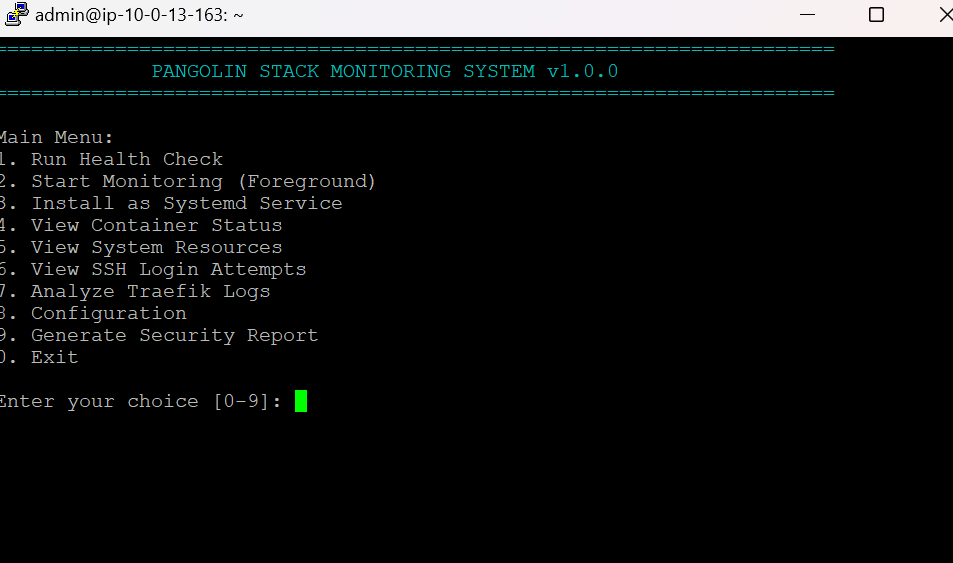
When you run the script without parameters, you’ll see the main menu with these options:
- Run Health Check - Performs a quick check of all monitored components
- Start Monitoring (Foreground) - Continuously monitors your system in the terminal
- Install as Systemd Service - Sets up the monitor to run as a background service
- View Container Status - Shows detailed information about your Docker containers
- View System Resources - Displays CPU, memory, disk, and load information
- View SSH Login Attempts - Shows recent SSH activity, including failed attempts
- Analyze Traefik Logs - Examines Traefik access patterns and potential attacks (Not functional In development-- We have a separate script)
- Configuration - Opens the configuration submenu (see below)
- Generate Security Report - Creates a report and sends it to Discord
- Exit - Quits the program
Select an option by entering its number and pressing Enter.
Configuration Menu
When you select option 8 from the main menu, you’ll access these configuration options:
- View Current Configuration - Shows your current settings
- Edit Configuration File - Opens your configuration in a text editor
- Configure Discord Webhook - Sets up Discord notifications
- Configure Monitoring Thresholds - Adjusts alert thresholds
- Configure Containers to Monitor - Selects which containers to watch
- Configure Notification Settings - Controls notification behavior
- Reset to Default Configuration - Restores default settings
- Toggle Debug Mode - Enables/disables verbose logging
- Back to Main Menu - Returns to the main menu
Key Features
Health Checks
The “Run Health Check” option provides a quick overview of:
- Container status (running/stopped)
- System resource usage
- Security status
- Discord integration status
Health checks will display color-coded warnings when thresholds are exceeded.
Continuous Monitoring
The “Start Monitoring (Foreground)” option:
- Runs continuous health checks at configured intervals
- Displays status updates in real-time
- Sends alerts to Discord when issues are detected
- Press Ctrl+C to stop monitoring and return to the menu
Container Monitoring
The script monitors the following for each container:
- Running status
- Health checks (if implemented)
- CPU and memory usage
- Network I/O
- Error logs
By default, it monitors: pangolin, gerbil, traefik, and crowdsec containers.
System Resource Monitoring
The script checks and alerts on:
- CPU usage
- Memory usage
- Disk space
- System load
- Network traffic
Security Monitoring
Security features include:
- SSH login attempt tracking
- Attack detection (high network traffic)
- Log analysis for suspicious activity
- Potential security issue notifications
Discord Notifications
When properly configured with a webhook URL, the script will send:
- Health check reports
- Attack notifications
- SSH login notifications
- System resource alerts
- Regular status reports
Running as a Service
To install as a systemd service:
- Select option 3 from the main menu
- Provide your sudo password when prompted
- The service will be installed, enabled, and started automatically
You can then manage it with standard systemd commands:
sudo systemctl status pangolin-monitor
sudo systemctl restart pangolin-monitor
sudo systemctl stop pangolin-monitor
Command Line Options
For advanced users, the script also supports these command line parameters:
--service: Run in service mode (for systemd)--check: Run a single health check and exit--report: Generate a security report and exit--install-service: Install as systemd service--helpor-h: Show help information--versionor-v: Display version information
Configuration File
The configuration file is automatically created at ./config/pangolin_monitor.conf and contains settings for:
- Check intervals (how often checks are performed)
- Alert thresholds (when to trigger warnings)
- Container names to monitor
- Discord webhook URL
- Notification preferences
You can edit this file directly or use the configuration menu to adjust settings.
Troubleshooting
- If Discord notifications aren’t working, verify your webhook URL in the configuration
- For permission issues, try running with sudo
- Check the log file at
./logs/pangolin-monitor.logfor details about errors - Enable debug mode through the configuration menu for more verbose logging
Dependencies
The script requires these programs to be installed:
- Pangolin Stack
- jq (for JSON processing)
- bc (for calculations)
- curl (for network requests)
The script can attempt to install missing dependencies when run with appropriate permissions.

