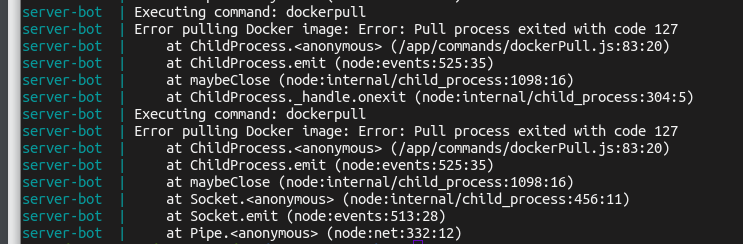
How to Deploy a Discord Bot to Monitor Your Pangolin Stack
Version 1.0.2 Avaliable now with AbuseIPDB blacklist import option in CrowdsecDecision command, new hub command and few other improvement
Running a self-hosted Pangolin stack is a powerful way to manage your online services with enhanced privacy and control. But keeping an eye on your server’s health, managing backups, and handling CrowdSec security can be time-consuming, especially when you’re away from your desk.
In this guide, I’ll show you how to deploy a specialized Discord bot that allows you to monitor and control your Pangolin stack directly from Discord. You’ll be able to check container status, manage backups, view logs, and even unban IPs all from your Discord server.
What is the Pangolin Discord Bot?
The Pangolin Discord Bot is a specialized monitoring and management tool that gives you remote control over your Pangolin stack through Discord’s slash commands. It provides a user-friendly interface to:
- Monitor container health and status
- Create and restore backups
- View system metrics (CPU, memory, network)
- Check CrowdSec security decisions
- Handle IP whitelisting and unbanning
- View and filter container logs
- Restart, stop, or start containers as needed
Prerequisites
Before deploying the bot, ensure you have:
- A server running your Pangolin stack (with Docker)
- A Discord account and the ability to create a bot
- Basic familiarity with Docker and terminal commands
- SSH access to your server
Step 1: Create a Discord Bot Application
First, you’ll need to create a bot in the Discord Developer Portal:
- Go to Discord Developer Portal
- Click “New Application” and give it a name (e.g., “Pangolin Monitor”)
- Navigate to the “Bot” tab and click “Add Bot”
- Under the “Privileged Gateway Intents” section, enable “Server Members Intent”
- Save your changes
- Copy your bot token (you’ll need this later)
First
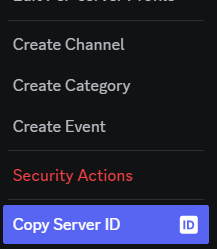
Second
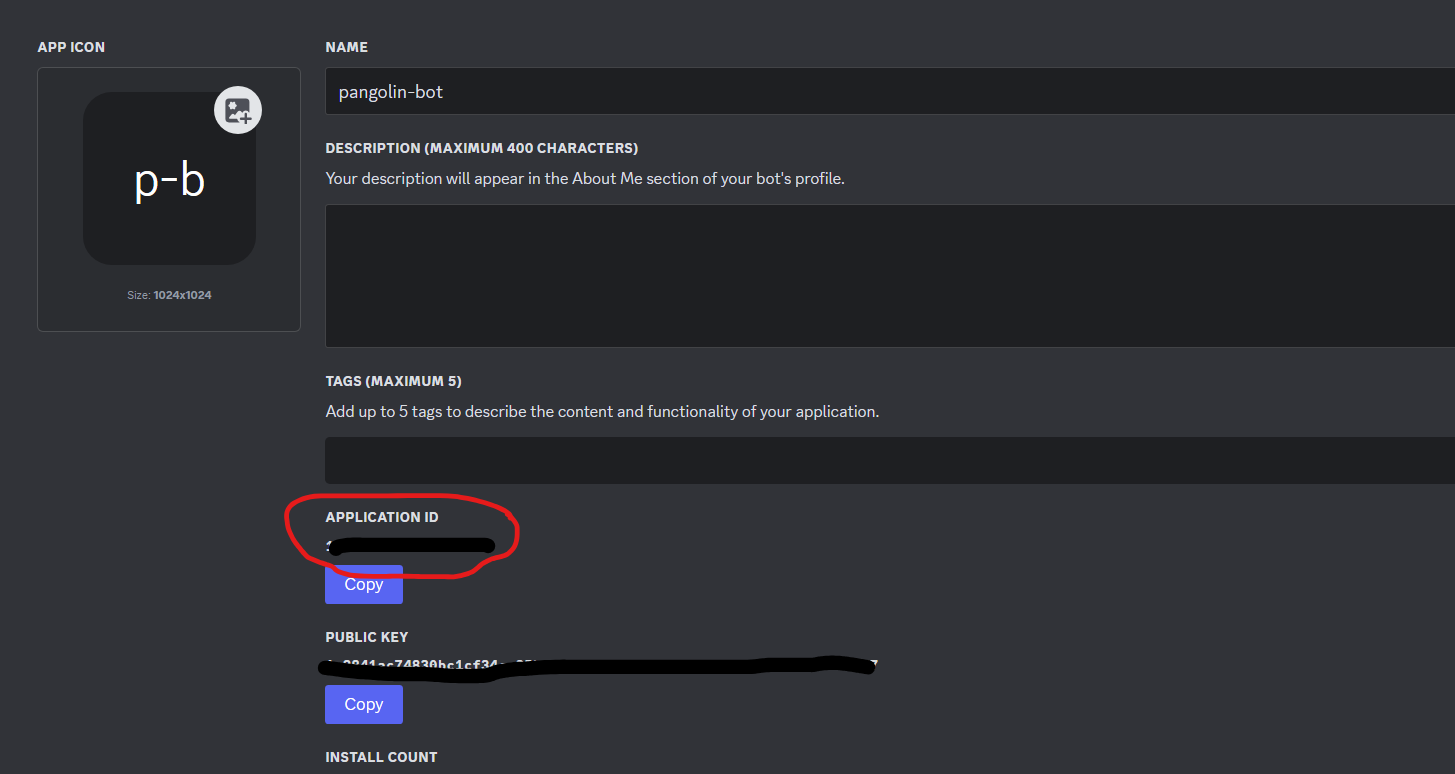
Third
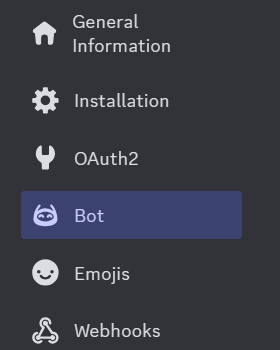
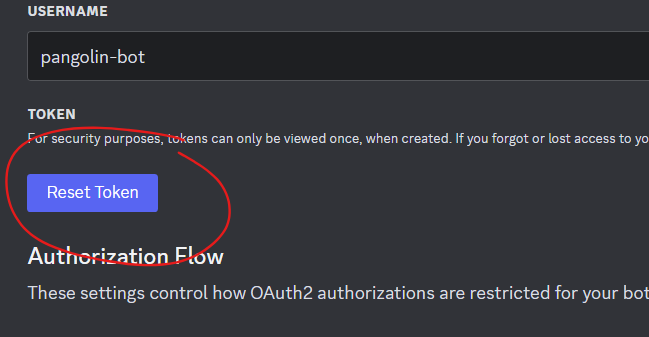
once collected. put it in the compose file.
bring the bot down
Redo
docker compose up -d
then
docker compose log -f
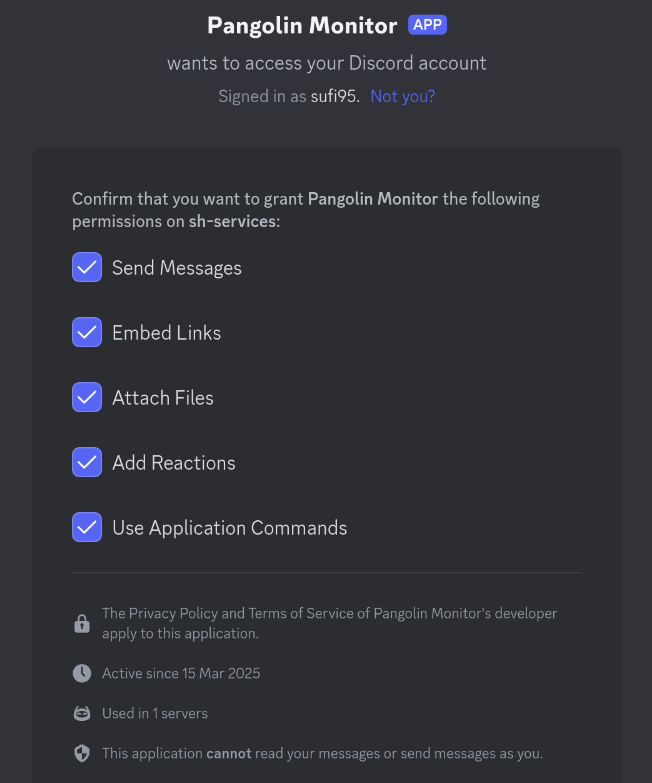
get the invite
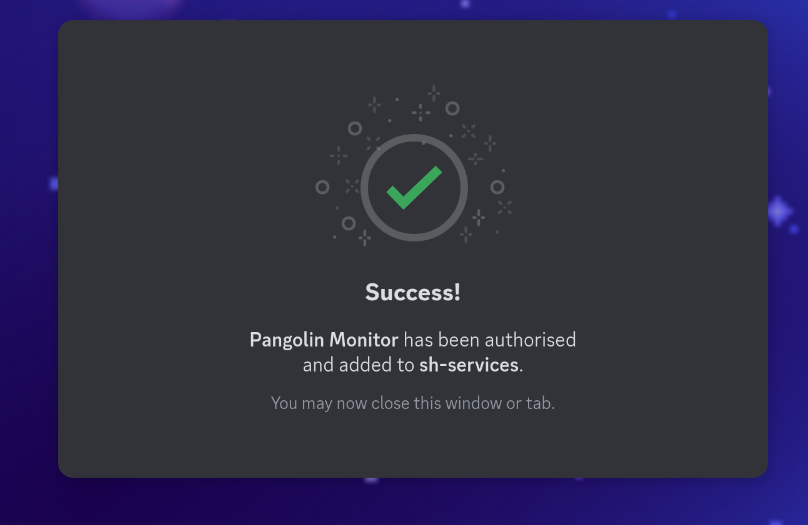
paste it and approve it to the respective server.
Step 2: Prepare Your Server
SSH into your server and prepare to deploy the bot:
# Create a directory for the bot
mkdir -p ~/pangolin-bot
cd ~/pangolin-bot

# Create a backups directory
mkdir -p backups
Step 3: Deploy Using Docker Run
You can quickly deploy the bot using a single docker run command:
docker run -d \
  --name pangolin-discord-bot \
  --restart unless-stopped \
  -v /var/run/docker.sock:/var/run/docker.sock \
  -v $(pwd)/backups:/app/backups \
  -v /proc:/host/proc:ro \
  -v /sys:/host/sys:ro \
  -v /root:/root:ro \
  -e DISCORD_TOKEN=your_token_here \
  -e DISCORD_CLIENT_ID=your_client_id_here \
  -e DISCORD_GUILD_ID=your_guild_id_here \
  -e BACKUP_DIR=/app/backups \
  -e HOST_PROC=/host/proc \
  -e HOST_SYS=/host/sys \
  hhftechnology/pangolin-discord-bot:latest
Make sure to replace:
your_token_herewith your Discord bot tokenyour_client_id_herewith your bot’s application IDyour_guild_id_herewith your Discord server (guild) ID
Understanding the Docker Run Parameters:
-v /var/run/docker.sock:/var/run/docker.sock: Gives the bot access to your Docker daemon-v $(pwd)/backups:/app/backups: Mounts a local folder for storing backups-v /proc:/host/proc:ro: Provides read-only access to system metrics (CPU, memory)-v /sys:/host/sys:ro: Provides read-only access to more system information-v /root:/root:ro: Gives read-only access to your Pangolin configuration (for backups) Its can only detect if pangolin is deployed in root for backup.- Environment variables (
-e): Configure the bot credentials and paths
Step 4: Deploy Using Docker Compose (Recommended)
For better maintainability, I recommend using Docker Compose. First, create a docker-compose.yml file:
nano docker-compose.yml
Paste the following content:
services:
  server-bot:
    container_name: pangolin-discord-bot
    image: hhftechnology/pangolin-discord-bot:latest
    volumes:
      - /var/run/docker.sock:/var/run/docker.sock
      - ./backups:/app/backups
      - /proc:/host/proc:ro
      - /sys:/host/sys:ro
      - /root:/root:ro
    environment:
      - DISCORD_TOKEN=your_token_here
      - DISCORD_CLIENT_ID=your_client_id_here
      - DISCORD_GUILD_ID=your_guild_id_here
      - BACKUP_DIR=/app/backups
      - HOST_PROC=/host/proc
      - HOST_SYS=/host/sys
    restart: unless-stopped
Again, replace the token, client ID, and guild ID with your actual values.
Then deploy with:
docker compose up -d
To check if the bot is running:
docker compose ps
You should see your bot container running. Next, copy the invitation link for your bot:
Once the bot is running:
docker compose logs -f
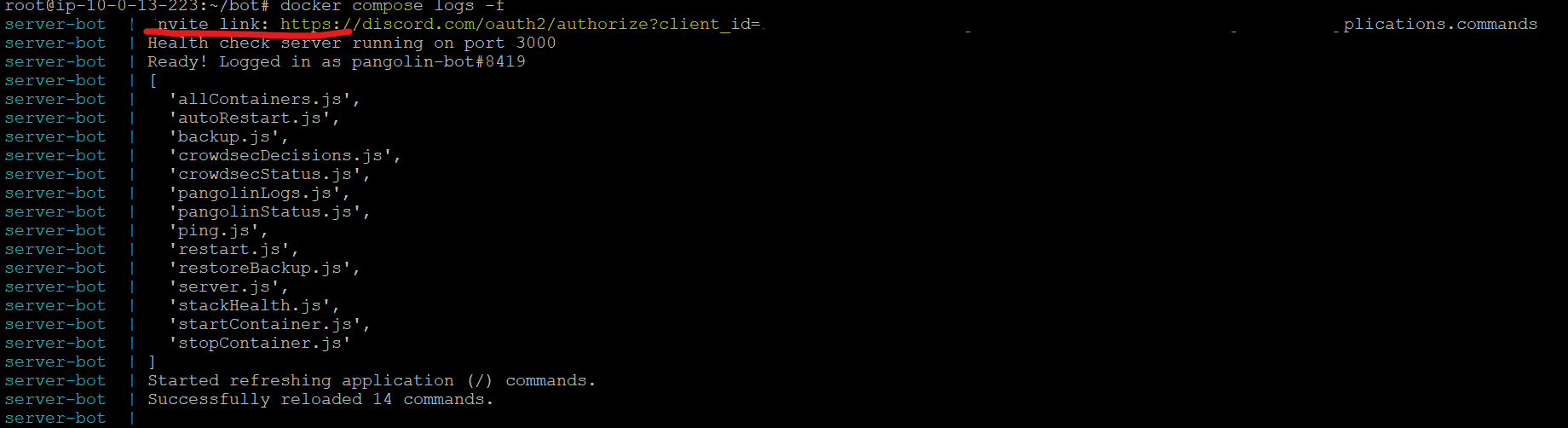
Copy the invite url and paste it in the browser.
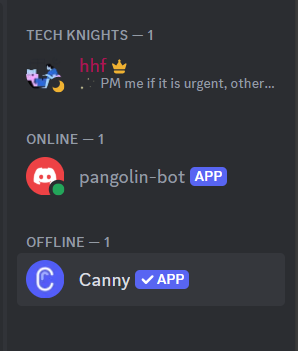
Select the server where you need the bot and then your bot is register.
After Registering.
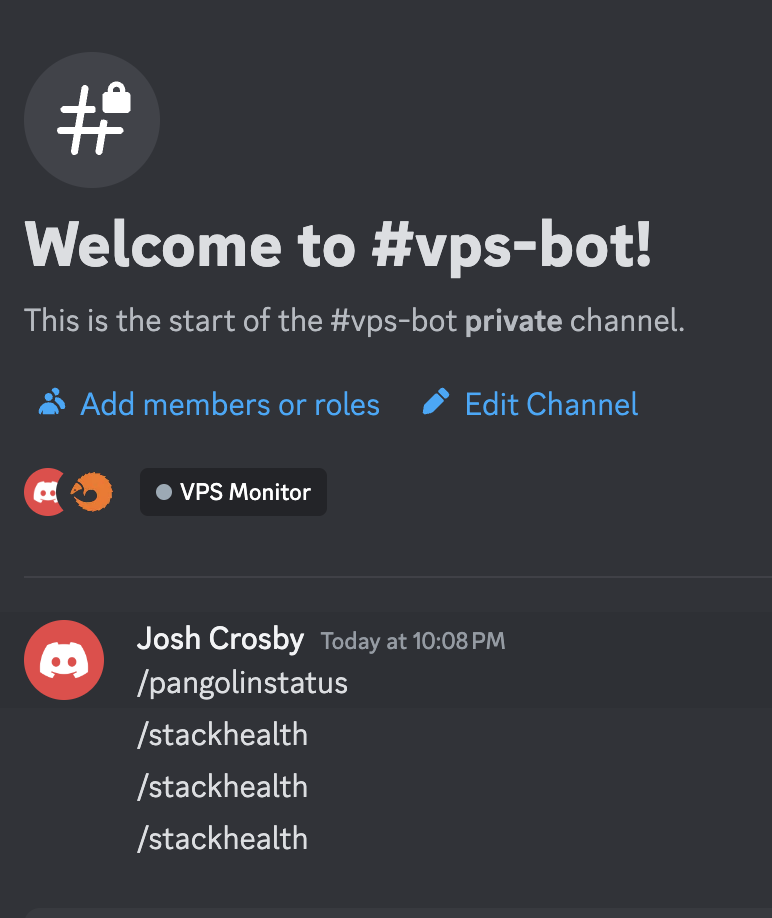
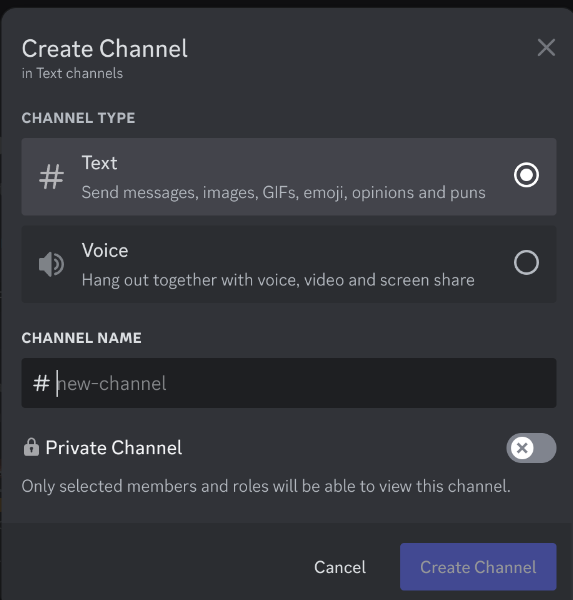
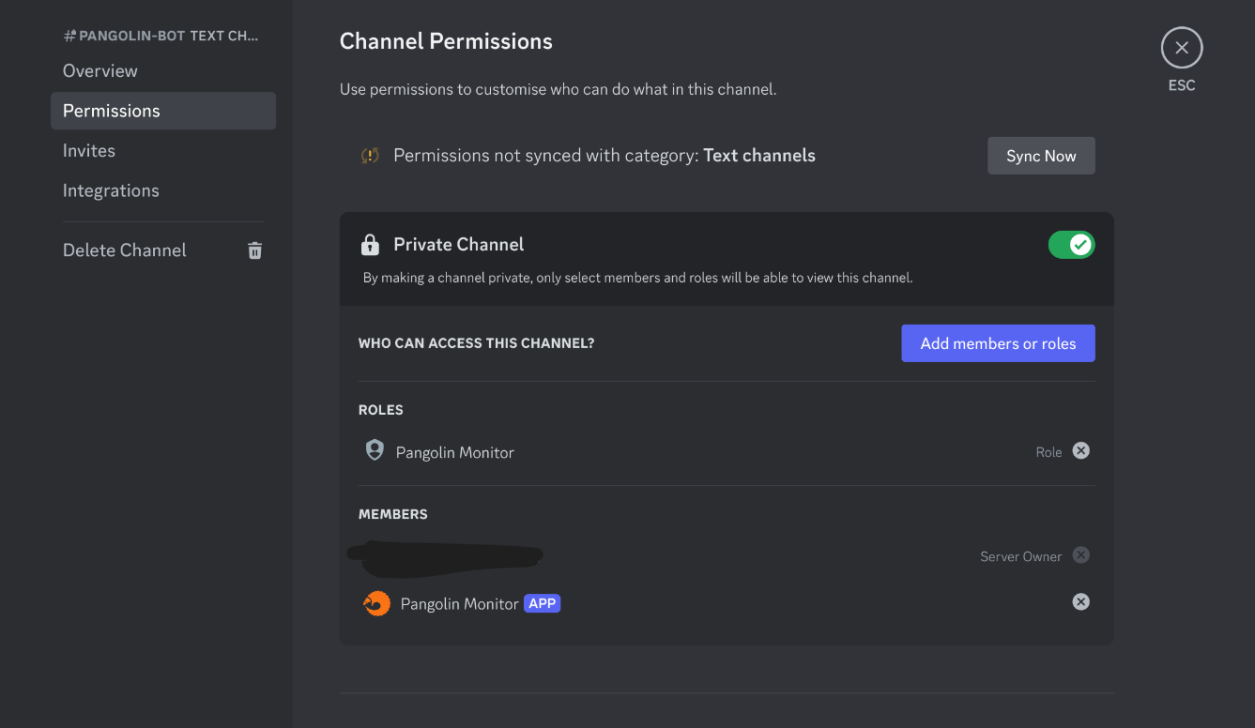
If you dont have a channel the create one
-
1st add a new channel for the bot name anything you like
-
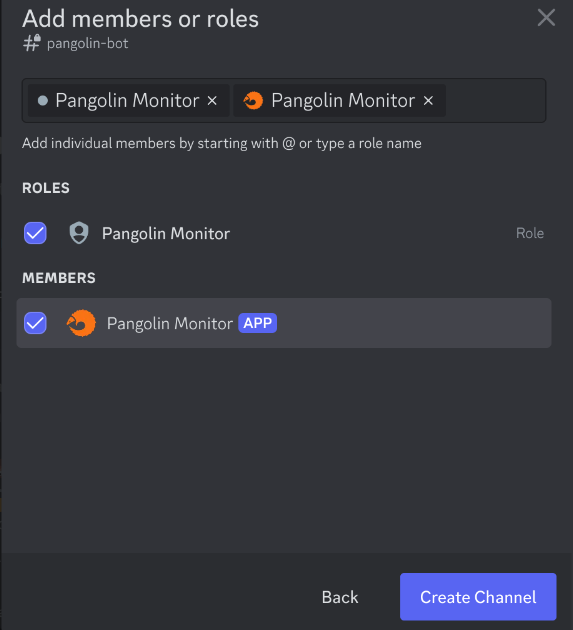
Then make sure to check these 2 options
-
You can also add to existing text channels by going into permissions
Using the Bot Commands
Once the bot is up and running, you can use the following slash commands in your Discord server:
System Health and Information
-
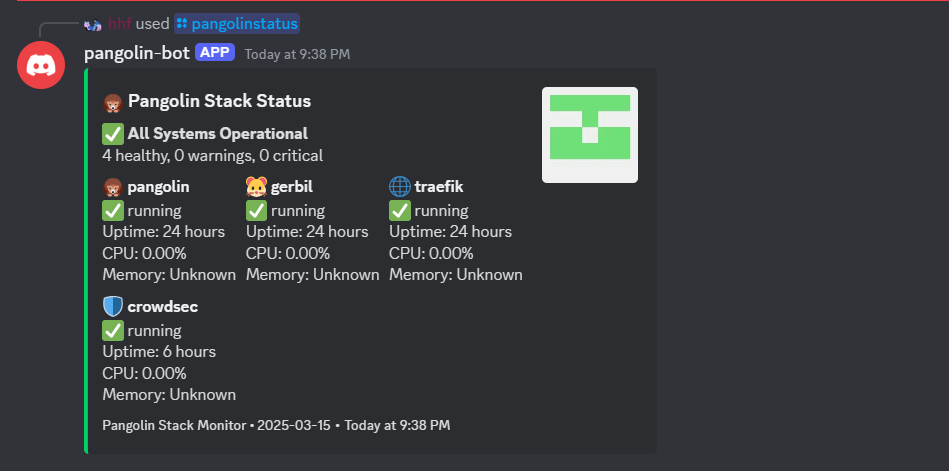
/pingolinstatus- Check the health of all containers in your Pangolin stack
-
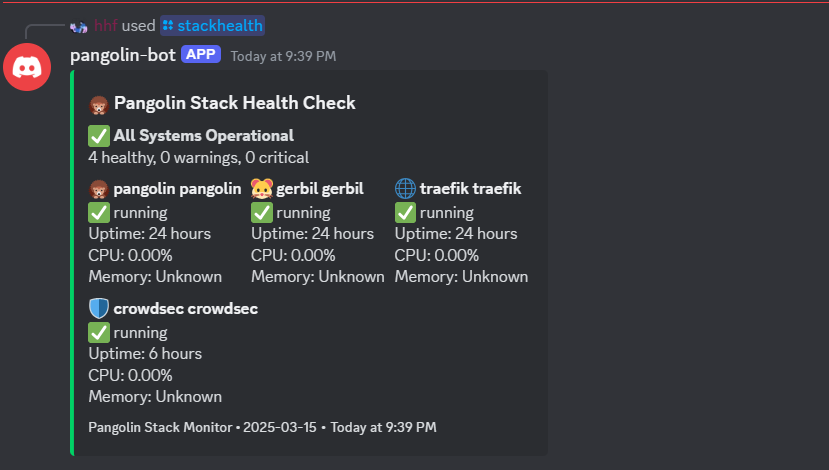
/stackhealth- Get detailed health metrics for your stack
-
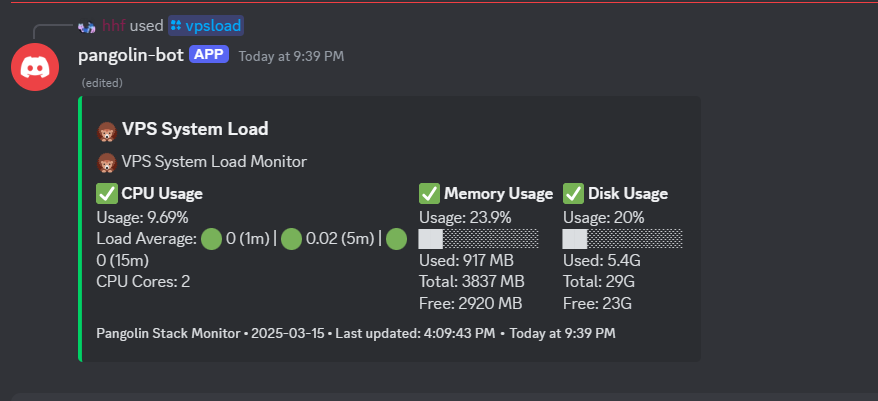
/vpsload- View CPU, memory and disk usage of your server
-
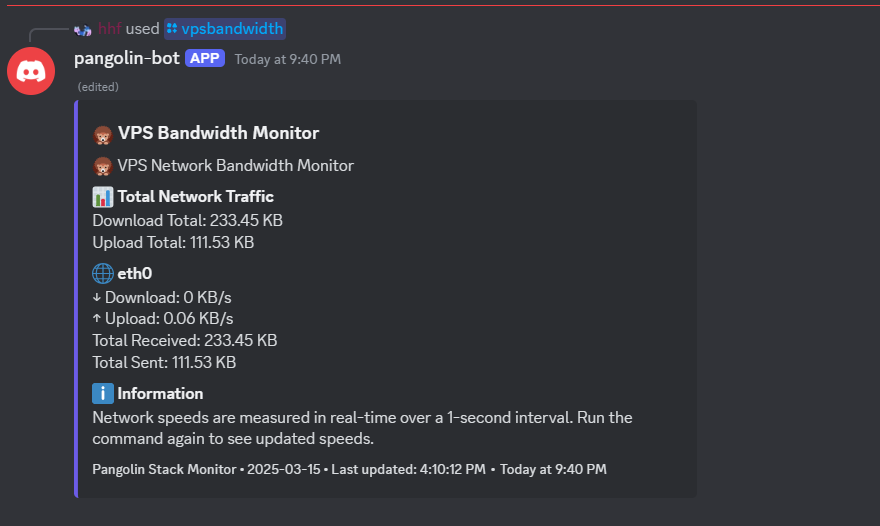
/vpsbandwidth- Monitor network traffic on your server
Container Management
-
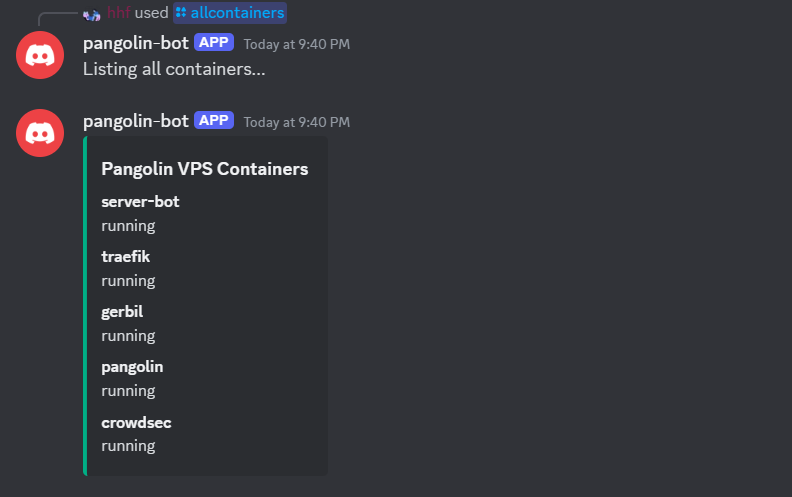
/allcontainers- List all Docker containers on your server
-
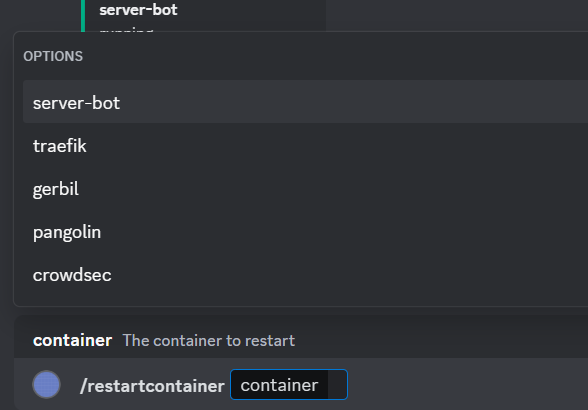
/restartcontainer- Restart a specific container
-
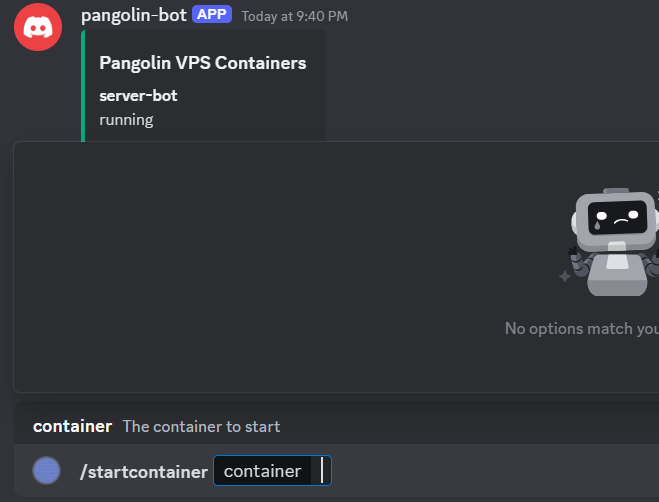
/startcontainer- Start a stopped container
-
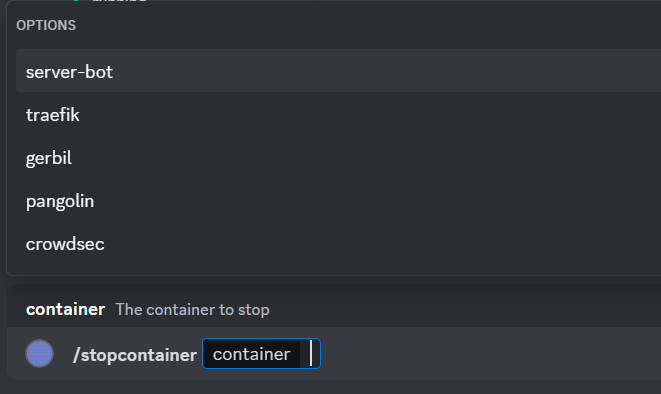
/stopcontainer- Stop a running container
-
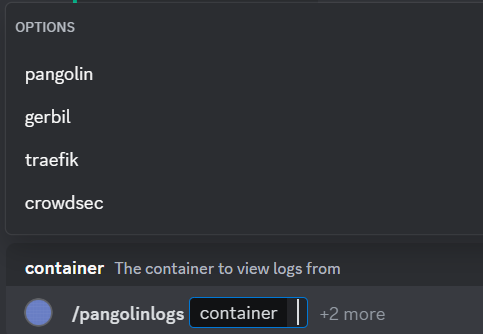
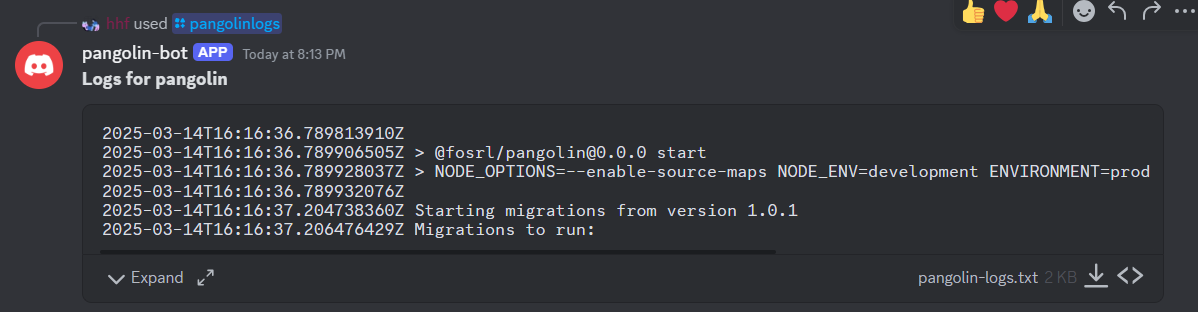
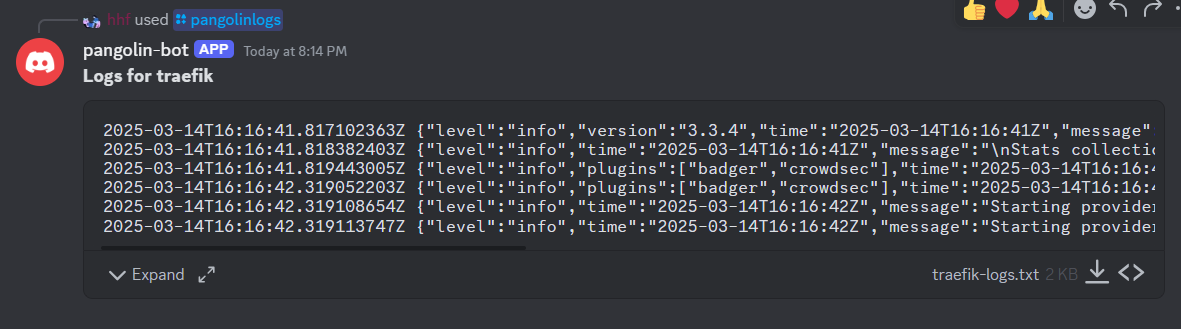
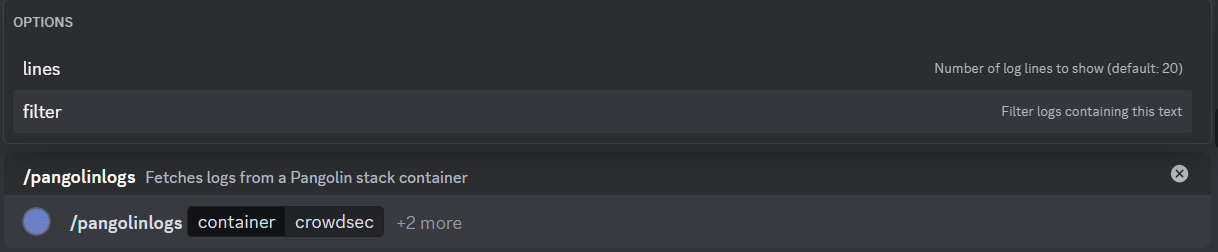
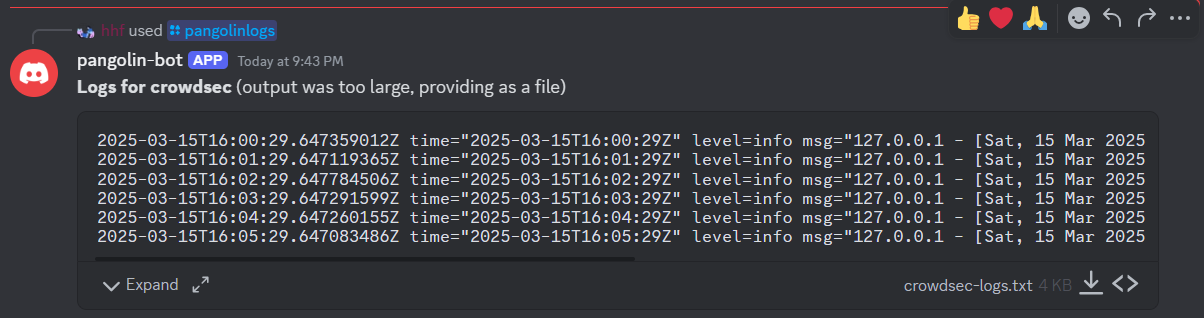
/pangolinlogs- View logs from a specific container, with optional filtering
Backup Management
-
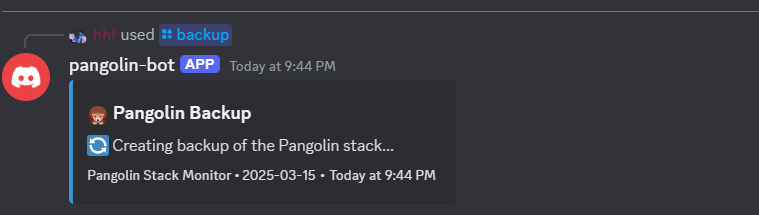
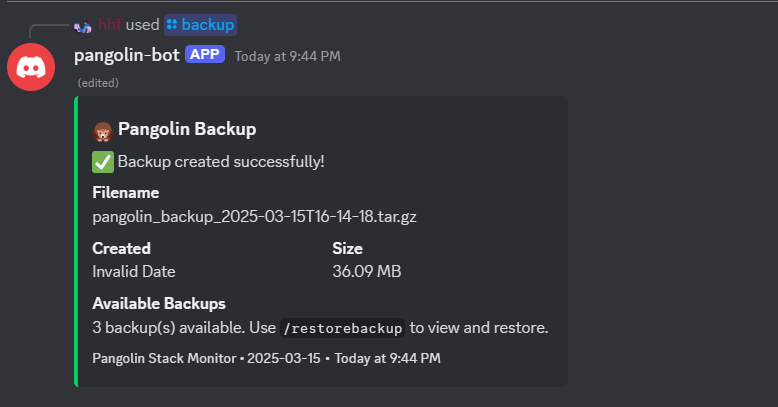
/backup- Create a new backup of your Pangolin configuration
-
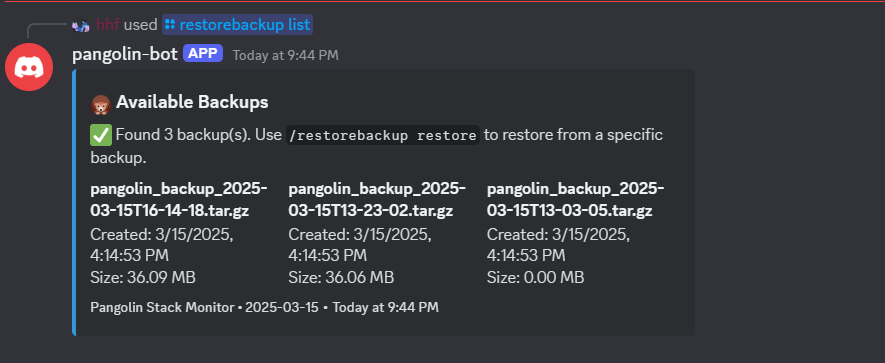
/restorebackup list- List available backups
-
/restorebackup restore- Restore from a specific backup (Under development-not stable yet) -
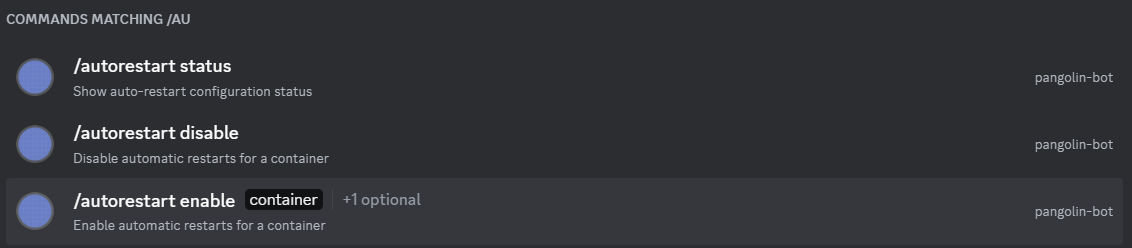
/autorestart- Configure automatic container restarts when unhealthy
CrowdSec Security Management
/crowdsecstatus- Check the status of your CrowdSec security/crowdsecdecisions- List currently blocked IPs
Troubleshooting
If you encounter issues with the bot:
-
Check the logs:
docker logs pangolin-discord-bot -
Verify permissions:
Ensure the bot has access to Docker by checking the socket mount:docker inspect pangolin-discord-bot | grep -A 10 Mounts -
Restart the bot:
docker restart pangolin-discord-bot -
Update the bot:
docker compose pull
docker compose up -d
Security Considerations
The bot needs access to your Docker socket and certain system directories to function properly. This gives it significant permissions on your system. To enhance security:
- Use a dedicated Discord server for your bot and limit who has access to it
- Mount directories as read-only whenever possible (as shown in the examples)
- Regularly review the audit logs in Discord to monitor command usage
- Consider network isolation by using Docker’s network features
- Keep the bot updated to get the latest security patches
Advanced Features
Automatic Notifications
The bot can be configured to send notifications to a specific channel when issues are detected. Edit your docker-compose file to add:
services:
  server-bot:
    # ... existing configuration
    environment:
      # ... existing environment variables
      - ALERT_CHANNEL_ID=your_channel_id_here
Custom Health Monitoring
The bot includes an auto-healing feature that can automatically restart unhealthy containers. Use the /autorestart command to configure:
/autorestart enable pangolin 3
This will enable automatic restarts for the Pangolin container, with a maximum of 3 restart attempts per day.
Conclusion
With the Pangolin Discord Bot deployed, you now have a powerful remote monitoring and management solution for your self-hosted Pangolin stack. You can keep an eye on your server’s health, manage backups, and handle security issues all from the comfort of your Discord server.
The bot provides a convenient way to maintain your Pangolin stack without needing to SSH into your server for routine tasks. It’s especially useful for quick checks when you’re on the go or for sharing limited management capabilities with trusted team members.
By following this guide, you’ve expanded your Pangolin stack with a valuable management tool that enhances your ability to maintain your self-hosted services with minimal effort.
Remember to keep an eye on Docker and bot updates to ensure you’re running the latest version with all security patches and new features.
Happy monitoring!
If someone needs to see the repo