How to Install Nextcloud on Unraid
In this tutorial, we will explore the process of installing Nextcloud on Unraid. Nextcloud is a highly popular application and an excellent option for Unraid users, especially since there isn’t a robust first-party solution available for this type of application. The installation process is relatively quick and straightforward, and Nextcloud is extremely powerful.
We will be using the Community Applications section and Portainer for the installation, as this method simplifies the setup by avoiding separate database configuration.
Prerequisites
Before proceeding, ensure that you have installed the Community Applications plugin on Unraid. This step only takes a few seconds and requires just a few clicks.
Installing Portainer on Unraid
To install Nextcloud, we will utilize Portainer, which allows us to manage Docker containers without manual database configuration.
-
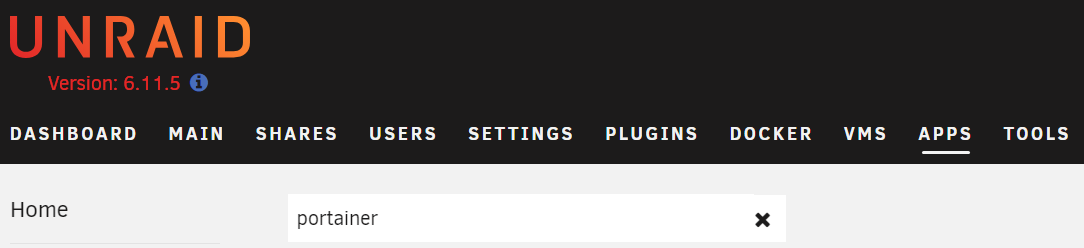
Log in to Unraid and navigate to the Apps section. Search for Portainer.
-
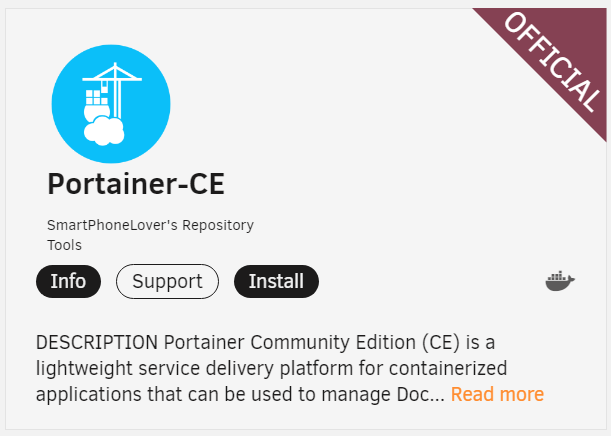
Click on Install for the Portainer-CE official version to launch the installation dialogue.
-
Most settings can remain at their default values, but pay attention to the following key sections:
-
You can customize the container name if desired.

-
Change the WebUI Port to 9000 (this is optional, but remember to use this port when accessing Portainer).

-
The default settings can remain unchanged, but you may modify the Directory path where all important Portainer data will be stored.

-
-
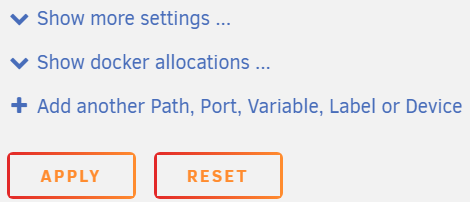
Click Apply to create the container. The Portainer image will be downloaded.
Setting Up Nextcloud on Unraid
With Portainer installed, we can now set up the Nextcloud container.
-
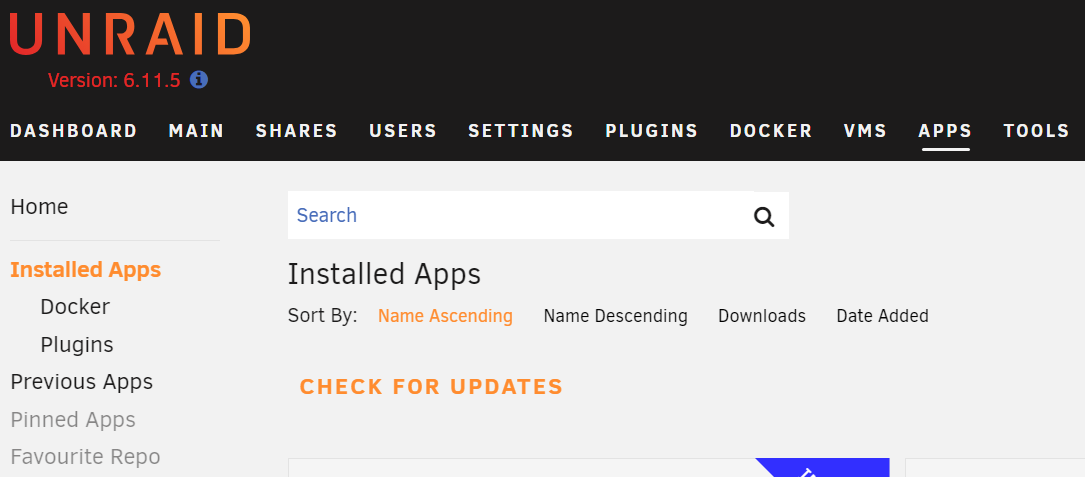
Navigate to Apps, then select Installed Apps.
-
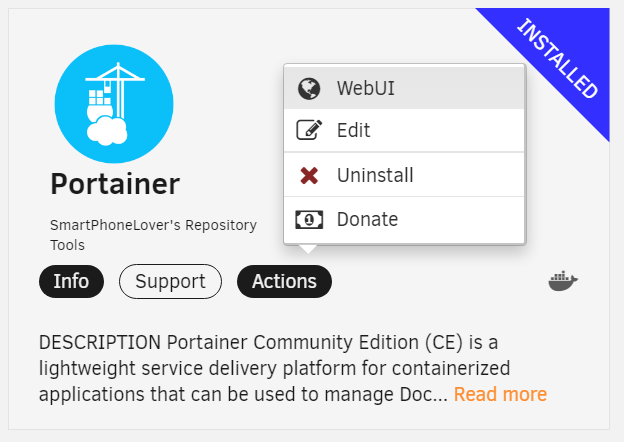
Click on Portainer, then select Actions, and finally click on WebUI.
-
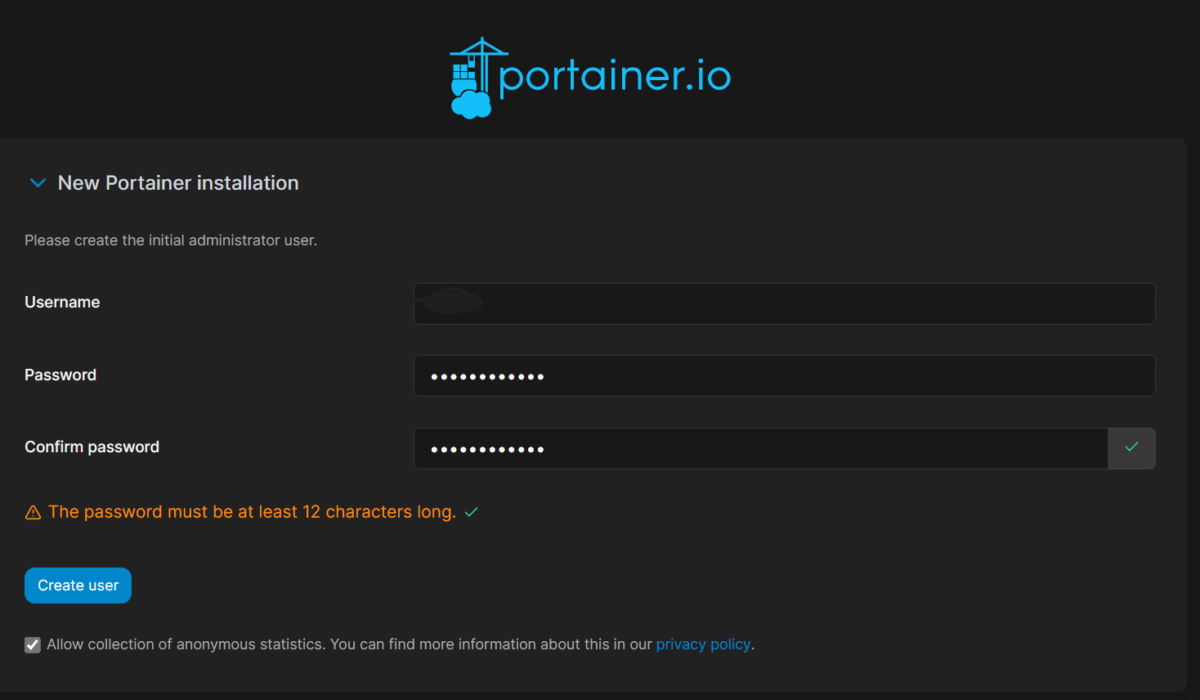
Create a username and password for Portainer.
-
Select Get Started, then choose Local to access local containers on Unraid.
Note: If you are running other Docker containers on Unraid, you can manage them with Portainer as well!

Nextcloud Container Configuration on Unraid
-
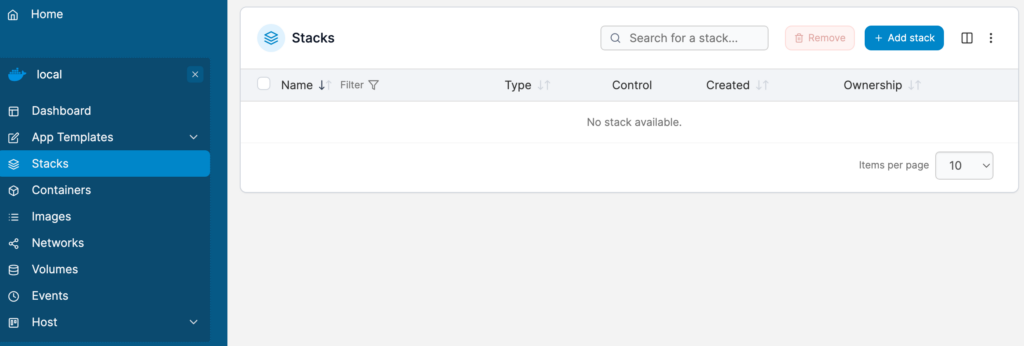
In Portainer, select Stacks, then click on Add Stack to create a new stack for Nextcloud and its database.
-
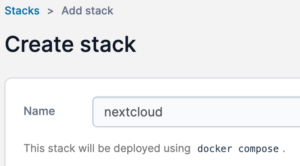
Name the stack as nextcloud.
-
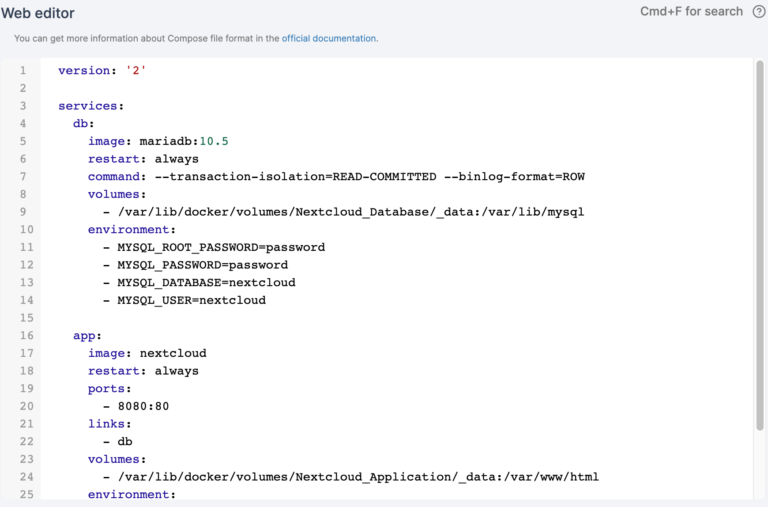
Paste the following contents into the web editor. A few important notes:
- You can adjust the volume details as needed. Ensure these paths are where all important Nextcloud data will be stored; if you plan to back up or migrate this container, these folders must be preserved.
- Update the passwords in the configuration below, ensuring that
MYSQL_PASSWORDmatches for both Database and Nextcloud containers.
version: '2'

networks:
  nextcloud-internal: {}

services:
  nextcloud:
    image: 'nextcloud:${NEXTCLOUD_IMAGE_VERSION:-latest}'
    depends_on:
      - 'nextcloud-db'
    healthcheck:
      test: ['CMD', 'curl', '0.0.0.0:80']
    labels:
      traefik.enable: true

      # https://docs.nextcloud.com/server/22/admin_manual/installation/harden_server.html
      # https://doc.traefik.io/traefik/v2.6/middlewares/http/headers/
      traefik.http.middlewares.header-nextcloud.headers.browserXssFilter: true
      traefik.http.middlewares.header-nextcloud.headers.contentTypeNosniff: true
      traefik.http.middlewares.header-nextcloud.headers.customFrameOptionsValue: 'SAMEORIGIN'
      traefik.http.middlewares.header-nextcloud.headers.referrerPolicy: 'no-referrer'
      traefik.http.middlewares.header-nextcloud.headers.stsincludesubdomains: true
      traefik.http.middlewares.header-nextcloud.headers.stspreload: true
      traefik.http.middlewares.header-nextcloud.headers.stsseconds: 15552000

      # https://docs.nextcloud.com/server/21/admin_manual/issues/general_troubleshooting.html#service-discovery
      # https://docs.nextcloud.com/server/23/admin_manual/configuration_server/reverse_proxy_configuration.html#traefik-2
      # https://doc.traefik.io/traefik/v2.6/middlewares/http/redirectregex/
      traefik.http.middlewares.redirect-dav-nextcloud.redirectRegex.permanent: true
      traefik.http.middlewares.redirect-dav-nextcloud.redirectRegex.regex: 'https://nextcloud.${SITE:-localhost}/.well-known/(card|cal)dav'
      traefik.http.middlewares.redirect-dav-nextcloud.redirectRegex.replacement: 'https://nextcloud.${SITE:-localhost}/remote.php/dav/'

      traefik.http.routers.nextcloud.middlewares: 'header-nextcloud,redirect-dav-nextcloud'
      traefik.http.routers.nextcloud.rule: 'Host(`nextcloud.${SITE:-localhost}`)'
      traefik.http.services.nextcloud.loadbalancer.server.port: 80
    networks:
      - 'srv'
      - 'nextcloud-internal'
    restart: 'always'
    volumes:
      - './data:/var/www/html'

  nextcloud-db:
    image: 'mariadb'
    command: '--transaction-isolation=READ-COMMITTED --binlog-format=ROW'
    environment:
      MYSQL_DATABASE: '${NEXTCLOUD_MYSQL_DATABASE:-nextcloud}'
      MYSQL_PASSWORD: '${NEXTCLOUD_MYSQL_PASSWORD:-nextcloud}'
      MYSQL_ROOT_PASSWORD: '${NEXTCLOUD_MYSQL_ROOT_PASSWORD:-pass}'
      MYSQL_USER: '${NEXTCLOUD_MYSQL_USER:-nextcloud}'
    healthcheck:
      test: ['CMD', 'mysqlcheck', '--all-databases', '-ppass']
    labels:
      traefik.enable: false
    networks:
      - 'nextcloud-internal'
    restart: 'always'
    volumes:
      - './db:/var/lib/mysql'
-
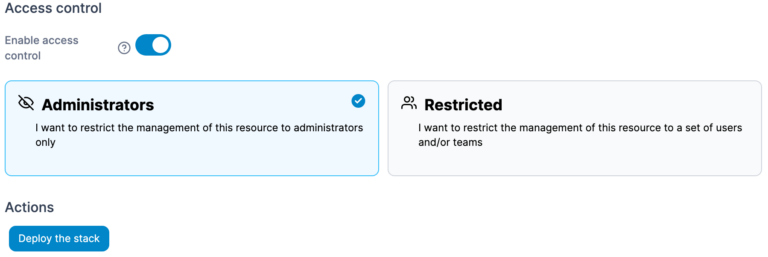
After making all necessary changes, click Deploy the stack at the bottom to create both containers.
-
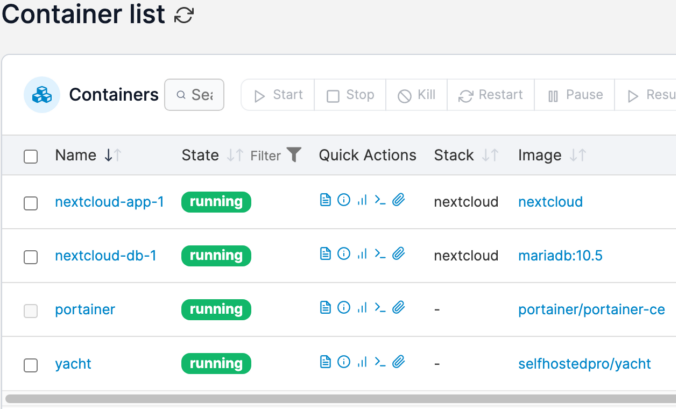
The containers should now be created—one for Nextcloud and one for its database.
Nextcloud Application Configuration
With the containers created, we can now configure Nextcloud.
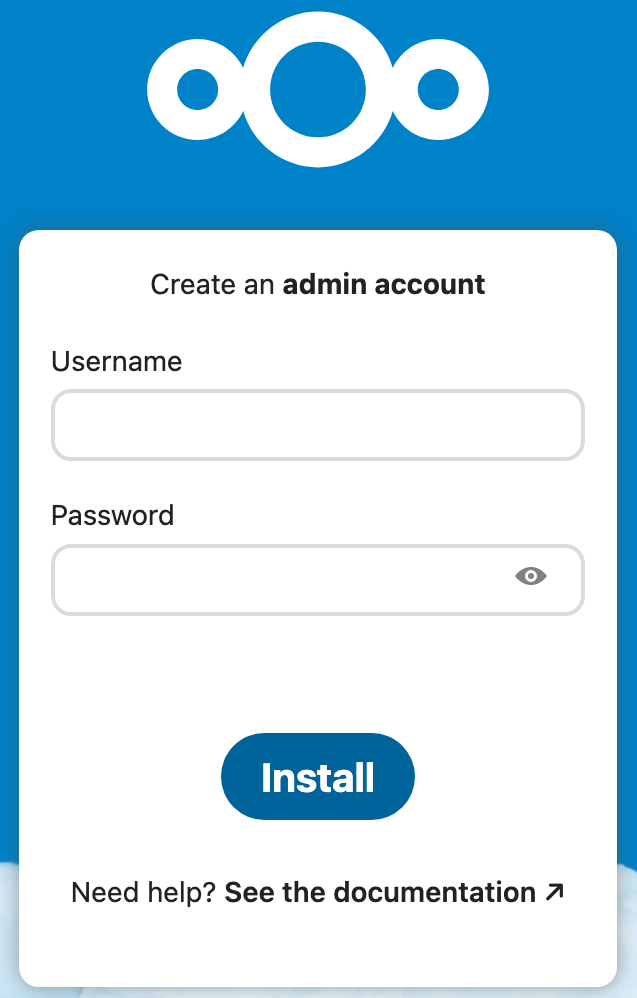
- Navigate to your Unraid server’s IP address followed by port 8080 in your web browser:
http://[UNRAID_IP]:8080
Set up a username and password on the initial screen, then click Install.
-
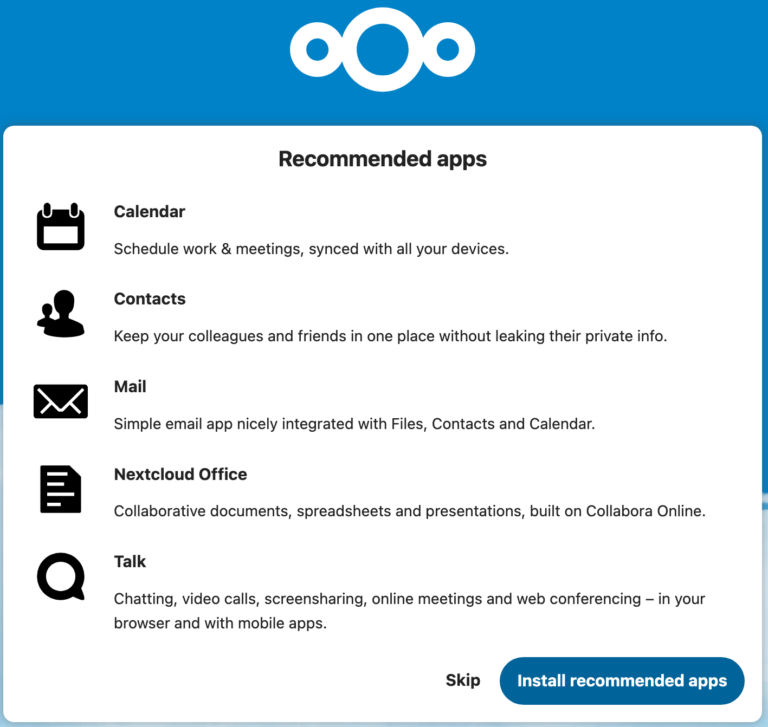
You can choose to install recommended apps or skip this step; if you install apps, this process may take a few minutes.
-
Once completed, your Nextcloud instance will be ready for use!

Nextcloud Unraid Remote Access
After configuring Nextcloud, enabling remote access is essential for convenience. While local access is possible, remote access significantly enhances usability. There are various methods to access Nextcloud remotely; my preferred approach is through a VPN.
If your router does not support VPN setup, consider using WireGuard on Unraid as it allows access to Nextcloud and other services just like when you’re connected to your local network.
Conclusion: How to Install Nextcloud on Unraid
This tutorial outlined how to install Nextcloud on Unraid using Portainer for an efficient setup process that leverages Docker Compose. While it is possible to configure Nextcloud through the Apps section in Unraid, doing so requires separate database configuration.
By utilizing Portainer, we create a single container configuration that encompasses both the application and its database necessary for running Nextcloud effectively.
Important: Ensure that configured volumes are properly backed up as they contain all your Nextcloud data. If you decide to migrate your Nextcloud instance to another server in the future, these folders will need to be transferred.
Thank you for following this tutorial! If you have any questions regarding how to install Nextcloud on Unraid, please leave them in the comments!