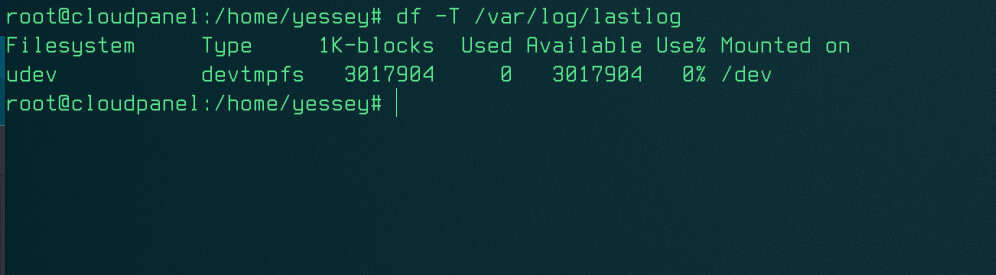
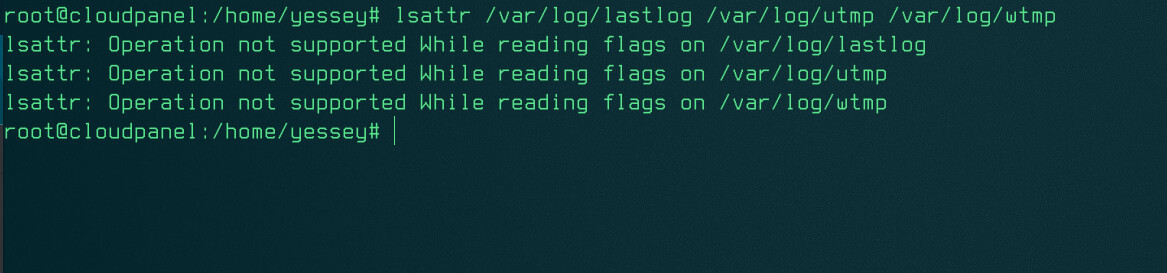
How to Fix “Failed to Reset Lastlog Entry” Error When Adding WordPress/Python or any similar Site in CloudPanel
The Problem
When trying to add a new WordPress site in CloudPanel, you might encounter this frustrating error message:
An error has occurred, error message: Command " : /usr/bin/sudo /usr/sbin/useradd -p $(/usr/bin/openssl passwd -6 'Rh6puufsdfasduibdo3ALMh2DYH') -m 'techc' -k '/home/clp/htdocs/app/files/resources/etc/skel/site-user' -s '/bin/bash' -d '/home/techc' " failed, error message: useradd: failed to reset the lastlog entry of UID 1013: No such file or directory useradd: failed to reset the lastlog entry of UID 1013: No such file or directory
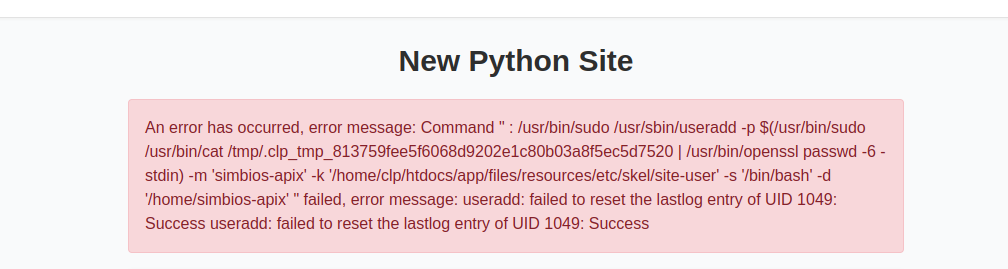
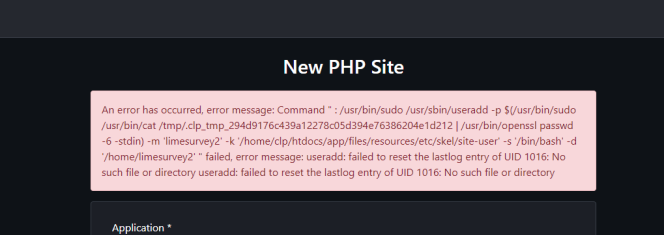
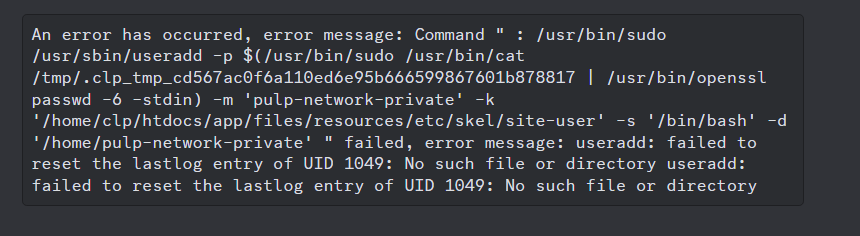
This error occurs due to file permission issues with system log files, but don’t worry – it’s easy to fix!
The Solution
Follow these steps to resolve the issue:
- Log in to your server as the root user
- Copy and paste these commands one by one:
chattr -i /var/log/lastlog
chattr -i /var/log/utmp
chattr -i /var/log/wtmp
chmod -R 755 /var/log/
chattr -i /var/log/utmp
These commands will:
- Remove the immutable attribute from system log files
- Set the correct permissions for the log directory
- Allow CloudPanel to properly create new user accounts
After running these commands, try adding your WordPress site again – it should work without any errors!
Why This Happens
This issue isn’t actually a bug in CloudPanel, but rather a system-level permission problem that prevents CloudPanel from properly creating new user accounts. The commands above fix this by adjusting the file permissions and attributes of crucial system log files.
Additional Tips
- Make sure you run these commands as the root user
- Double-check that your domain is properly configured in your DNS settings
- If you’re still experiencing issues, check CloudPanel’s error logs for additional information
Remember to always backup your system before making any system-level changes!