

Guide to Deploy Pangolin on Flatcar OS
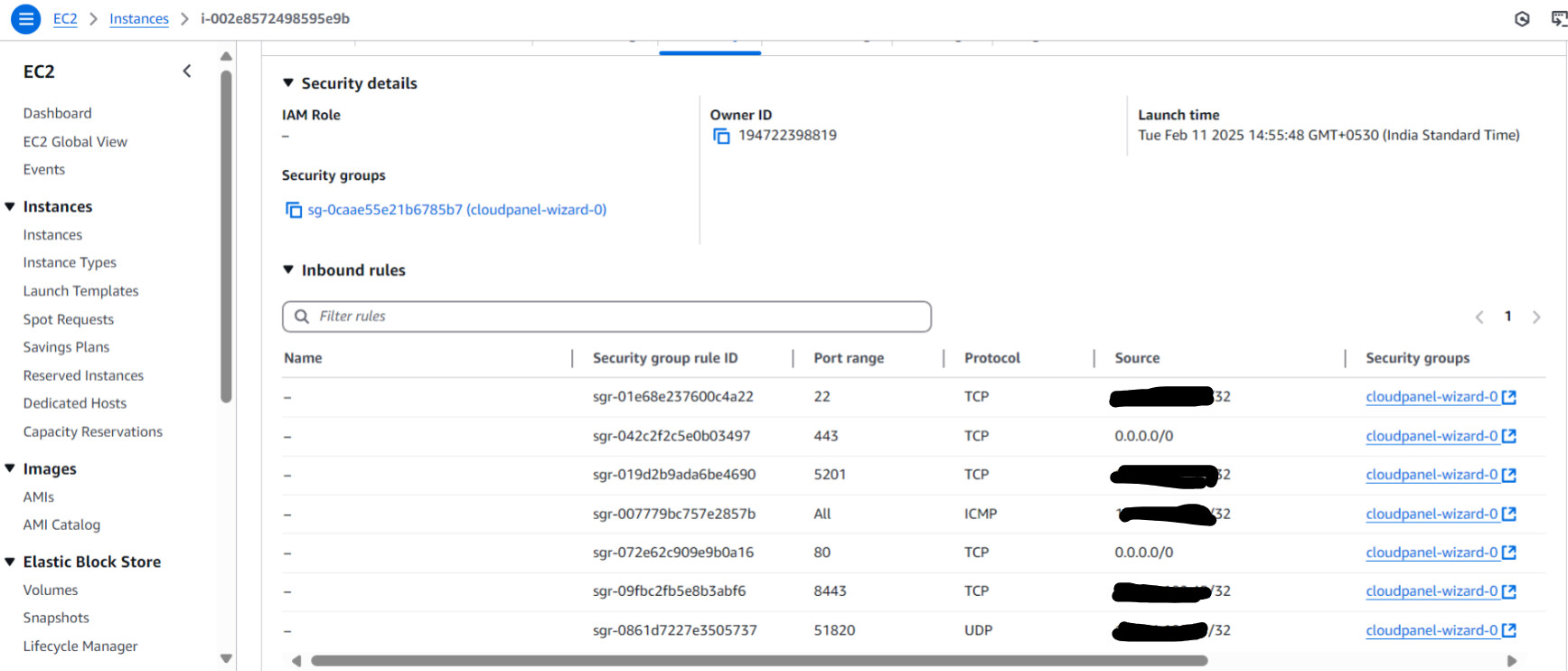
As a prerequisite to deployment, confirm the following: (1) all required network ports are open and accessible (TCP 80, TCP 443, UDP 51820); and (2) the DNS records for your domain correctly resolve to the public IP address of your Flatcar VPS.
1. Initial Server Setup
First, SSH into your Flatcar OS server:
ssh core@your-server-ip
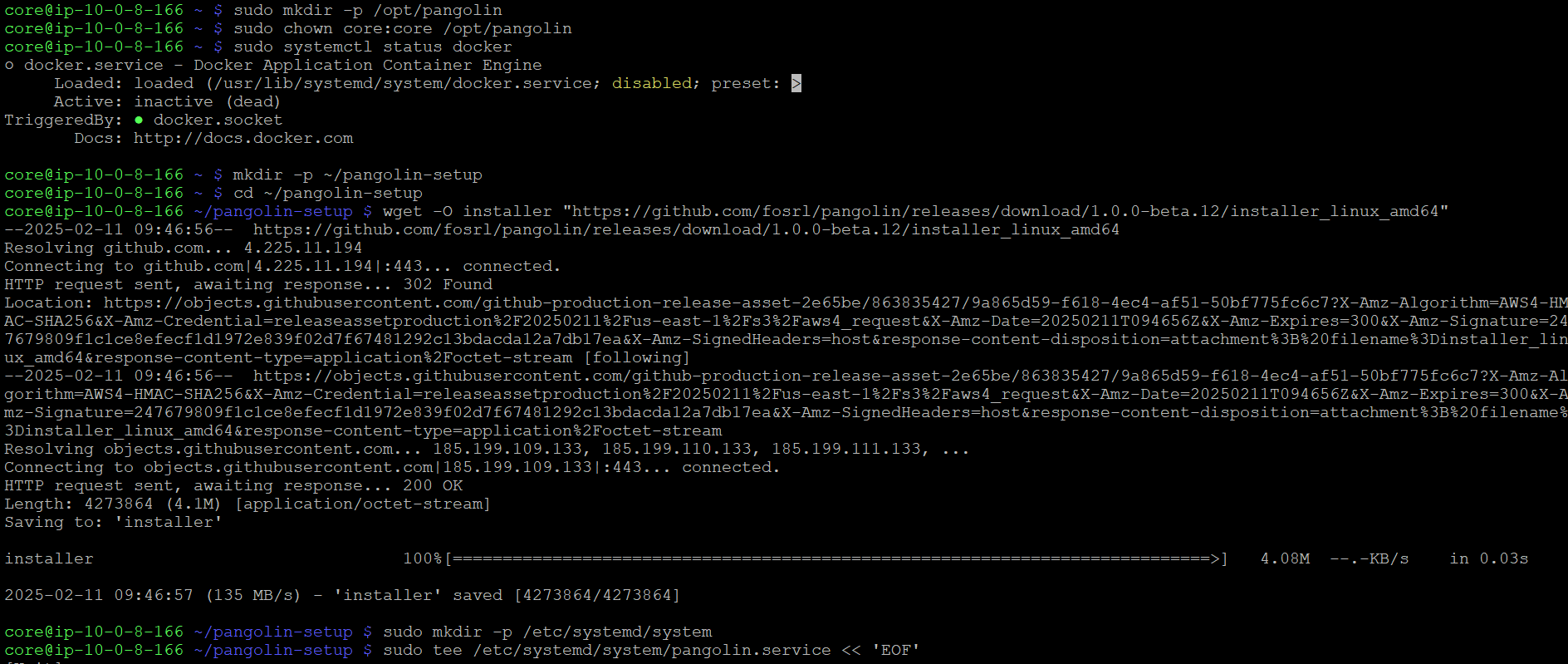
Create a persistent directory for Pangolin data since Flatcar OS uses an immutable filesystem:
sudo mkdir -p /opt/pangolin
sudo chown core:core /opt/pangolin
cd /opt/pangolin
2. Set Up Docker Compose
Create a Docker Compose wrapper script that ensures compatibility with Flatcar OS:
sudo mkdir -p /opt/bin
sudo tee /opt/bin/docker-compose << 'EOF'
#!/bin/bash
docker run --rm \
    -v /var/run/docker.sock:/var/run/docker.sock \
    -v "$PWD:$PWD" \
    -w="$PWD" \
    docker/compose:1.29.2 "$@"
EOF

sudo chmod +x /opt/bin/docker-compose
3. Download the Pangolin Installer
Download the Pangolin installer:
wget -O installer "https://github.com/fosrl/pangolin/releases/download/1.0.0-beta.14/installer_linux_amd64"
chmod +x ./installer
4. Run the Installer
Run the installer with sudo:
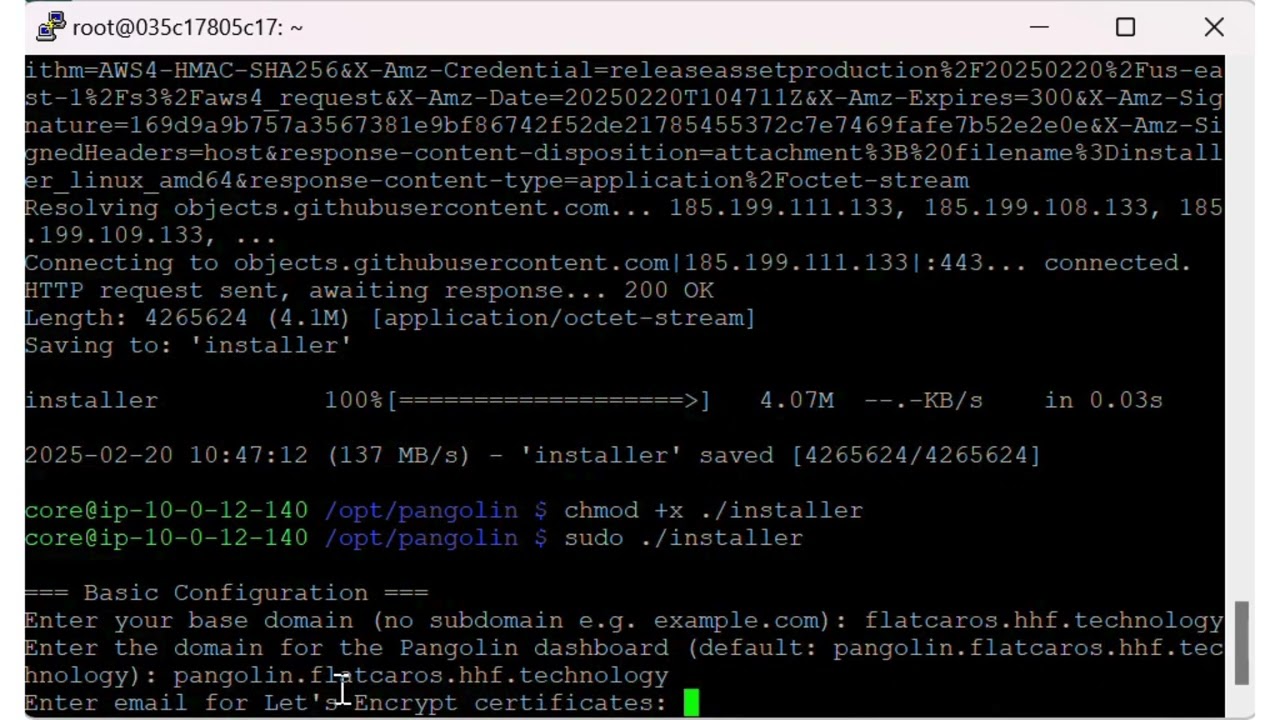
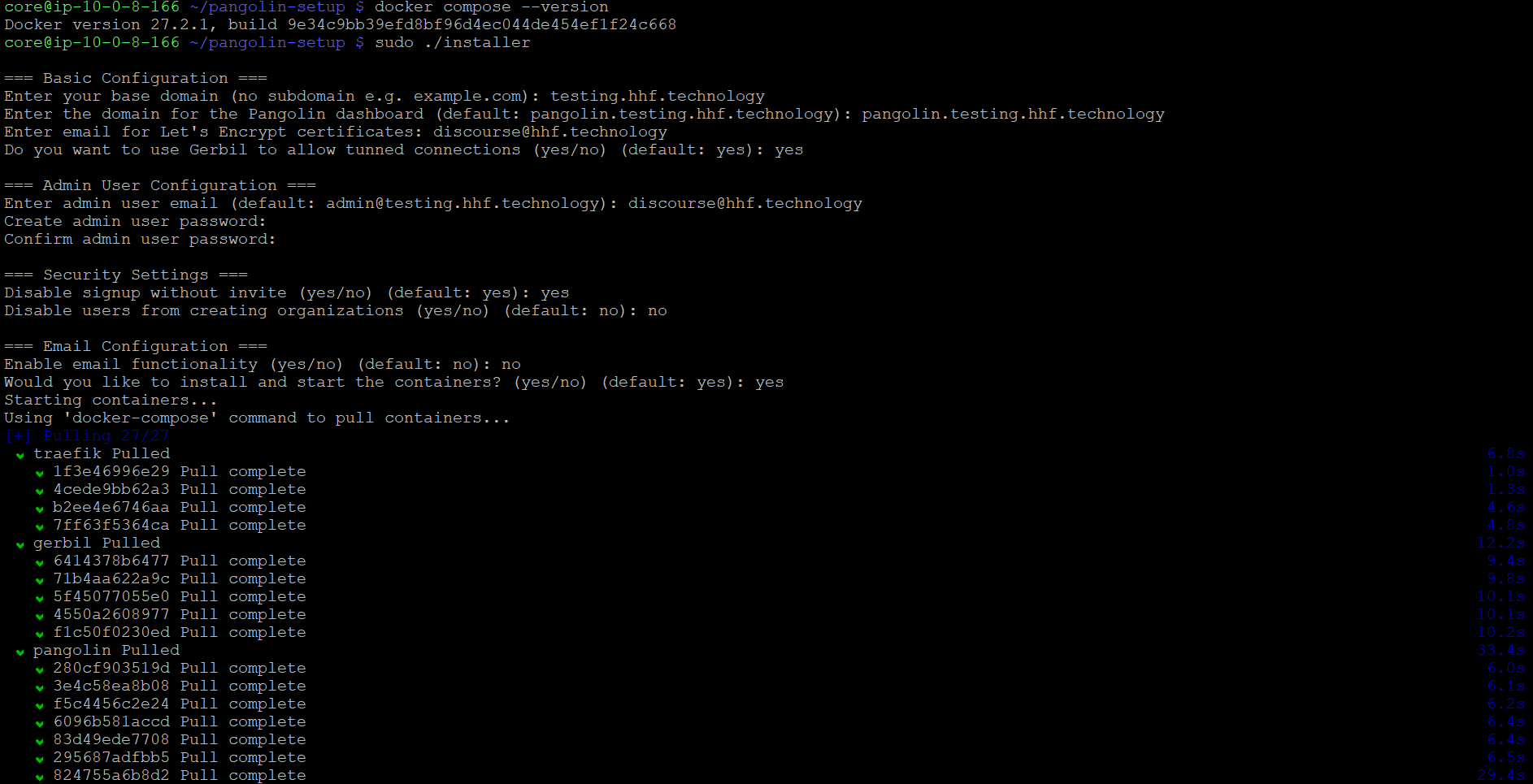
sudo ./installer
When prompted, provide the following information:
- Your base domain name (e.g., example.com)
- Dashboard domain name (e.g., proxy.example.com)
- Let’s Encrypt email address
- Choose whether to install Gerbil for tunneling
- Set up admin user credentials
- Configure security settings
- Set up email configuration (optional)
5. Create a Systemd Service
Create a systemd service file to manage Pangolin:
sudo mkdir -p /etc/systemd/system
sudo tee /etc/systemd/system/pangolin.service << 'EOF'
[Unit]
Description=Pangolin Service
After=docker.service
Requires=docker.service

[Service]
Type=simple
User=root
WorkingDirectory=/opt/pangolin
ExecStartPre=/bin/sleep 5
ExecStart=/opt/bin/docker-compose up
ExecStop=/opt/bin/docker-compose down
Restart=on-failure
RestartSec=10

[Install]
WantedBy=multi-user.target
EOF
6. Start Pangolin Service
Enable and start the Pangolin service:
sudo systemctl daemon-reload
sudo systemctl enable pangolin
sudo systemctl start pangolin
7. Verify Installation
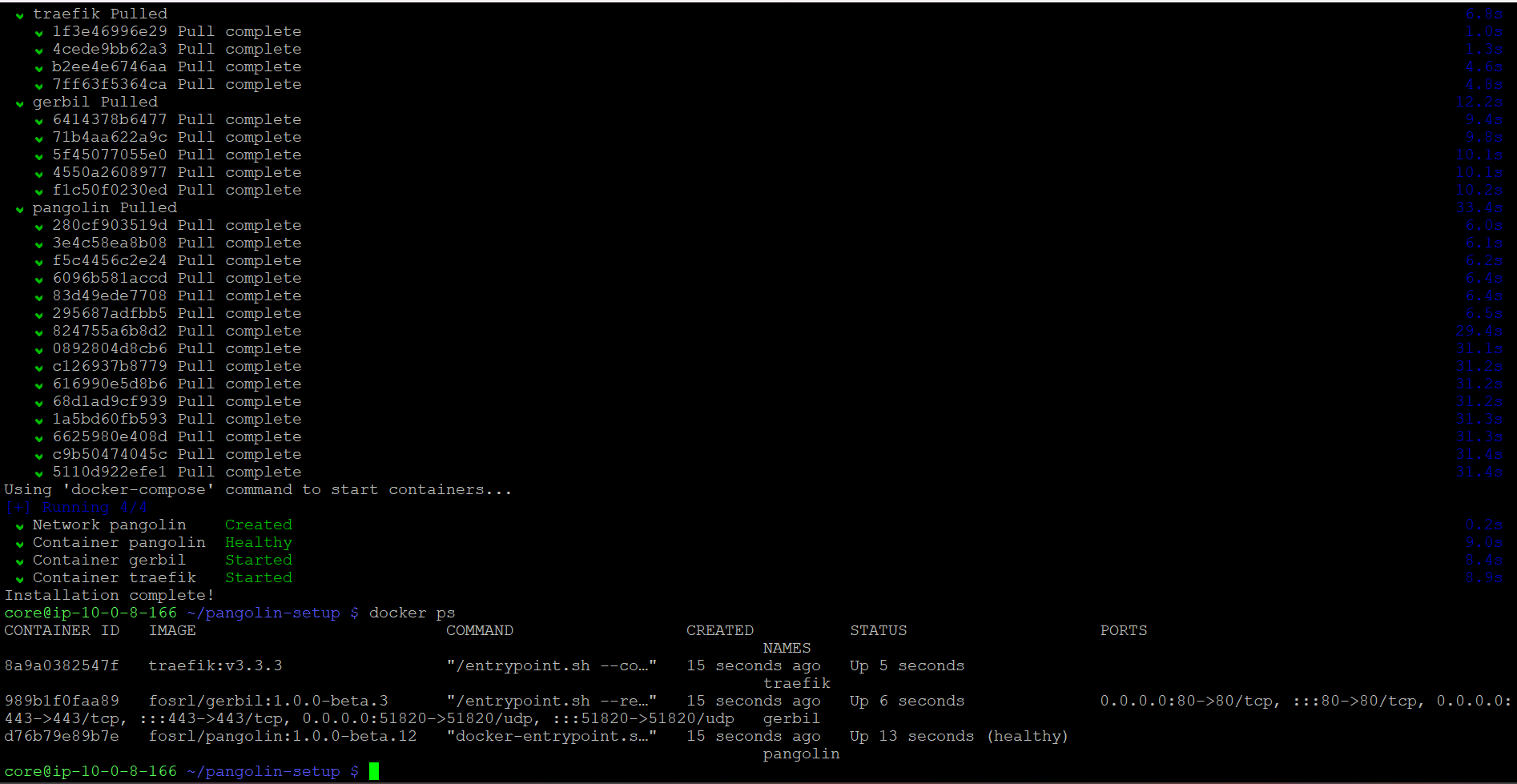
Check if all containers are running:
cd /opt/pangolin
/opt/bin/docker-compose ps
You should see containers for:
- Pangolin
- Traefik
- Gerbil (if you chose to install it)
8. Monitor Logs
You can monitor the logs using:
cd /opt/pangolin
/opt/bin/docker-compose logs -f
9. Access the Dashboard
Once everything is running, access your Pangolin dashboard at the domain you configured (e.g., https://proxy.example.com).
Troubleshooting Tips
If you encounter any issues:
-
Check the container logs:
cd /opt/pangolin /opt/bin/docker-compose logs -
Verify all ports are accessible:
sudo ss -tulpn -
Check systemd service status:
sudo systemctl status pangolin -
If the service fails to start, try starting Docker Compose manually:
cd /opt/pangolin /opt/bin/docker-compose up -d -
Ensure all configuration files exist:
ls -la /opt/pangolin/config/
Remember that Flatcar OS uses an immutable file system, so all persistent data should be stored in the /opt directory.