A step-by-step guide to deploy Matrix Synapse with Coturn using Docker Compose, and expose it via a VPS using Pangolin. I’ll provide all necessary configuration files and detailed instructions to ensure a perfect deployment with proper federation and voice/video capabilities.
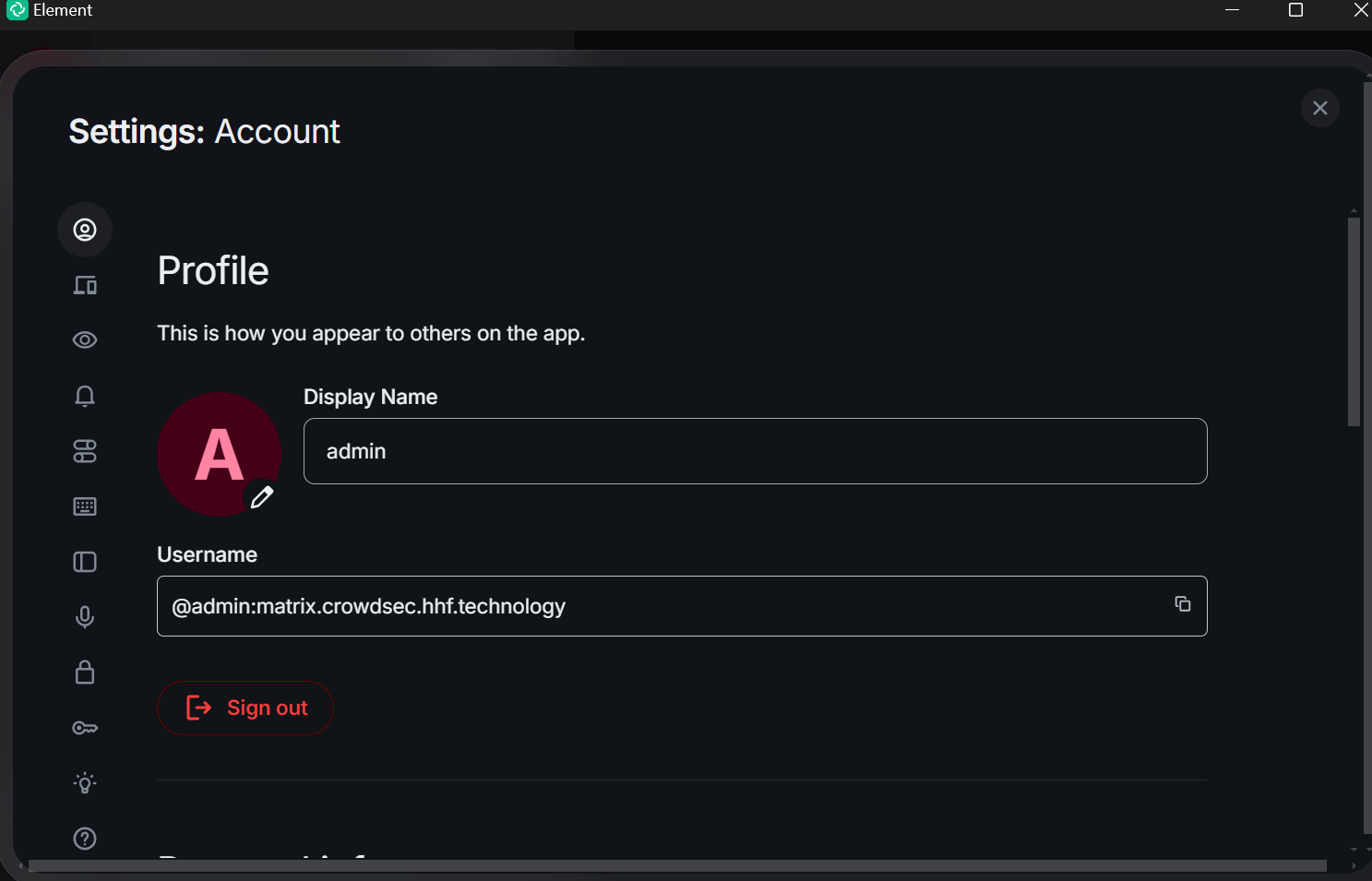
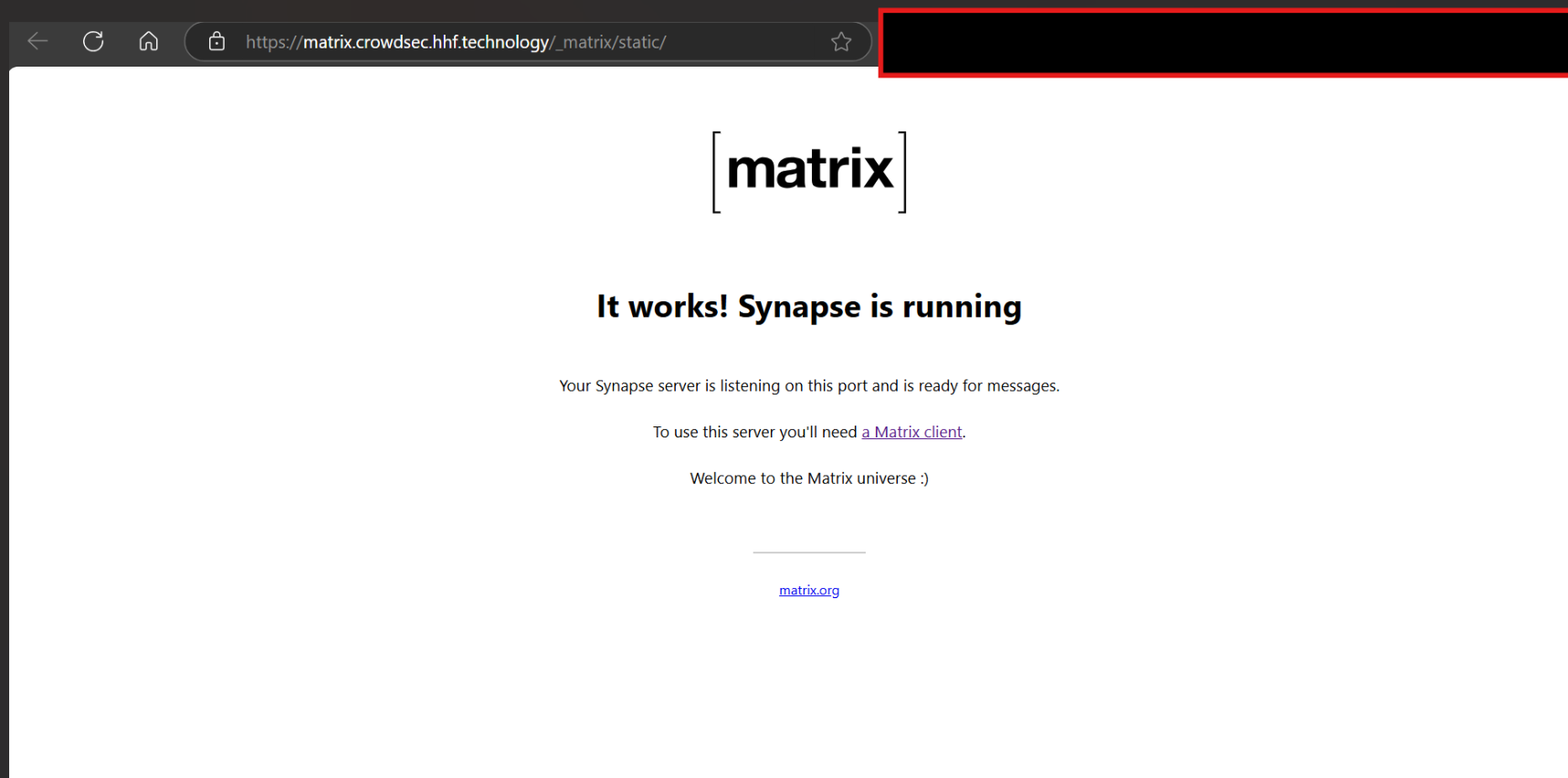
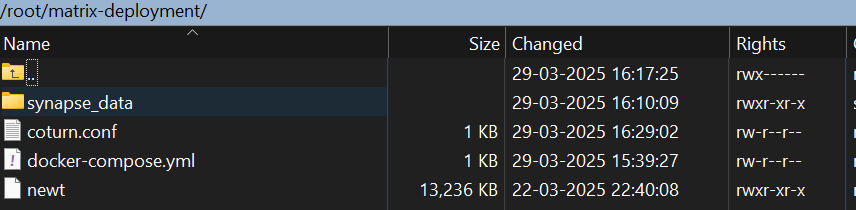
A Big thank you to the community member @cashford this was possible because of the member help only
Prerequisites
- A VPS with Docker and Docker Compose installed.
- A local machine with Docker and Docker Compose installed.
- Access to the Pangolin dashboard for tunneling setup.
- A domain name or subdomain provided by Pangolin (e.g.,
matrix.example.com).
Step 1: Set Up the Matrix Stack Locally
We’ll create a Docker Compose setup for Matrix Synapse and Coturn on your local machine.
1.1 Create Directory Structure
Create a directory for your Matrix setup and navigate into it:
mkdir matrix-deployment
cd matrix-deployment
1.2 Create Docker Compose File
Create a file named docker-compose.yml with the following content:
services:
  synapse:
    image: matrixdotorg/synapse:latest
    container_name: synapse
    volumes:
      - ./synapse_data:/data
    ports:
      - "8008:8008"  # Client API
    environment:
      - SYNAPSE_SERVER_NAME=matrix.example.com
      - SYNAPSE_REPORT_STATS=no
    restart: unless-stopped

  coturn:
    image: coturn/coturn:latest
    container_name: coturn
    volumes:
      - ./coturn.conf:/etc/coturn/turnserver.conf
    ports:
      - "3478:3478/tcp"   # STUN/TURN TCP
      - "3478:3478/udp"   # STUN/TURN UDP
      - "5349:5349/tcp"   # STUN/TURN SSL TCP
      - "5349:5349/udp"   # STUN/TURN SSL UDP
    command: ["-n", "--log-file=stdout", "--external-ip=YOUR_LOCAL_MACHINE_IP"]
    restart: unless-stopped
Notes:
- Replace
matrix.example.comwith the domain provided by Pangolin (e.g.,matrix.your-pangolin-domain.com). - Replace
YOUR_LOCAL_MACHINE_IPwith your local machine’s public IP or leave it unset for now; we’ll adjust it based on Pangolin’s tunneling.
1.3 Generate Synapse Configuration
Run the following command to generate the initial Synapse configuration:
docker compose run --rm synapse generate
This creates configuration files in the synapse_data directory, including homeserver.yaml.
1.4 Configure Coturn
Create a coturn.conf file in the matrix-deployment directory:
listening-port=3478
tls-listening-port=5349
realm=turn.matrix.crowdsec.hhf.technology
server-name=turn.matrix.crowdsec.hhf.technology
external-ip=10.0.1.62
min-port=49152
max-port=65535
verbose
fingerprint
lt-cred-mech
user=admin:password
static-auth-secret=d41d8cd98f00b204e9800998ecf8427e
Notes:
- Replace
turn.matrix.example.comwith a subdomain (e.g.,turn.your-pangolin-domain.com). - Replace
YOUR_LOCAL_MACHINE_IPwith your local machine’s public IP or the IP assigned by Pangolin later. - For simplicity, set a static username and password (e.g.,
username:password). In production, generate a secure password.
docker exec -it <synapse-container-name> register_new_matrix_user -c /data/homeserver.yaml
Step 2: Set Up Pangolin
Pangolin uses WireGuard and Traefik to tunnel traffic from your VPS to your local machine. Follow these steps to configure it.
2.1 Create a Site in Pangolin Dashboard
- Log in to your Pangolin dashboard (provided by your Pangolin setup).
- Create a new site and note the following:
- Newt ID (
YOUR_NEWT_ID) - Newt Secret (
YOUR_NEWT_SECRET) - Endpoint URL (e.g.,
https://your-pangolin-domain.com)
- Newt ID (
2.2 Run Newt on Your Local Machine
Download Newt (Pangolin’s tunneling client) for your platform, then run it with the credentials from the dashboard:
./newt \
  --id YOUR_NEWT_ID \
  --secret YOUR_NEWT_SECRET \
  --endpoint https://your-pangolin-domain.com
- Keep Newt running in a terminal or as a background service.
- This establishes the WireGuard tunnel between your local machine and the VPS.
Step 3: Configure Ports in Pangolin
Modify Pangolin’s configuration on the VPS to expose the necessary ports.
3.1 Edit Pangolin’s docker-compose.yml
Locate or create Pangolin’s docker-compose.yml on your VPS (typically in the Pangolin installation directory). Add the required ports to the gerbil service:
services:
  gerbil:
    image: pangolin/gerbil:latest  # Adjust based on your Pangolin setup
    ports:
      - "51820:51820/udp"  # WireGuard
      - "80:80"            # HTTP
      - "443:443"          # HTTPS
      - "3478:3478/tcp"    # STUN/TURN TCP
      - "3478:3478/udp"    # STUN/TURN UDP
      - "5349:5349/tcp"    # STUN/TURN SSL TCP
      - "5349:5349/udp"    # STUN/TURN SSL UDP
    # Other existing configuration...
3.2 Add EntryPoints in Traefik Configuration
Edit or create config/traefik/traefik_config.yml in your Pangolin directory on the VPS:
entryPoints:
  web:
    address: ":80"
  websecure:
    address: ":443"
    http:
      tls: {}
  tcp-3478:
    address: ":3478/tcp"
  udp-3478:
    address: ":3478/udp"
  tcp-5349:
    address: ":5349/tcp"
  udp-5349:
    address: ":5349/udp"
Notes:
websecure(port 443) handles client API traffic with TLS.- Coturn ports are defined as raw TCP/UDP entry points since they don’t use HTTP.
3.3 Restart Pangolin Services
Apply the changes by restarting Pangolin:
sudo docker compose down
sudo docker compose up -d
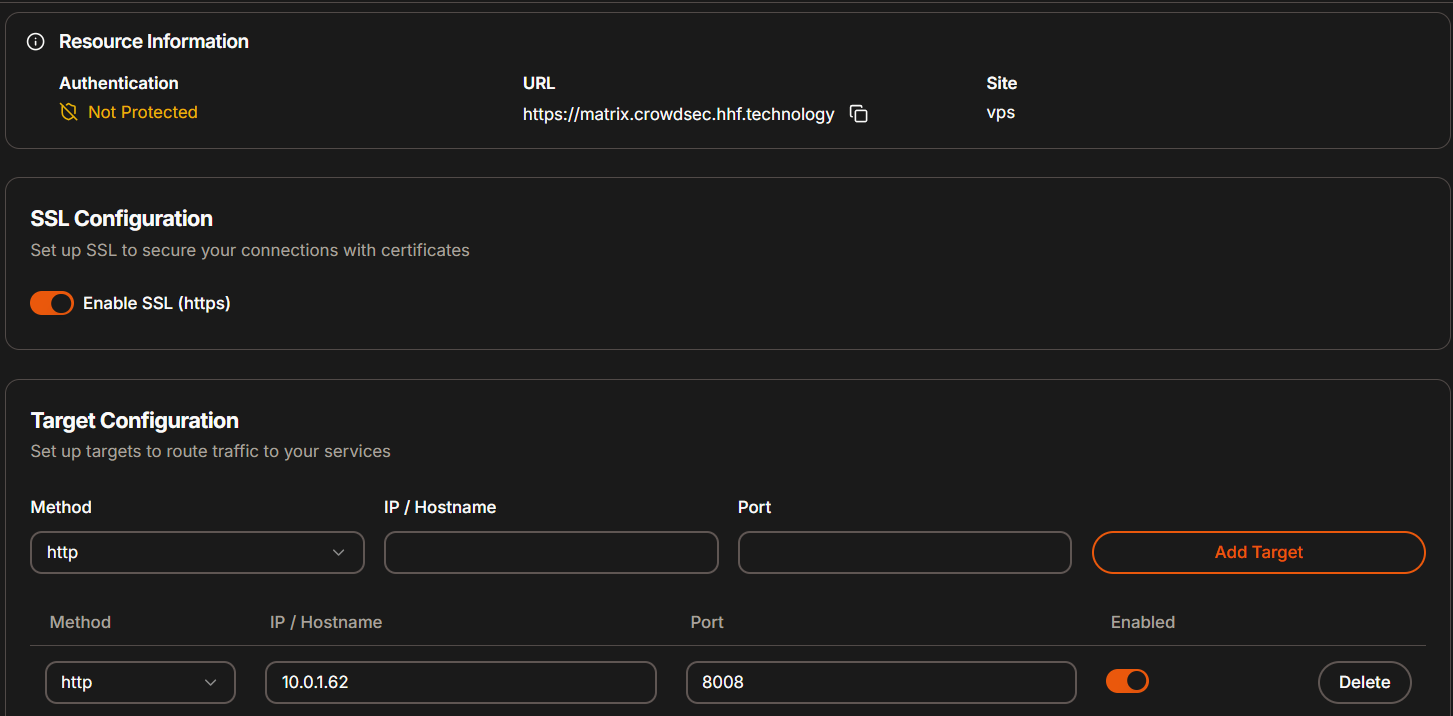
Step 4: Create Resources in Pangolin Dashboard
Define resources to route traffic from the VPS to your local services.
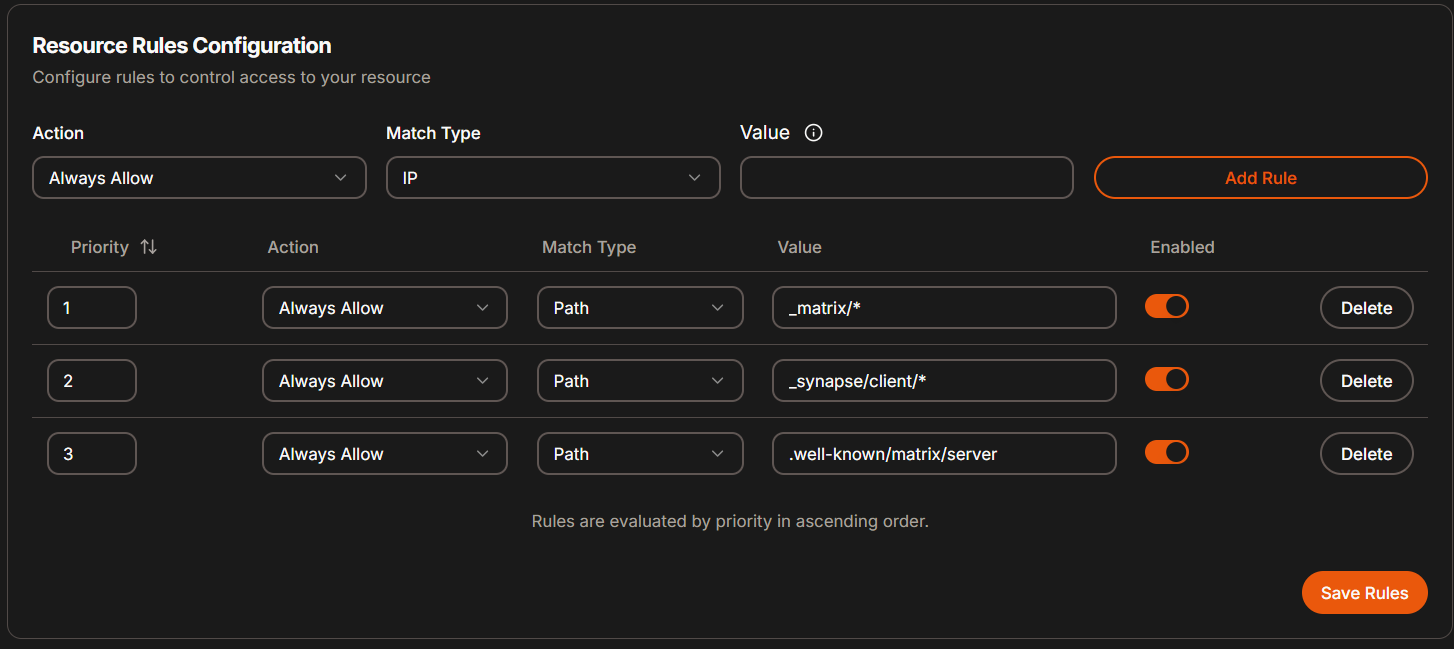
-
Matrix Client API (HTTP on Port 8008):
- Type: HTTP
- Domain:
matrix.example.com - Entry Point:
websecure(port 443) - Target:
<synapse-container-ip>:8008(e.g.,172.18.0.2:8008, find this usingdocker inspect synapseon your local machine) - Path:
/_matrix/* - Path:
_synapse/client/* - Path:
.well-known/matrix/server
-
Coturn STUN/TURN (TCP/UDP on Port 3478):
- Type: Raw TCP/UDP
- Entry Point:
turn-tcp(TCP) andturn-udp(UDP) - Target:
<coturn-container-ip>:3478(e.g.,172.18.0.3:3478, find this usingdocker inspect coturn)
-
Coturn STUN/TURN SSL (TCP/UDP on Port 5349):
- Type: Raw TCP/UDP
- Entry Point:
turn-ssl-tcp(TCP) andturn-ssl-udp(UDP) - Target:
<coturn-container-ip>:5349
Finding Container IPs:
- Run
docker network lsto find the network (e.g.,matrix-deployment_default). - Run
docker network inspect <network-name>to get the IPs ofsynapseandcoturn.
Step 5: Modify Matrix Configuration
Update Synapse’s configuration to use Pangolin’s domain and integrate with Coturn.
5.1 Edit homeserver.yaml
Open synapse_data/homeserver.yaml and modify the following sections:
# Configuration file for Synapse.
#
# This is a YAML file: see [1] for a quick introduction. Note in particular
# that *indentation is important*: all the elements of a list or dictionary
# should have the same indentation.
#
# [1] https://docs.ansible.com/ansible/latest/reference_appendices/YAMLSyntax.html
#
# For more information on how to configure Synapse, including a complete accounting of
# each option, go to docs/usage/configuration/config_documentation.md or
# https://element-hq.github.io/synapse/latest/usage/configuration/config_documentation.html
server_name: "matrix.crowdsec.hhf.technology"
pid_file: /data/homeserver.pid
listeners:
  - port: 8008
    tls: false
    type: http
    x_forwarded: true
    bind_addresses: ['0.0.0.0']
    resources:
      - names: [client, federation]
        compress: false
database:
  name: sqlite3
  args:
    database: /data/homeserver.db
log_config: "/data/matrix.crowdsec.hhf.technology.log.config"
media_store_path: /data/media_store
serve_server_wellknown: true
registration_shared_secret: "qir:OXhJicNi7e~NX#U=GJw&eACZTL~g==7Bi@.qR+YGmXjsLD"
report_stats: false
macaroon_secret_key: "DQEcko3Ubrfl28+V*N8nc4st#IJ0i8c,D.dxei;IhZPMKj2HI7"
form_secret: ";^zICi3XRkD:y^whG@J~J9wytt;v7vxjbqZ,_Z&-r.CaS5a.i_"
signing_key_path: "/data/matrix.crowdsec.hhf.technology.signing.key"
trusted_key_servers:
  - server_name: "matrix.org"
turn_uris:
  - "turn:turn.matrix.crowdsec.hhf.technology:3478?transport=udp"
  - "turn:turn.matrix.crowdsec.hhf.technology:3478?transport=tcp"
  - "turns:turn.matrix.crowdsec.hhf.technology:5349?transport=udp"
  - "turns:turn.matrix.crowdsec.hhf.technology:5349?transport=tcp"
turn_shared_secret: "d41d8cd98f00b204e9800998ecf8427e"
turn_user_lifetime: 86400000
turn_allow_guests: true


# vim:ft=yaml
Notes:
- Replace
matrix.example.comwith your Pangolin-provided domain. - Replace
turn.matrix.example.comwith your Coturn domain (same or a subdomain). - Set
turn_shared_secretto a secure value and match it incoturn.confif using long-term credentials instead of staticusername:password.
5.2 Update Coturn Configuration (Optional)
If using a shared secret instead of static credentials, update coturn.conf:
listening-port=3478
tls-listening-port=5349
realm=turn.matrix.crowdsec.hhf.technology
server-name=turn.matrix.crowdsec.hhf.technology
external-ip=10.0.1.62
min-port=49152
max-port=65535
verbose
fingerprint
lt-cred-mech
user=admin:password
static-auth-secret=d41d8cd98f00b204e9800998ecf8427e
Restart Coturn after changes:
docker compose restart coturn
Step 6: Deploy Your Matrix Stack
Start your local Matrix services:
docker compose up -d
Verify the services are running:
docker ps
Step 7: Test Your Deployment
-
Client Access:
- Open a browser or Matrix client (e.g., Element) and connect to
https://matrix.example.com. - Register a user to confirm the client API works.
https://federationtester.matrix.org/#matrix.crowdsec.hhf.technology
- Open a browser or Matrix client (e.g., Element) and connect to
-
Federation:
- Join a federated room (e.g.,
#matrix:matrix.org) and check if messages sync. - Use the Federation Tester (https://federationtester.matrix.org) with
matrix.example.com.
- Join a federated room (e.g.,
-
Voice/Video:
- Start a voice or video call in a Matrix room to test Coturn functionality.
Traffic Flow
- Users:
https://matrix.example.com→ Pangolin VPS (port 443) → WireGuard → Newt → Synapse (port 8008) - STUN/TURN:
turn.matrix.example.com:3478/5349→ Pangolin VPS (ports 3478/5349) → WireGuard → Newt → Coturn
Final Notes
- Security: Use strong passwords/secrets and consider adding TLS certificates to Coturn for production use.
- Troubleshooting: Check logs with
docker logs synapseanddocker logs coturnif issues arise.
This setup provides a fully functional Matrix server with federation and voice/video support, exposed securely via Pangolin. Let me know if you need further clarification!