This guide will walk you through implementing custom error pages for your Pangolin resources using the Middleware Manager or in general without middleware manager.
Overview
When users encounter errors like 404 (page not found) or 502 (bad gateway), we’ll redirect them to a dedicated error page service that displays professionally designed error templates. This is accomplished using Traefik’s error middleware and a dedicated error page container.
Step 1: Add Error Pages Service to Docker Compose
First, add the error pages service to your docker-compose.yml file:
error-pages:
  image: ghcr.io/tarampampam/error-pages:3
  container_name: error-pages
  restart: unless-stopped
  environment:
    TEMPLATE_NAME: connection  # Choose from available templates: ghost, connection, shuffle, etc.
  labels:
    traefik.enable: true
This service uses the tarampampam/error-pages container which provides many pre-designed error page templates. You can choose different templates by changing the TEMPLATE_NAME value.
Step 2: Add Error Pages Service to dynamic_config.ymlTraefik Configuration
In your dynamic_config.yml Traefik configuration, add the error pages service:
http:
  services:
    error-pages-service:
      loadBalancer:
        servers:
          - url: "http://error-pages:8080"
Full File
http:
  middlewares:
    redirect-to-https:
      redirectScheme:
        scheme: https

  routers:
    # HTTP to HTTPS redirect router
    main-app-router-redirect:
      rule: "Host(`pangolin.development.hhf.technology`)"
      service: next-service
      entryPoints:
        - web
      middlewares:
        - redirect-to-https


    # Next.js router (handles everything except API and WebSocket paths)
    next-router:
      rule: "Host(`pangolin.development.hhf.technology`) && !PathPrefix(`/api/v1`)"
      service: next-service
      entryPoints:
        - websecure
      tls:
        certResolver: letsencrypt

    # API router (handles /api/v1 paths)
    api-router:
      rule: "Host(`pangolin.development.hhf.technology`) && PathPrefix(`/api/v1`)"
      service: api-service
      entryPoints:
        - websecure
      tls:
        certResolver: letsencrypt

    # WebSocket router
    ws-router:
      rule: "Host(`pangolin.development.hhf.technology`)"
      service: api-service
      entryPoints:
        - websecure
      tls:
        certResolver: letsencrypt

    error-pages-router:
      rule: "HostRegexp(`.+`)"          # Catches any host
      priority: 10                     # Low priority, acts as a fallback
      entryPoints:
        - web                        # Assigns to the 'web' entrypoint
        - websecure
      middlewares:
        - error-pages-middleware@file


  services:
    next-service:
      loadBalancer:
        servers:
          - url: "http://pangolin:3002"  # Next.js server

    api-service:
      loadBalancer:
        servers:
          - url: "http://pangolin:3000"  # API/WebSocket server

    error-pages-service:
      loadBalancer:
        servers:
          - url: "http://error-pages:8080"
Step 3: Create an Error Pages Middleware
Now you need to add an error pages middleware. You can do this in two ways:
Option A: Using the Middleware Manager UI
- Open the Middleware Manager UI (http://your-server:3456)
- Go to the “Middlewares” tab
- Click “Create Middleware”
- Fill in the following details:
- Name:
Error Pages Middleware - Type:
errors - Configuration (JSON):
{ "status": ["400-599"], "service": "error-pages-service", "query": "/{status}.html" } - Name:
- Click “Create Middleware”
Option B: Using Templates File
Alternatively, add the middleware configuration to your templates.yaml file:
middlewares:
  - id: error-pages-middleware
    name: Error Pages Middleware
    type: errors
    config:
      status:
        - "400-599"
      service: "error-pages-service"
      query: "/{status}.html"
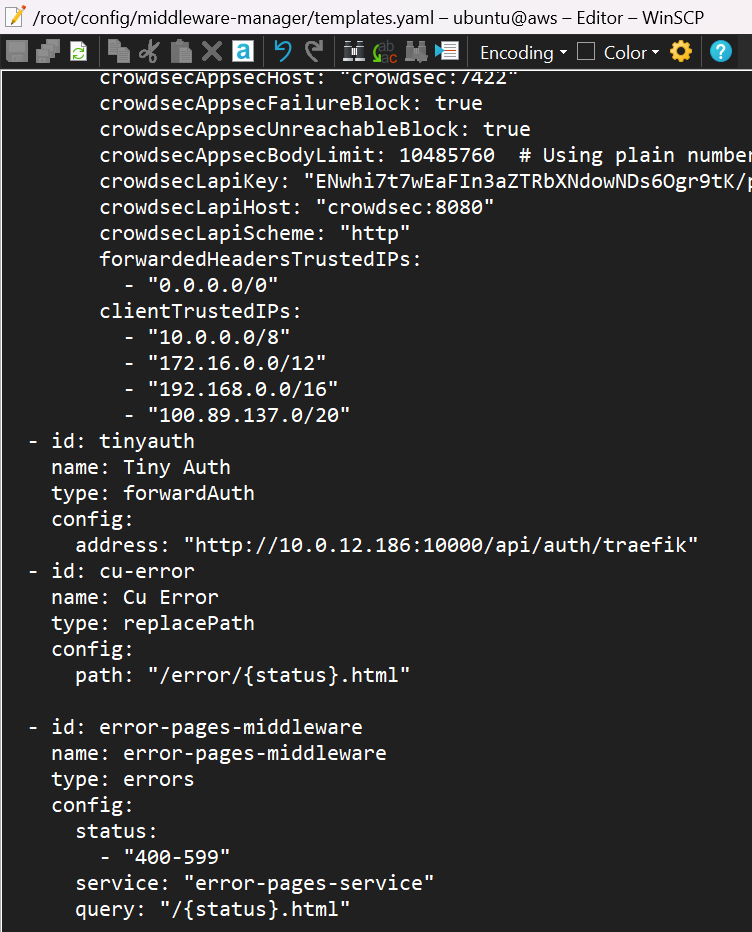
Place this file at ./config/middleware-manager/templates.yaml and ensure it’s mounted in your middleware-manager container as shown in your docker-compose.yml.
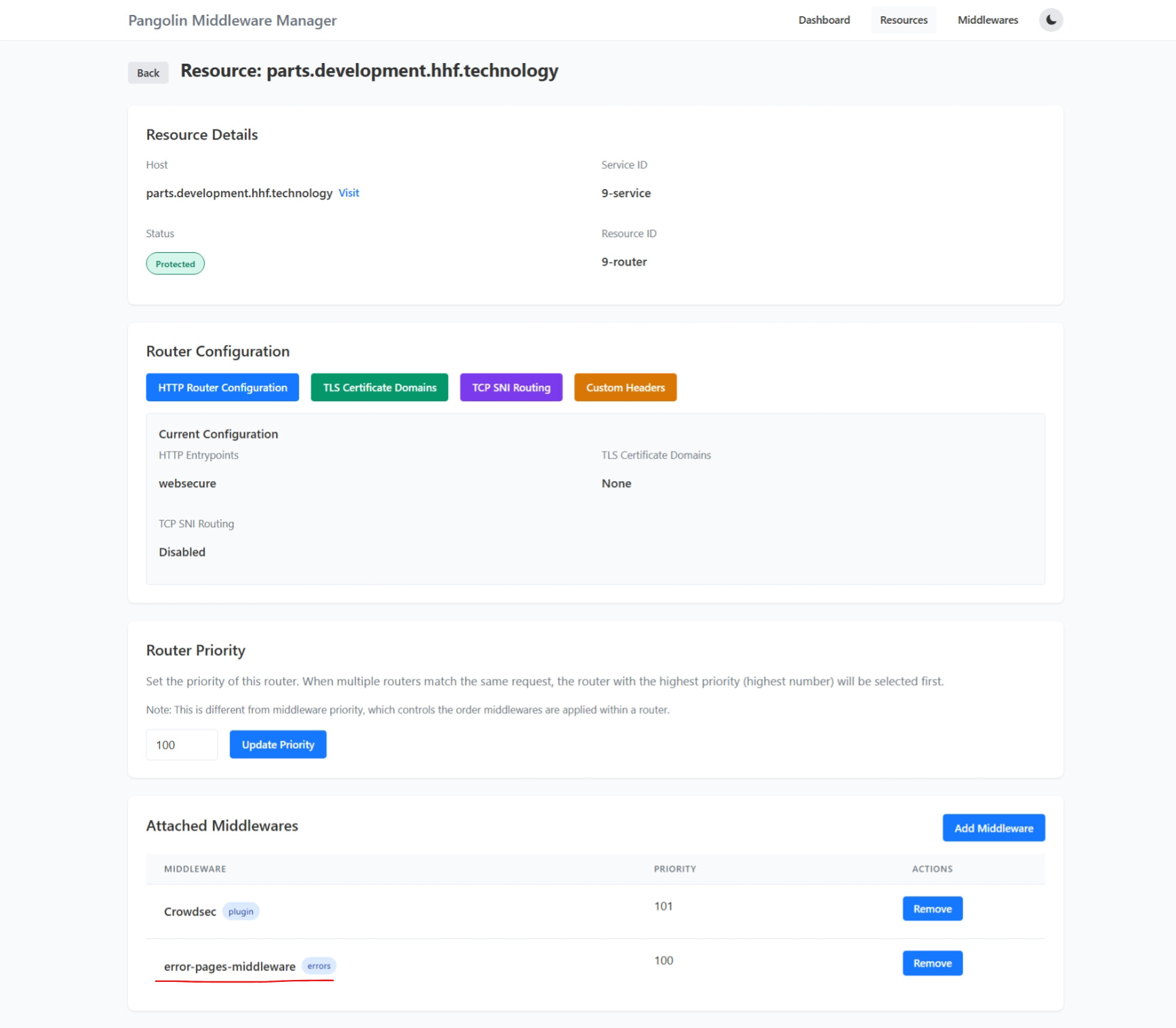
Step 4: Apply the Error Pages Middleware to Resources
Now you can apply the error pages middleware to your resources in two ways:
Option A: Apply to Individual Resources
- In the Middleware Manager UI, go to the “Resources” tab
- Click “Manage” next to the resource you want to protect
- Click “Add Middleware”
- Select “Error Pages Middleware” from the dropdown
- Set the priority (recommended: 100, lower numbers have higher priority)
- Click “Add Middleware”
Option B: Apply as a Global Fallback (Recommended)
To apply error pages to all resources, add a low-priority catch-all router in your Traefik dynamic configuration:
http:
  routers:
    error-pages-router:
      rule: "HostRegexp(`.+`)"  # Catches any host
      priority: 10              # Low priority, acts as a fallback
      entryPoints:
        - websecure             # For HTTPS
        - web                   # For HTTP
      middlewares:
        - error-pages-middleware@file
      service: error-pages-service
This creates a fallback router that will handle any request that results in an error status code.
Step 5: Test Your Error Pages
To test your error pages:
- Restart your Docker Compose stack to apply changes
- Try accessing a non-existent URL on your domain
- You should see the custom error page instead of the default browser error
For specific error codes, you can test with:
- 404: Access a non-existent URL
- 502: Temporarily stop a backend service
- 503: Configure rate limiting and exceed the limit
Advanced Customization
Using Different Templates
The error-pages container offers multiple templates. Change the TEMPLATE_NAME environment variable to try different designs:
ghost- Minimal ghost designshuffle- Colorful design with moving elementsnoise- Static design with noise patternconnection- Network connection themedhacker-terminal- Terminal style theme
Creating Custom Templates
For fully custom error pages:
- Create a custom template directory
- Mount it to the error-pages container:
error-pages:
  # ... other configuration
  volumes:
    - ./custom-error-pages:/app/templates/custom
  environment:
    TEMPLATE_NAME: custom
- Create HTML files named after status codes (e.g.,
404.html,500.html)
Customizing Error Page Content
You can customize the error page text by setting additional environment variables:
error-pages:
  # ... other configuration
  environment:
    TEMPLATE_NAME: connection
    ERROR_PAGES_TITLE: "Our Company - Error Occurred"
    ERROR_PAGES_BACK_URL: "https://www.example.com"
    ERROR_PAGES_BACK_TITLE: "Return to homepage"
Troubleshooting
- Error pages not showing: Check Traefik logs for routing issues
- Wrong error page content: Verify the correct template is selected
- Service unreachable: Ensure the error-pages container is running and healthy
By following this guide, you’ve successfully added custom error pages to your Pangolin resources, improving user experience when errors occur.
 .
.