When exposing services through Pangolin, adding a geographical access restriction layer can significantly enhance your security posture. This post will guide you through implementing country-based blocking for SSH and other services to protect your infrastructure against unauthorized access attempts from high-risk regions.
Why Implement Geo-Blocking?
Many attack attempts originate from specific geographic regions. By restricting access to only countries where legitimate users are located, you can dramatically reduce your attack surface. This is especially important for critical services like SSH that provide direct server access.
Implementation Options with Pangolin
There are several ways to implement geo-blocking with your Pangolin setup:
- TCP Wrappers method - A host-based approach that works at the system level
- Traefik middlewares - Integrates with your existing Traefik configuration
InDetailed Guide- Implementing GeoBlocking in Pangolin Stack with Traefik - Networking
Let’s explore each option, starting with the TCP Wrappers approach that can be used for SSH and other core system services.
Method 1: TCP Wrappers for SSH and FTP Services
Dont close the ssh session before through checks. please proceed if you know what you are doing and have basic knowledge to rescue your self
This method is perfect for protecting system services like SSH that might be exposed separately from your Pangolin-proxied services.
Step 1: Install GeoIP and GeoIP Database
First, install the GeoIP binary and database for your operating system:
For Debian/Ubuntu:
sudo apt-get update #imp to run before
sudo apt-get install geoip-bin geoip-database
For CentOS/RHEL:
sudo yum install GeoIP
Step 2: Create the IP Filtering Script
Create a new script at /usr/local/bin/ipfilter.sh:
#!/bin/bash

# Configure allowed countries (space-separated ISO country codes)
# Examples: US=United States, CA=Canada, GB=United Kingdom, etc.
ALLOW_COUNTRIES="US GB CA"
LOGDENY_FACILITY="authpriv.notice"

# Improved error handling and input validation
if [ $# -ne 1 ]; then
  echo "Usage: $(basename $0) <IP_ADDRESS>" 1>&2
  exit 0  # Return true to avoid blocking everything in case of misconfiguration
fi

IP="$1"

# Improved IPv4/IPv6 detection and validation
if [[ "$IP" =~ .*:.* ]]; then
  # IPv6 address
  if command -v geoiplookup6 >/dev/null 2>&1; then
    COUNTRY=$(/usr/bin/geoiplookup6 "$IP" | awk -F ": " '{ print $2 }' | awk -F "," '{ print $1 }' | head -n 1)
  else
    logger -p $LOGDENY_FACILITY "ALLOW sshd connection from $IP (IPv6 lookup not available)"
    exit 0
  fi
else
  # IPv4 address
  COUNTRY=$(/usr/bin/geoiplookup "$IP" | awk -F ": " '{ print $2 }' | awk -F "," '{ print $1 }' | head -n 1)
fi

# Log and apply decision
if [[ $COUNTRY = "IP Address not found" || $ALLOW_COUNTRIES =~ $COUNTRY ]]; then
  logger -p $LOGDENY_FACILITY "ALLOW connection from $IP ($COUNTRY)"
  exit 0
else
  logger -p $LOGDENY_FACILITY "DENY connection from $IP ($COUNTRY)"
  exit 1
fi
Make the script executable:
sudo chmod +x /usr/local/bin/ipfilter.sh
Step 3: Configure TCP Wrappers
Edit the /etc/hosts.deny file to deny all connections by default:
sudo nano /etc/hosts.deny
Add these lines:
sshd: ALL
vsftpd: ALL
Now edit /etc/hosts.allow to permit connections filtered by your script:
sudo nano /etc/hosts.allow
Add these lines:
sshd: ALL: spawn /usr/local/bin/ipfilter.sh %a
vsftpd: ALL: spawn /usr/local/bin/ipfilter.sh %a
Step 4: Test the Configuration
Test your SSH access from within an allowed country. Then check your logs to confirm the filtering is working:
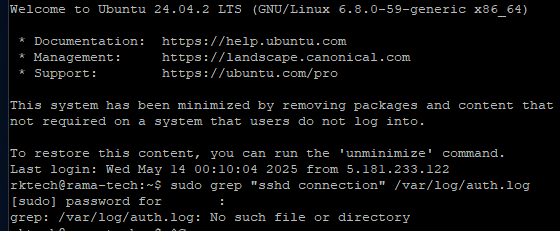
sudo grep "sshd connection" /var/log/auth.log
You should see entries like:
May 14 10:23:15 server logger: ALLOW sshd connection from 203.0.113.42 (US)
May 14 10:25:30 server logger: DENY sshd connection from 198.51.100.27 (RU)
Method 2: Geo-Blocking with Traefik and Pangolin
InDetailed Guide- Implementing GeoBlocking in Pangolin Stack with Traefik - Networking
Below is just a basic run down.
Since Pangolin uses Traefik as its reverse proxy, you can implement geo-blocking through a Traefik middleware. This approach works well for HTTP/HTTPS services.
Step 1: Create a Custom Middleware Configuration
Create a new file in your Traefik rules directory:
sudo nano ./config/traefik/dynamic_config.yml
Add the following content, adjusting the allowed countries list as needed:
http:
  middlewares:
    middlewares-geoblock:
      plugin:
        badger:
          allowedCountries:
            - "US" # United States
            - "CA" # Canada
            - "GB" # United Kingdom
          deny: true
          ipHeader: "X-Real-Ip"
Step 2: Apply the Middleware to Your Services
To apply this middleware to all services, add it to the https_entrypoint in your traefik_config.yml file:
entryPoints:
  websecure:
    address: ":443"
    http:
      middlewares:
        - middlewares-geoblock@file  # Add this line. it should go before crowdsec if you have
        - crowdsec@file
        - middlewares-compress@file
        - middlewares-secure-headers@file
Step 3: Restart Traefik
sudo docker compose restart traefik
Monitoring and Tuning Your Geo-Blocking Setup
Checking Logs for Blocked Attempts
For TCP wrappers method:
sudo grep DENY /var/log/auth.log
For CrowdSec:
sudo docker exec -it crowdsec cscli decisions list
Updating Allowed Countries
As your user base changes, you might need to update the allowed countries list:
- Edit
/usr/local/bin/ipfilter.shfor the TCP wrappers method - Edit the Traefik middleware configuration for the Traefik method
- Edit the CrowdSec collection for the CrowdSec method
Troubleshooting Common Issues
Issue: Legitimate Users Are Being Blocked
- Check your logs to identify the country from which they’re connecting
- Add the country code to your allowed countries list
- Restart the corresponding service
Issue: GeoIP Database Is Outdated
GeoIP databases need to be updated periodically as IP allocations change:
# For Debian/Ubuntu
sudo apt-get update
sudo apt-get install geoip-database-extra
Issue: False Positives with VPNs and Proxies
If users are connecting through VPNs or proxies, they might appear to be coming from different countries:
- Consider whitelisting specific IP addresses for these users instead of relying solely on geo-blocking
- Create exception rules for known VPN providers used by legitimate users
Conclusion
Implementing geo-blocking with Pangolin adds an extra layer of security to your infrastructure. By allowing connections only from countries where your legitimate users are located, you significantly reduce the attack surface for critical services like SSH and other exposed ports.
The methods described in this post can be used individually or combined for defense in depth. The TCP wrappers approach is ideal for system services like SSH, while the Traefik middleware and CrowdSec integration work better for web services proxied through Pangolin.
Remember to regularly update your GeoIP databases and monitor your logs to ensure your geo-blocking rules are working as expected while not inadvertently blocking legitimate users.