Table of Contents
Introduction
Docker is an incredible containerization platform, but over time, it can accumulate significant disk space through its overlay filesystem. This comprehensive guide presents an interactive bash script that safely cleans up Docker’s overlay folder issues while providing full visibility into every action taken.
Understanding the Docker Overlay Problem
What is the Overlay Filesystem?
The overlay filesystem is Docker’s storage driver that manages container layers. Each container and image layer is stored in /var/lib/docker/overlay2/, and over time, these can accumulate due to:
- Dangling images and containers
- Build cache accumulation
- Orphaned layers from interrupted operations
- Log file growth
- Temporary files that weren’t cleaned properly
Common Symptoms
- Disk space running out despite few running containers
/var/lib/docker/overlay2/consuming excessive space- Docker commands becoming slow
- System performance degradation
Prerequisites
Before using the cleanup script, ensure you have:
- Root access: The script requires sudo privileges
- Docker installed: Version 17.06 or higher recommended
- Backup of important data: The cleanup process is destructive
- Understanding of your Docker setup: Know which containers/images are critical
The Interactive Cleanup Script
The script provides a fully interactive CLI experience with:
- Color-coded output for clarity
- Step-by-step confirmations
- Detailed warnings before destructive actions
- Complete logging of all operations
- Real-time disk usage information
- Backup options for Docker metadata
Installation and Setup
1. Download the Script
# Download the script
curl -O https://raw.githubusercontent.com/hhftechnology/docker-overlay-cleanup/refs/heads/main/docker-overlay-cleanup.sh

# Or create it manually
nano docker-overlay-cleanup.sh
# Paste the script content
2. Make it Executable
chmod +x docker-overlay-cleanup.sh
3. Review the Script
# Always review scripts before running them
less docker-overlay-cleanup.sh
Usage Guide
Basic Usage
sudo ./docker-overlay-cleanup.sh
What to Expect
When you run the script, you’ll see:
- Initial System Check
=========================================
Docker System Information
=========================================
Docker Version:
  Client: 24.0.7
  Server: 24.0.7
Docker Root Directory: /var/lib/docker
Current Disk Usage:
  Filesystem: /dev/sda1
  Size: 100G
  Used: 85G
  Available: 15G
  Use%: 85%
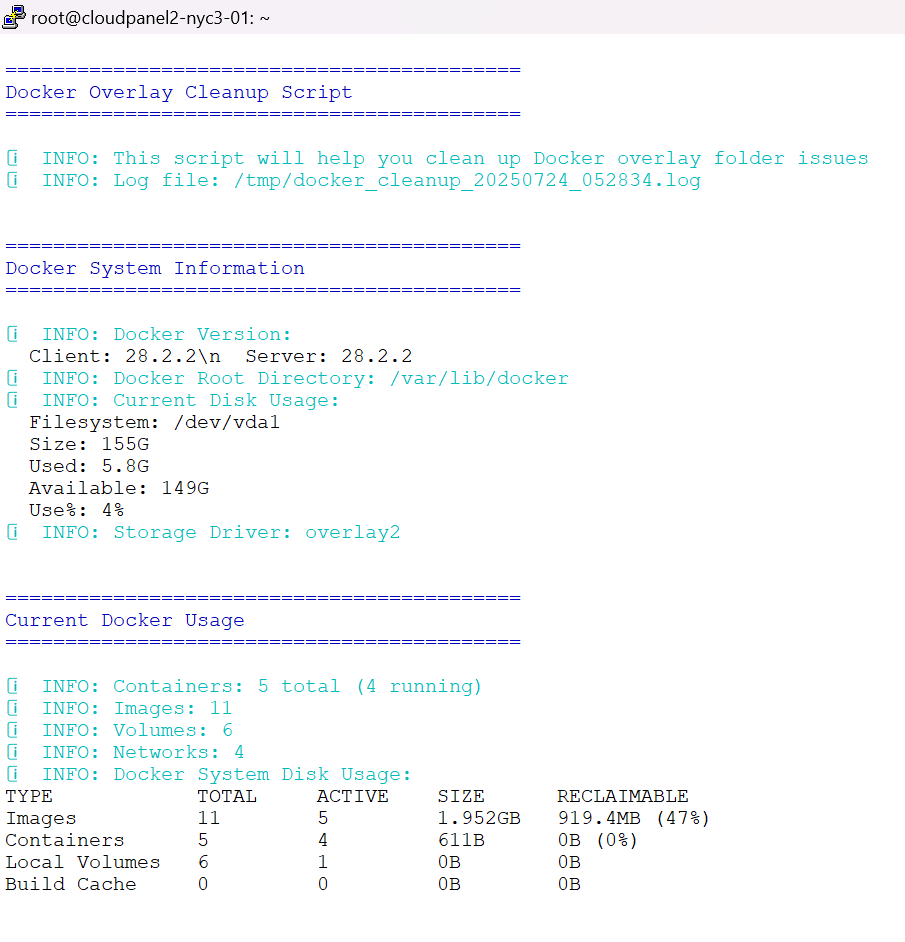
- Current Docker Usage Summary
- Number of containers (running and stopped)
- Number of images
- Number of volumes
- Detailed disk usage breakdown
- Space Calculation
- Size of overlay2 directory
- Size of other Docker directories
- Total space that can be freed
- Interactive Prompts Each major action requires confirmation:
⚠️ WARNING: This will remove ALL containers and images!
⚠️ WARNING: This action is IRREVERSIBLE!
Are you sure you want to remove all containers and images? [y/N]:
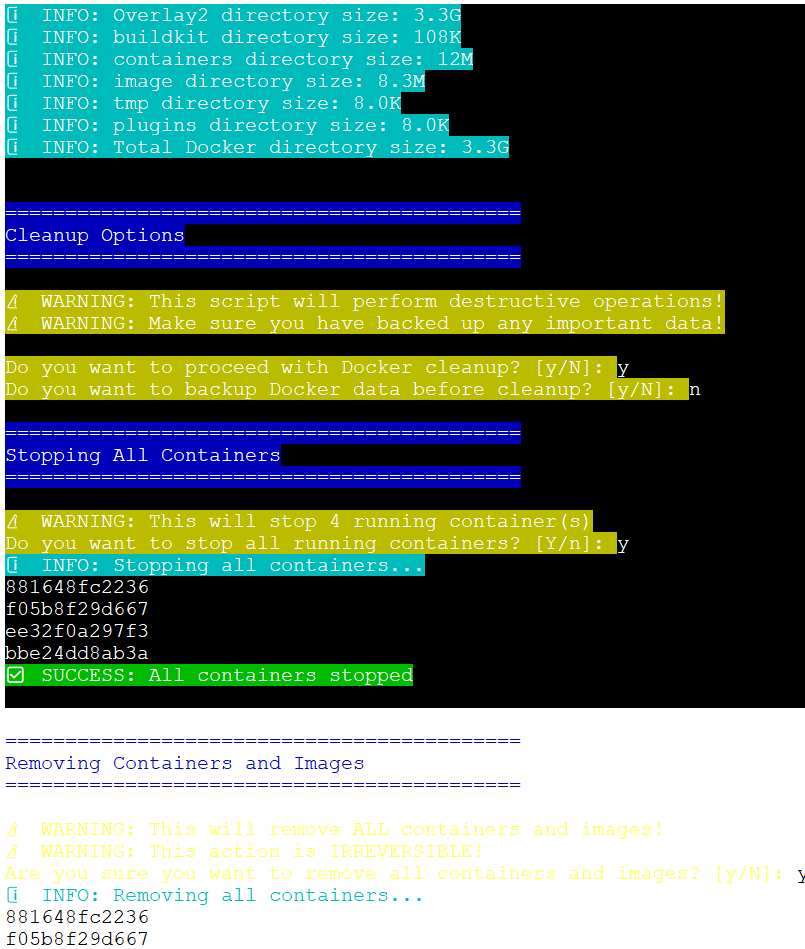
Step-by-Step Process
- Backup Option
- Exports list of containers, images, and volumes
- Saves to timestamped directory in
/tmp/
- Container Management
- Stops all running containers (with confirmation)
- Shows count of affected containers
- Container and Image Removal
- Removes all containers forcefully
- Removes all images
- Runs system prune
- Runs builder prune
- Directory Cleanup
- Stops Docker service
- Removes overlay2, buildkit, containers, image, tmp, and plugins directories
- Restarts Docker service
- Verification
- Checks Docker service status
- Verifies Docker daemon responsiveness
- Shows new disk usage
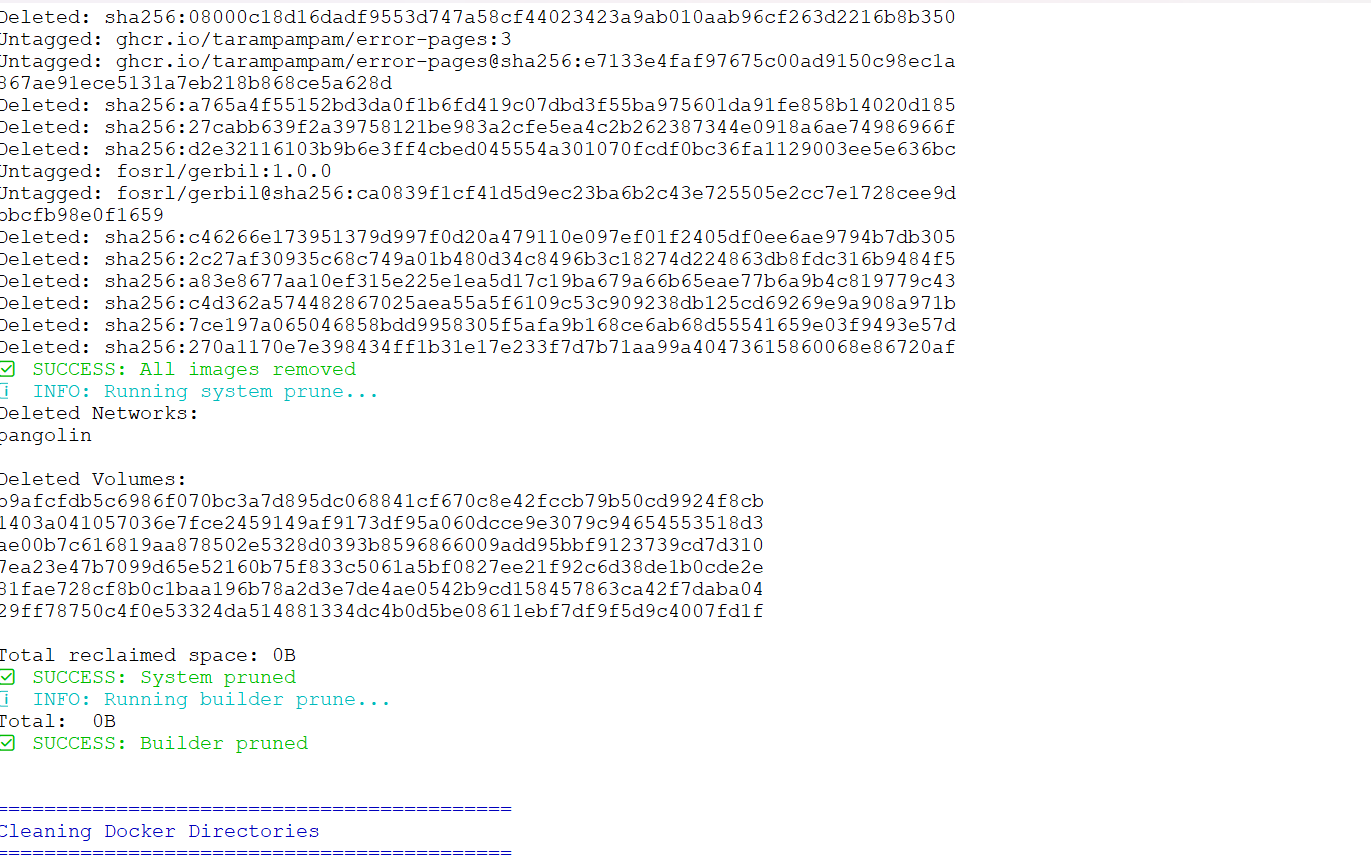

What the Script Does
Features in Detail
- Comprehensive Information Display
- Docker version and configuration
- Current disk usage statistics
- Container and image counts
- Storage driver information
- Safety Mechanisms
- Multiple confirmation prompts
- Escalating warnings for destructive actions
- Final confirmation for directory deletion
- Automatic logging of all actions
- Intelligent Cleanup
- Checks for existence of directories before removal
- Graceful handling of errors
- Service status verification
- Post-Cleanup Guidance
- Provides next steps for system recovery
- Suggests preventive measures
- Offers monitoring commands
Log File
All actions are logged to /tmp/docker_cleanup_YYYYMMDD_HHMMSS.log with timestamps:
[2024-01-15 10:30:45] Docker System Information
[2024-01-15 10:30:46] Containers: 15 total (3 running)
[2024-01-15 10:30:47] WARNING: This will remove ALL containers and images!
[2024-01-15 10:30:55] SUCCESS: All containers removed
Safety Features
1. Non-Destructive Information Gathering
The script first shows all information without making changes:
- Current Docker status
- Disk usage analysis
- Container and image inventory
2. Graduated Confirmation Levels
- Default “No” for dangerous operations
- Clear warning messages with emoji indicators
- Final confirmation for irreversible actions
3. Service Management
- Properly stops Docker before directory operations
- Waits for service to fully stop/start
- Verifies service health after operations
4. Error Handling
- Continues operation even if some steps fail
- Reports specific failures
- Provides recovery suggestions
Post-Cleanup Steps
After running the cleanup script:
1. Verify Docker Functionality
# Test basic Docker operation
docker run hello-world

# Check Docker info
docker info

# Monitor disk usage
docker system df
2. Restore Your Environment
Restore Containers
# Pull required images
docker pull nginx:latest
docker pull mysql:5.7

# Recreate containers (example)
docker run -d --name webserver -p 80:80 nginx
docker run -d --name database -e MYSQL_ROOT_PASSWORD=secret mysql:5.7
Restore from Docker Compose
# If using docker-compose
docker-compose up -d
3. Monitor System Health
# Check disk usage
df -h /var/lib/docker

# Monitor Docker events
docker events

# Check system logs
journalctl -u docker -f
Preventive Measures
1. Regular Maintenance
Create a maintenance script:
#!/bin/bash
# docker-maintenance.sh

# Remove stopped containers
docker container prune -f

# Remove unused images
docker image prune -a -f

# Remove unused volumes
docker volume prune -f

# Remove build cache
docker builder prune -f

# Show disk usage
docker system df
Schedule with cron:
# Add to crontab
0 2 * * 0 /path/to/docker-maintenance.sh
2. Configure Docker Logging
Limit container log size in /etc/docker/daemon.json:
{
  "log-driver": "json-file",
  "log-opts": {
    "max-size": "10m",
    "max-file": "3"
  }
}
3. Use Docker System Prune
Regular cleanup command:
# Clean up everything unused
docker system prune -a --volumes

# With filter for age
docker image prune -a --filter "until=24h"
4. Monitor Disk Usage
Set up alerts:
# Simple disk usage alert script
#!/bin/bash
THRESHOLD=80
USAGE=$(df /var/lib/docker | tail -1 | awk '{print $5}' | sed 's/%//')

if [ $USAGE -gt $THRESHOLD ]; then
    echo "Docker disk usage is at ${USAGE}%" | mail -s "Docker Disk Alert" admin@example.com
fi
Troubleshooting
Common Issues and Solutions
1. Docker Won’t Start After Cleanup
# Check Docker logs
journalctl -xe -u docker

# Recreate Docker directories
sudo mkdir -p /var/lib/docker/{overlay2,containers,image,tmp}

# Restart Docker
sudo systemctl restart docker
2. Permission Denied Errors
# Ensure running as root
sudo -i

# Check Docker socket permissions
ls -la /var/run/docker.sock
3. Disk Still Full After Cleanup
# Check for other large directories
du -sh /var/lib/docker/*

# Check system logs
du -sh /var/log/*

# Find large files
find /var/lib/docker -type f -size +100M
4. Containers Won’t Start
# Check Docker daemon status
docker info

# Inspect specific errors
docker logs container_name

# Reset Docker to factory defaults (last resort)
sudo rm -rf /var/lib/docker
sudo systemctl restart docker
Advanced Options
Custom Docker Root Directory
If Docker uses a non-standard directory:
# Find Docker root
docker info | grep "Docker Root Dir"

# Modify script variable
DOCKER_ROOT="/custom/docker/path"
Selective Cleanup
For partial cleanup, comment out sections in the script:
# Skip image removal
#remove_containers_images

# Skip directory cleanup
#clean_overlay_directory
Dry Run Mode
Add a dry-run option to the script:
DRY_RUN=${1:-false}

if [ "$DRY_RUN" = "--dry-run" ]; then
    print_info "DRY RUN MODE: No changes will be made"
    # Add conditions to skip actual removal commands
fi
Best Practices
- Always Backup First
- Export important container configurations
- Save Dockerfiles and docker-compose.yml files
- Document custom settings
- Plan Cleanup During Maintenance Windows
- Notify team members
- Ensure no critical processes are running
- Have rollback plan ready
- Document Your Setup
- Keep inventory of required images
- Document container run commands
- Maintain infrastructure as code
- Test in Development First
- Run cleanup script in dev environment
- Verify restoration procedures
- Document any issues encountered
Conclusion
Docker overlay folder issues can be frustrating, but with this interactive cleanup script, you have a safe and comprehensive tool to reclaim disk space. The script’s safety features, detailed logging, and interactive prompts ensure you maintain control throughout the cleanup process.
Remember that while this script solves immediate space issues, implementing preventive measures is crucial for long-term Docker health. Regular maintenance, proper logging configuration, and monitoring will help prevent future overlay folder problems.
Key Takeaways
- Always backup before performing cleanup operations
- Understand the impact of removing Docker data
- Use the interactive features to make informed decisions
- Implement preventive measures to avoid future issues
- Monitor regularly to catch problems early
By following this guide and using the provided script responsibly, you can maintain a healthy Docker environment while avoiding the common pitfalls of overlay filesystem growth.
Have questions or improvements for this script? Feel free to contribute or reach out in the comments below!