The Pangolin Integration API allows DevOps teams to script, automate, and integrate Pangolin functionality using a secure, permission-scoped REST interface. In this guide, we’ll walk through:
- How to enable the Pangolin API
- How to create scoped API keys
- A simple, real-world example using an AI agent (Google ADK) to detect internal resources that are not protected by SSO (a classic “Shadow-IT” scenario)
This keeps the focus on API activation and usage — the agent merely demonstrates what becomes possible once the API is available.

Part 1 — Enabling the Pangolin Integration API
By default, the Integration API is disabled in Community Edition.
To activate it, edit your main config file:
config.yml
Enable the API:
flags:
  enable_integration_api: true
If you’d like it to run on a different port (defaults to 3003):
server:
  integration_port: 3003
Expose the API Through Traefik
In your config/traefik/dynamic_config.yml or config/traefik/rules/dynamic_config.yml, add:
routers:
  int-api-router-redirect:
    rule: "Host(`api.example.com`)"
    service: int-api-service
    entryPoints:
      - web
    middlewares:
      - redirect-to-https

  int-api-router:
    rule: "Host(`api.example.com`)"
    service: int-api-service
    entryPoints:
      - websecure
    tls:
      certResolver: letsencrypt

services:
  int-api-service:
    loadBalancer:
      servers:
        - url: "http://pangolin:3003"
Note: replace example.com with your domain.
After you restart Traefik docker restart traefik, your Integration API will be reachable at:
https://api.example.com/v1
Swagger documentation becomes available at:
https://api.example.com/v1/docs
Note: replace example.com with your domain.
Part 2 — Creating API Keys
Pangolin supports two types of API keys:
1. Organization API Keys
Scoped to a single organization
Can only operate on resources belonging to that org
2. Root API Keys (self-hosted only)
Server-level permissions
Can operate across all organizations
Should be handled carefully
We will use Root API keys for this example (not this is not production ready!)
How to Create a Key
- Navigate to the appropriate location:
- Organization → API Keys
- Click Create API Key
- Give it a descriptive name (testkey)
- Select the permissions it needs - we will just use
List OrganizationsandList Resources
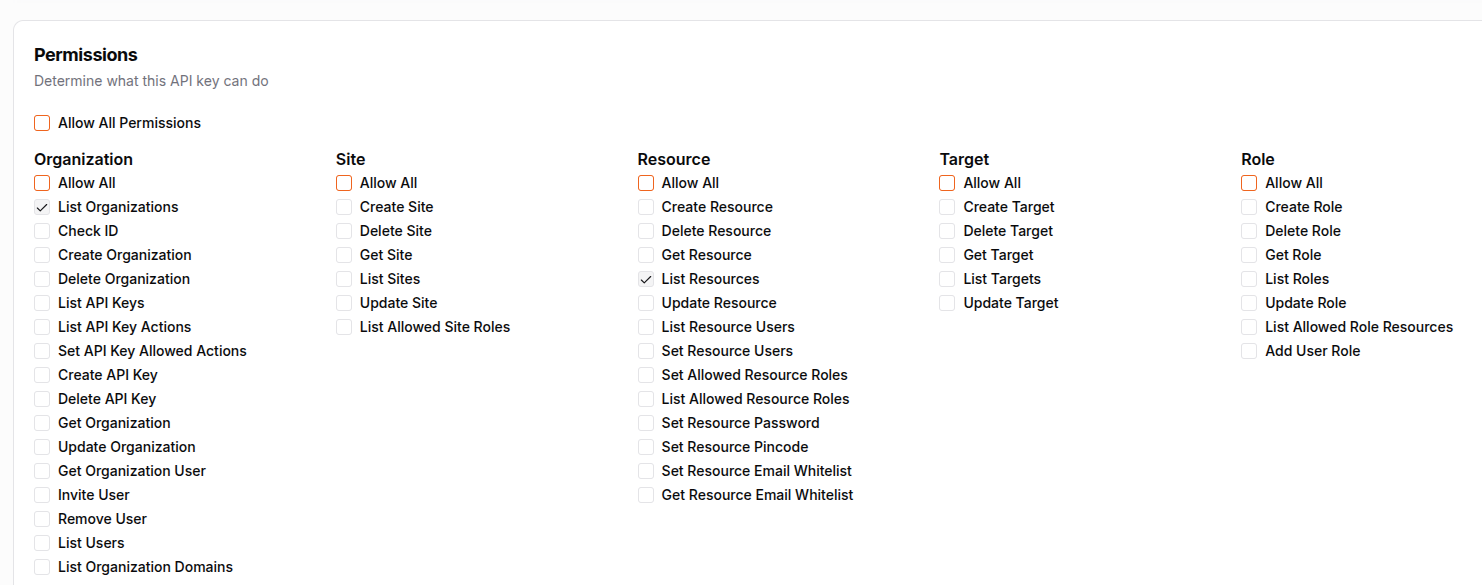
The generated key will only be shown once — keep it safe.
Part 3 — Testing the API
A simple test:
curl -H "Authorization: Bearer YOUR_KEY" \
  https://api.example.com/v1/orgs
If the API is enabled and your key is valid, you will receive a JSON list of organizations.
Part 4 — A Simple Real-World Demo:
Building a “Shadow-IT Detector” Agent
Once the Integration API is enabled, you can build automation on top of it — including AI-powered audits.
In this example, we create a Shadow-IT Detector that answers:
“Scan organization X and list any resources where SSO is disabled.”
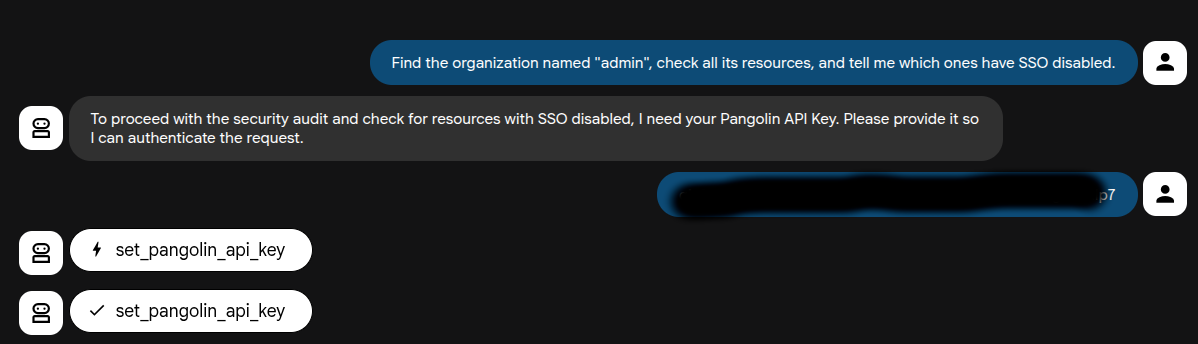
This is a common compliance requirement and a perfect beginner use-case.
The agent only uses read-only API endpoints:
GET /orgs— find the organization IDGET /org/{orgId}/resources— enumerate resources and check thessofield
The agent does not retrieve user access lists, because that endpoint is not available — so the audit focuses solely on “Which resources are unprotected?”
Step 1 — Create a Starter Agent in Google Cloud
Log into Cloud Console:
https://console.cloud.google.com/
Open Cloud Shell and run:
uvx agent-starter-pack create shadow-it-detector-agent
Choose:
1 → ADK base agent
2 → Cloud Run
1 → In-memory session
3 → Skip CI/CD
Region → default (us-central1)
Then install and launch the playground:
cd shadow-it-detector-agent
make install
make playground
you will then see the message
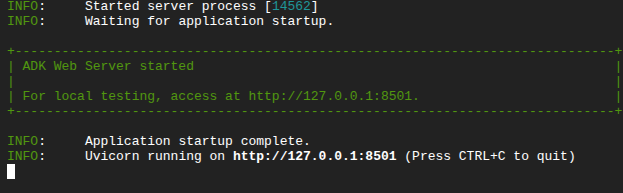
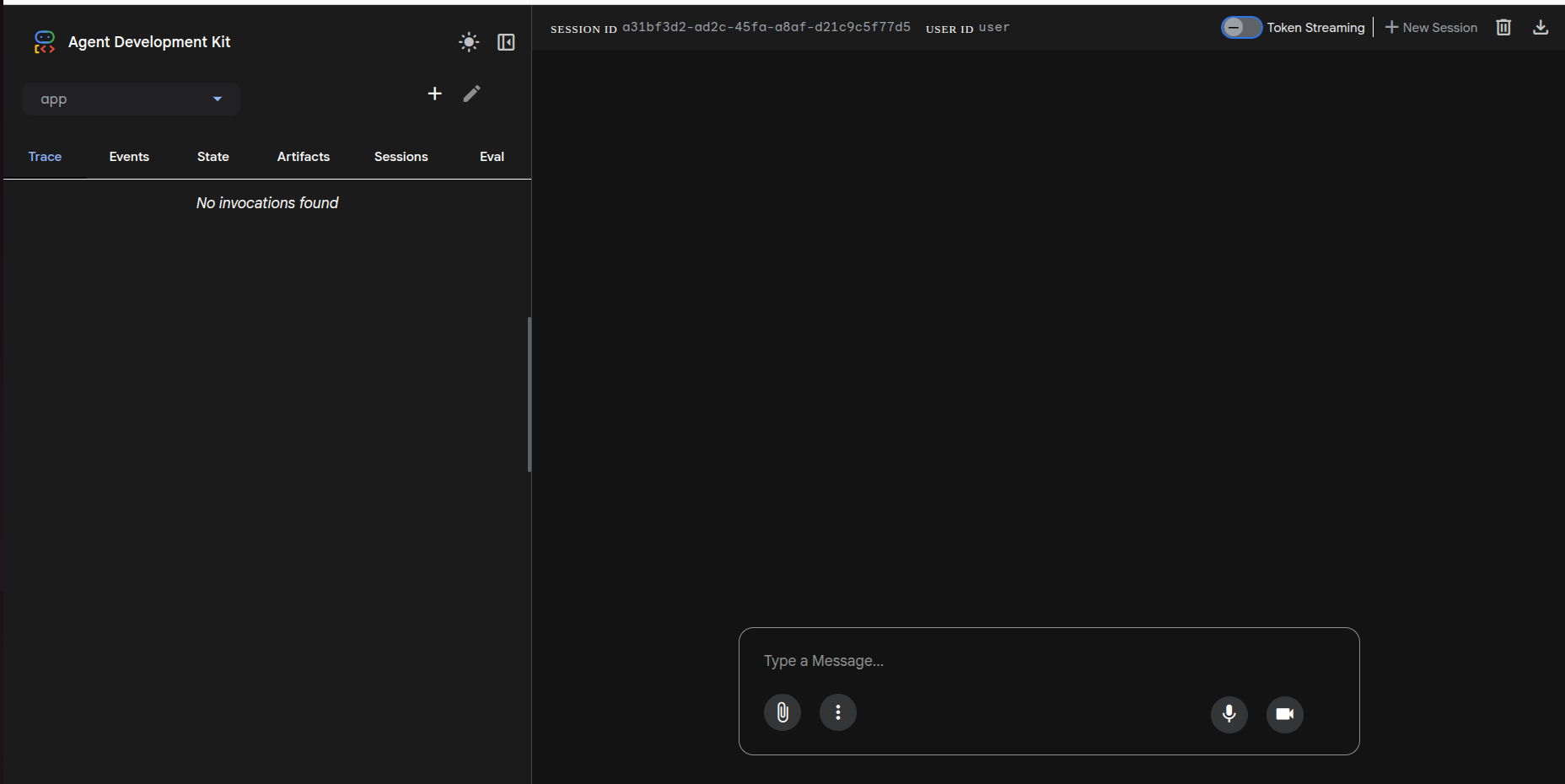
Step 2 — Add Pangolin API Tools
Click on the “Open Editor Button”
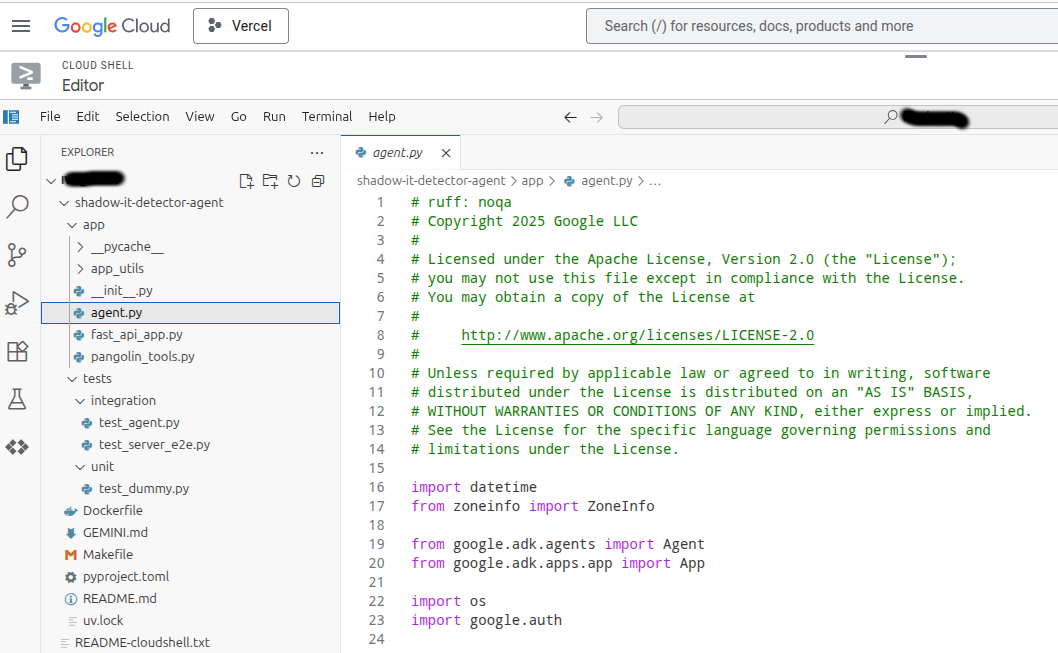
Create a file in the same folder as agent.py:
pangolin_tools.py
Paste in the following code:
import os
import requests
from typing import List, Dict, Any

# Global variable to store the key provided during the chat session
_PANGOLIN_API_KEY_HOLDER = None

# Base URL for the API
API_BASE = "https://api.example.com/v1"

def set_pangolin_api_key(api_key: str) -> str:
    """Stores the Pangolin API Key provided by the user in the current session.
    The Agent should use this tool immediately after the user provides the key.

    Args:
        api_key: The Bearer token (key) to use for API authentication.

    Returns:
        A confirmation message.
    """
    global _PANGOLIN_API_KEY_HOLDER
    _PANGOLIN_API_KEY_HOLDER = api_key
    return "Pangolin API Key successfully stored for this session. You can now proceed with your audit request."


def _get_headers() -> Dict[str, str]:
    """Retrieves the API key from environment variables OR the session holder."""
    global _PANGOLIN_API_KEY_HOLDER

    # 1. Check the session holder (key provided by user during chat)
    api_key = _PANGOLIN_API_KEY_HOLDER

    # 2. If not in the holder, check environment variables (key provided at startup)
    if not api_key:
        api_key = os.environ.get("PANGOLIN_API_KEY")

    if not api_key:
        # Raise ValueError if key is missing from both places
        raise ValueError("Please provide your Pangolin API Key so I can authenticate using the 'set_pangolin_api_key' tool.")

    return {
        "Authorization": f"Bearer {api_key}",
        "Content-Type": "application/json"
    }

# Keep the rest of your functions (list_organizations, list_organization_resources) the same...

def list_organizations() -> str:
    # ... (same implementation) ...
    try:
        response = requests.get(f"{API_BASE}/orgs", headers=_get_headers())
        response.raise_for_status()
        return str(response.json())
    except Exception as e:
        return f"Error fetching organizations: {e}"

def list_organization_resources(org_id: str) -> str:
    # ... (same implementation) ...
    try:
        response = requests.get(f"{API_BASE}/org/{org_id}/resources", headers=_get_headers())
        response.raise_for_status()
        return str(response.json())
    except Exception as e:
        return f"Error fetching resources for org {org_id}: {e}"
Note: replace example.com with your domain.
Step 3 — Update the Agent
In agent.py, import your tools:
from .pangolin_tools import list_organizations, list_organization_resources, set_pangolin_api_key
Replace the root_agent with this:
# --- UPDATED AGENT DEFINITION ---
root_agent = Agent(
    name="root_agent",
    model="gemini-3-pro-preview",
    instruction=(
        "You are a helpful AI assistant. "
        "If asked about Pangolin audit or security, ask the user for their API Key first "
        "If the user provides an API key, use the `set_pangolin_api_key` tool immediately to store it. "
        "Use the provided tools to audit organizations for resources with SSO disabled."
        "First check the names of all the organizations and then look for resources in each organization that have SSO disabled."
    ),
    tools=[
        get_weather,
        get_current_time,
        # Add the new tools here
        list_organizations,
        list_organization_resources,
        set_pangolin_api_key
    ],
)
Step 4 — Run the Audit
Open the Playground UI and ask:
Find the organization named "admin", check all its resources, and tell me which ones have SSO disabled.
A correct working output looks like:
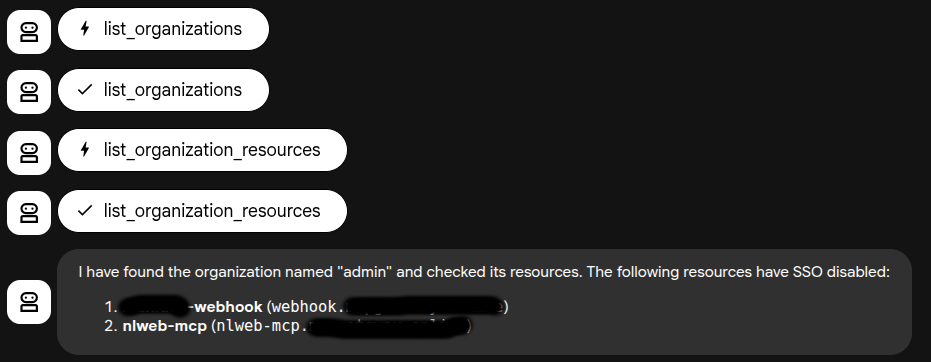
Here are the resources in the "admin" organization where SSO is disabled:

1. XXXXXX-webhook
   Domain: webhook.example.com
   Status: SSO disabled (resource is publicly accessible)

2. nlweb-mcp
   Domain: nlweb-mcp.example.com
   Status: SSO disabled (resource is publicly accessible)
This confirms the Integration API is working, your agent is authenticated, and the audit flow is functioning.
Step 5 — Clean Up
Finally - since we were only experimenting - you should go back into Pangolin and delete your api key since you provided it to an LLM in our testing.
What This Demonstrates
This article shows two simple things:
1. How to enable and authenticate the Pangolin Integration API
A required first step for DevOps automation.
2. How to use the API in a realistic scenario (with an AI Agent)
A simple but powerful compliance audit that:
- Safely uses only GET requests
- Cannot break production
- Automatically identifies misconfigured resources
The AI agent example is intentionally lightweight — just enough to show how automation becomes possible once the API is turned on. With some imagination and creativity you can start to imagine how you could build an AI agent to help you.