Adding Multiple Domains to Your Pangolin Stack
This is a new feature that allows you to manage resources across different domains from a single Pangolin instance.
Method 1: Using the Automated Script (Recommended)
For easier domain management, you can use this automated script that handles all the formatting and placement issues for you.
Step 1: Download the Domain Management Script
https://asciinema.org/a/GtaSZrbPsQb096LexZQbvgCfL
- Download a new file called
add_domain.shin your Pangolin installation directory:
curl -o add_domain.sh https://gist.githubusercontent.com/hhftechnology/40627e4c5054e7846555cb5379ea46cf/raw/73f01dd48f7c450fc72d881f730e2aa66aeec860/add_domain.sh
- Make the script executable:
chmod +x add_domain.sh
Step 2: Using the Script to Add Domains
The script provides a simple command-line interface to add domains to your Pangolin configuration. Here’s how to use it:
- To add a domain with the default Let’s Encrypt certificate resolver:
./add_domain.sh example.com
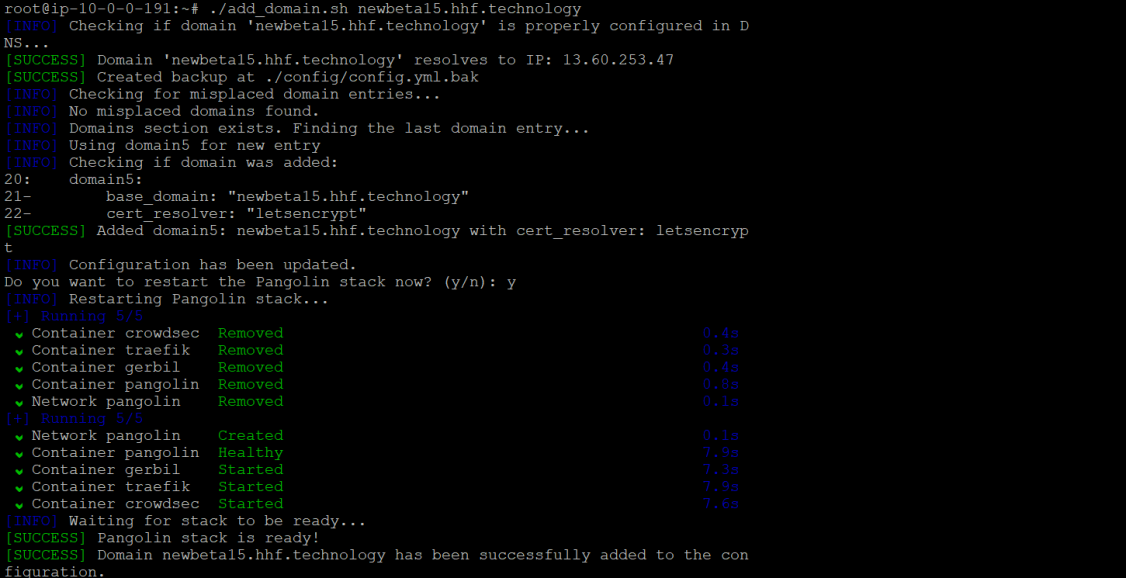
with proper ip propagated
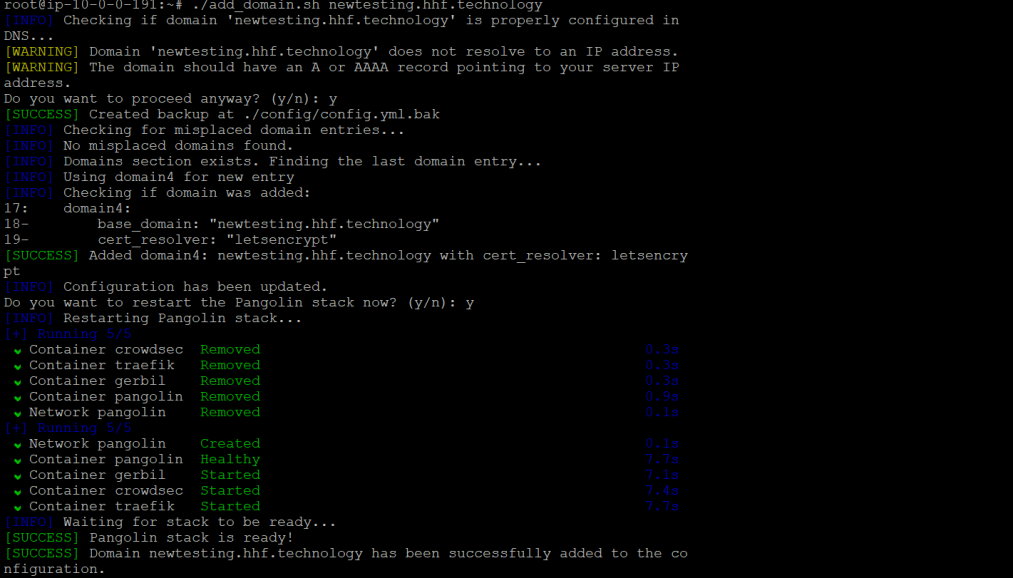
with ip not propagated
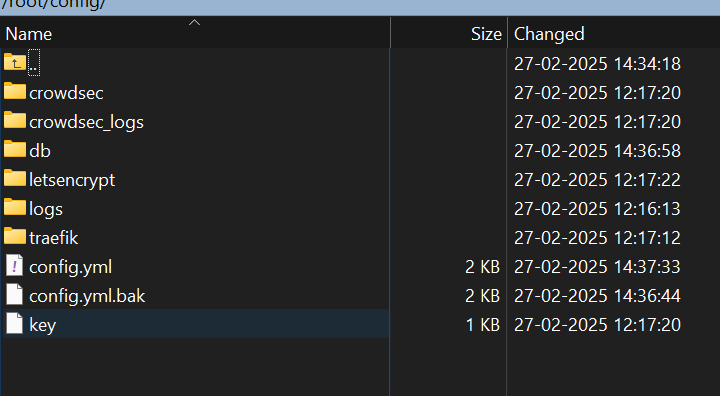
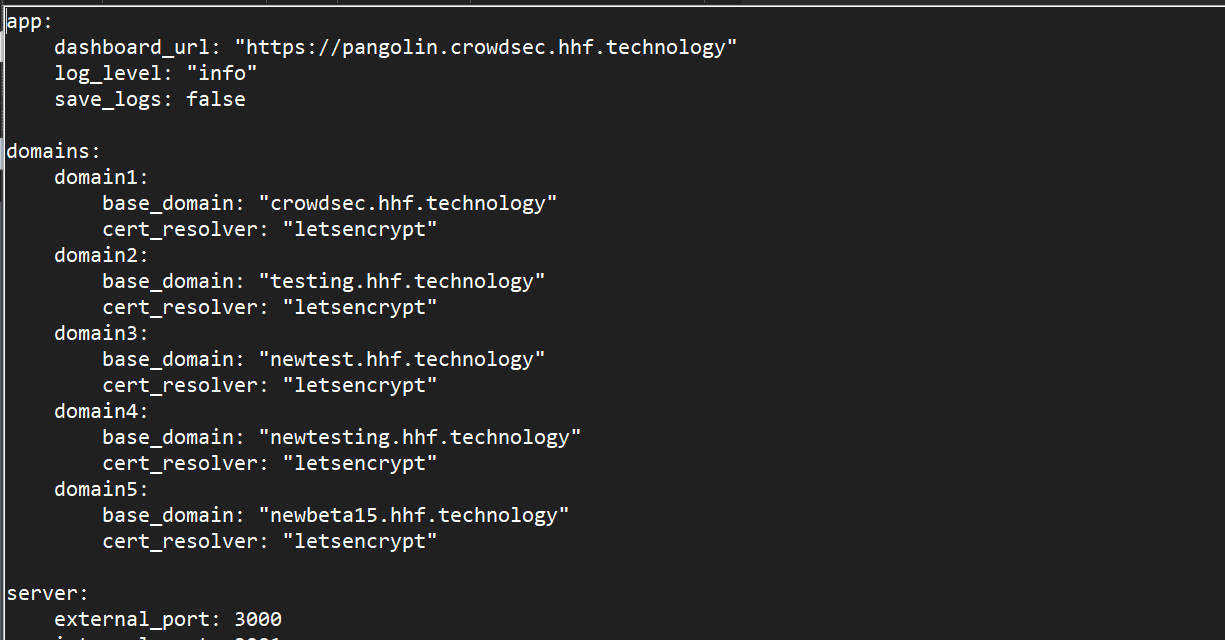
-
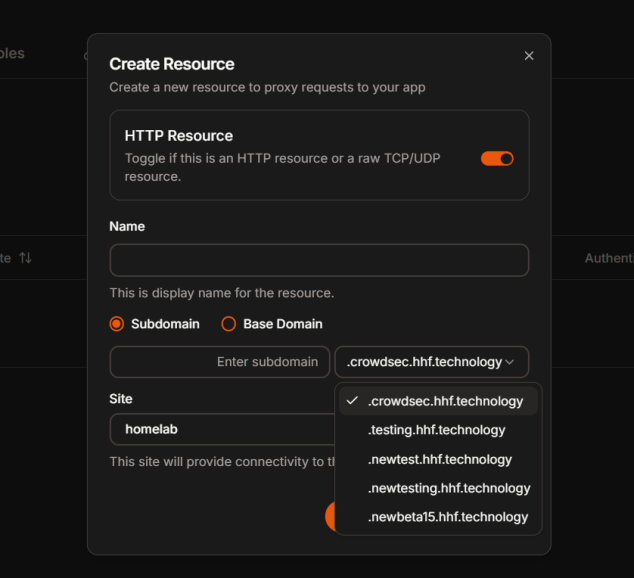
Once the stack is restated automatically with the script you can refresh your UI and you will see the domains in the UI.
- To add a domain with a specific certificate resolver (dont use this unless you know what you are doing):
./add_domain.sh example.com customresolver
The script will:
- Validate the domain format
- Check if the domain is properly configured in DNS (and warn you if not)
- Add the domain to the correct section in the configuration file
- Automatically fix any misplaced domain entries (with your permission)
- Offer to restart the Pangolin stack for you
Script Benefits
The script provides several advantages over manual editing:
- DNS Validation: Warns you if your domain doesn’t resolve to an IP address
- Automated Backup: Creates a backup of your config file before making changes
- Proper Formatting: Ensures proper YAML indentation and structure
- Smart Placement: Adds domains in the correct location in the config file
- Error Handling: Detects and fixes common configuration errors
- Stack Restart: Optionally restarts your stack with progress monitoring
Step 3: Ensure DNS Records are Configured
For each domain you add, make sure you have appropriate DNS records pointing to your Pangolin server:
- Create A records for both base domains pointing to your server’s IP address
- If you’re using wildcard subdomains, create wildcard DNS records (*.your-domain.com) for each domain
Step 4: Creating Resources on Different Domains
Now you can create resources on different domains through the Pangolin UI:
- Go to the Resources tab and click “Add Resource”
- When creating a new resource, you’ll see a dropdown allowing you to select which domain to use
- Enter the subdomain name and select the appropriate base domain
- Complete the resource creation process as usual
Verification
After creating resources on different domains, verify that:
- SSL certificates are being issued correctly for each domain
- Your resources are accessible via their respective domains
- Authentication and access control work properly across all domains
Method 2: Manually Edit the Configuration File
Step 1: Edit the Pangolin Configuration File
First, you’ll need to edit the config.yml file located in your Pangolin configuration directory (usually at ./config/config.yml).
-
Access your server and navigate to the Pangolin installation directory
-
Open the config file for editing:
nano ./config/config.yml -
Look for the
appsection and ensure your main dashboard URL is configured correctly -
Add a new
domainssection (if it doesn’t exist) with entries for each domain:
domains:
  domain1:
    base_domain: "your-primary-domain.com"
    cert_resolver: "letsencrypt"
  domain2:
    base_domain: "your-secondary-domain.com"
    cert_resolver: "letsencrypt"
For example, your config might look similar to this:
app:
  dashboard_url: "https://pangolin.your-primary-domain.com"
  base_domain: "your-primary-domain.com"
  log_level: "info"
  save_logs: false

domains:
  domain1:
    base_domain: "your-primary-domain.com"
    cert_resolver: "letsencrypt"
  domain2:
    base_domain: "your-secondary-domain.com"
    cert_resolver: "letsencrypt"
Remember to restart your stack after making configuration changes to ensure they take effect! on manual changes.
If you encounter any issues, check the Traefik and Pangolin logs for specific error messages.
Common Issues and Troubleshooting
- SSL Certificate Errors: If certificates aren’t being issued, check that your DNS is properly configured and that ports 80 and 443 are open
- Domain Not in Dropdown: If a domain doesn’t appear in the UI dropdown, restart the Pangolin stack after adding domains
- Misplaced Domains: If domains appear in the wrong sections in your config, use the script to fix them automatically
Notes
- Each domain will need its own SSL certificate, which will be handled automatically by Traefik and Let’s Encrypt
- Consider using wildcard certificates if you have many subdomains for each base domain
- Make sure all required ports (80, 443, 51820) are open in your firewall for each domain
- The script automatically backs up your config file to
./config/config.yml.bakbefore making changes
